What is Futurity?
A plain-language map of every area you'll see in the product, and what each one is for.
Futurity puts your organization's work — files, data, and written knowledge — in one place, with an assistant that can reach all of it. Ask a question and the answer is built from your own documents and systems, with each piece traced back to where it came from. Hand over a longer task and it opens the files, runs the code, and shows you each step; work you'd otherwise repeat can run on a schedule instead.
The icons down the left edge of every page are the areas of the product. Hover one and its name appears. Most people see seven; if you administer the organization, an eighth sits at the bottom. This page walks through all eight.
Two more parts have no icon of their own, because you reach them from inside a conversation: the Desktop, where Corint runs things, and integrations, the outside accounts it can use. Both have their own section in these docs, so the sidebar here and the icons in the product do not line up one for one.
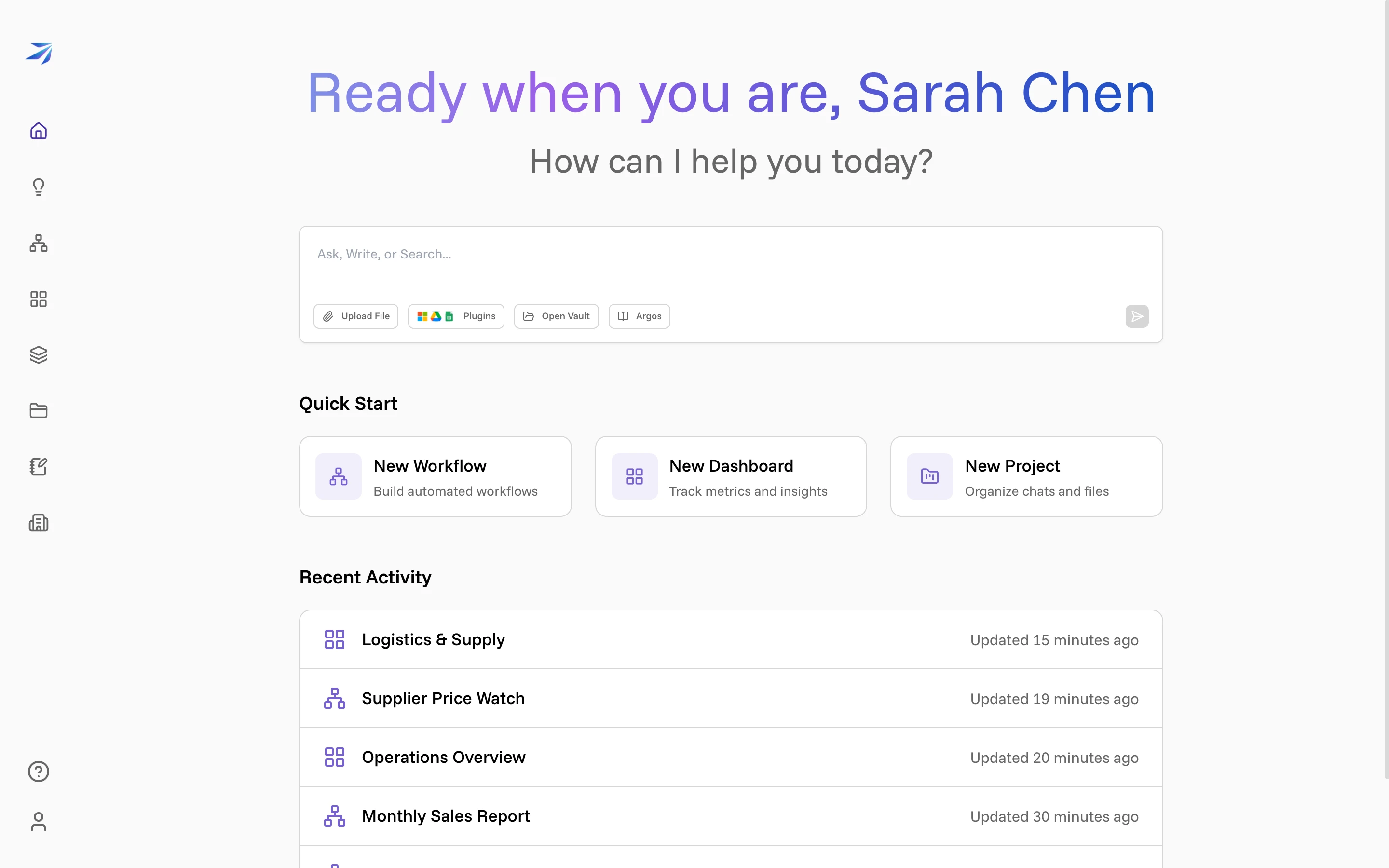
Home
Home is the page you land on after signing in, and it is deliberately close to empty: a greeting, one big box asking How can I help you today?, and a send button. Type into it and you are in a conversation with Corint.
Underneath, Quick Start offers the three things people most often want to create (New Workflow, New Dashboard, New Project), and Recent Activity lists what you and your teammates touched last, so you can pick up yesterday's work without hunting for it.
Corint
Corint is the assistant, and the part of Futurity you will use most. It reads files from your Vault, queries connected systems, searches the web, drives a real browser, writes and runs code, and produces documents you can send.
A new conversation opens with a few example prompts. The box at the bottom takes typed questions, and the buttons on it (Upload File, Plugins, Open Vault, Argos) decide what the answer is allowed to draw from.
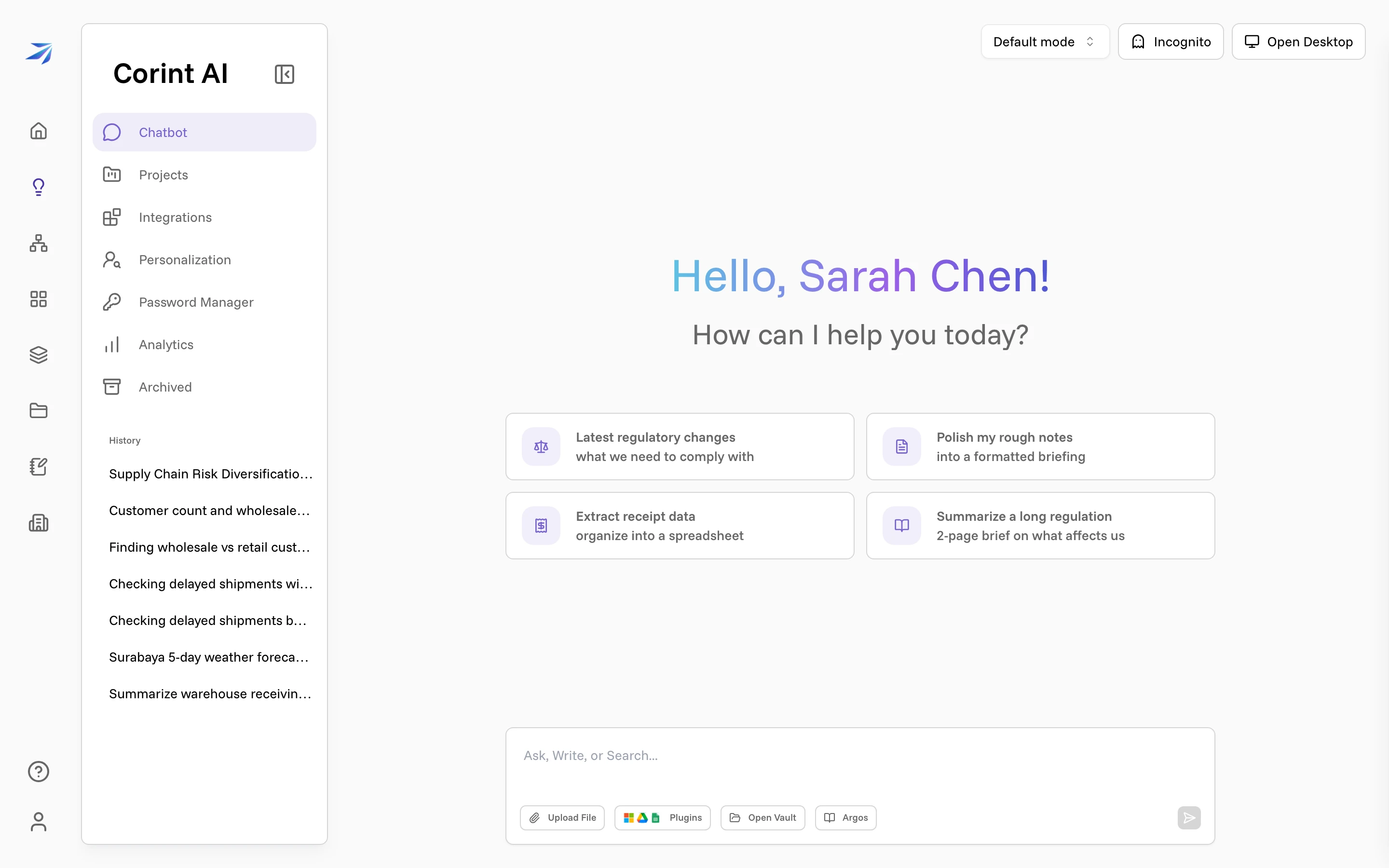
Along the top of a chat: a tool permission mode that governs what Corint may do without asking you first, an Incognito button for conversations that should not be kept, and Open Desktop, which reveals the sandbox computer the assistant uses to run things.
Corint on WhatsApp links your phone number, so you can message the same assistant from the app you already have open.
Workflows
A workflow is a set of steps that run in order: some done by an agent, some handed to a person for approval or input. A chat runs only while you are in it; a workflow can run on a schedule, or whenever someone presses the button, with no one watching.
The Workflows page lists what your organization has built, with each one's type, last run, duration and status. A recurring job like a weekly report lives here, so nobody has to rebuild it by hand each time.
Dashboards
A dashboard is a page of widgets, and a widget is a question you asked once. You describe what you want to see, an agent goes and gets the numbers, and the widget keeps showing them: a total, a table, a trend line, a map.
Start from a template (Business Overview, Sales Pipeline, Financial Summary and others) or from scratch, and share the result with the people who keep asking you for it.
Atlas
Atlas is how your databases and business systems become something anyone can ask questions about. You connect a source (PostgreSQL, Snowflake, BigQuery, Salesforce, a spreadsheet, an ERP), and Atlas reads its schema, names the things it finds, and works out how they relate.
What comes out is a shared vocabulary: customers, orders, shipments. Questions are answered from the real data, or refused honestly when the data cannot support an answer. Atlas is enabled per organization, so it may not be switched on for yours.
Vault
The Vault is your organization's file storage, and it is also what Corint reads from when you ask about "the price list" or "last quarter's report". Folders, stars, colors, sharing and a 30-day trash all work the way you expect.
The difference from an ordinary drive is on the other side: files you put here are files the assistant can find, open, and work with by name or description.
Argos
Argos is the team wiki: spaces, pages, and a block editor several people can type in at once. Runbooks, decisions, onboarding notes, the explanation someone gives verbally every three weeks.
Corint can answer from it: attach Argos to a conversation and answers come from your organization's own written knowledge instead of the general internet. Like Atlas, Argos is enabled per organization.
Org
The last icon appears only if you administer the organization. Org covers the people and the rules: the employee list, invitations for new teammates, teams, roles and permissions, and the organization-wide limits on what the assistant may do on your members' behalf.
Members never see this area. If it isn't in your sidebar, someone else at your company holds it.
Help while you work
Setup and permission screens can link directly to the relevant guide. Look in the description in organization connection setup, Tool Permissions, Atlas Permissions, or two-factor authentication settings. The guide opens in a new tab so your form or settings stay open. The external-link icon identifies these links.
Start here
Two short pages take you from nothing to a first answer:
Setting up your account
Invitations, signing in, and your profile
Quickstart
Your first tour and your first real question
When you have a specific job in mind, the guides cover common ones end to end: giving Corint your files, building a document, and making sense of a hard document.