What are workflows?
When a conversation is the right tool, and when a set of repeatable steps earns its keep.
Most of what people ask Corint is a one-off. A question, a document, a spreadsheet that needs explaining. You type, you read the answer, you move on.
Some work is not like that. The same five things happen every Monday morning. Every new supplier gets checked the same way. A report gets compiled, one person looks it over, then it goes out. Nobody has to decide what to do — someone just has to do it again.
A workflow is that second kind of work, written down once and run for you. It is a set of named steps that run in order, where each step hands its result to the next.
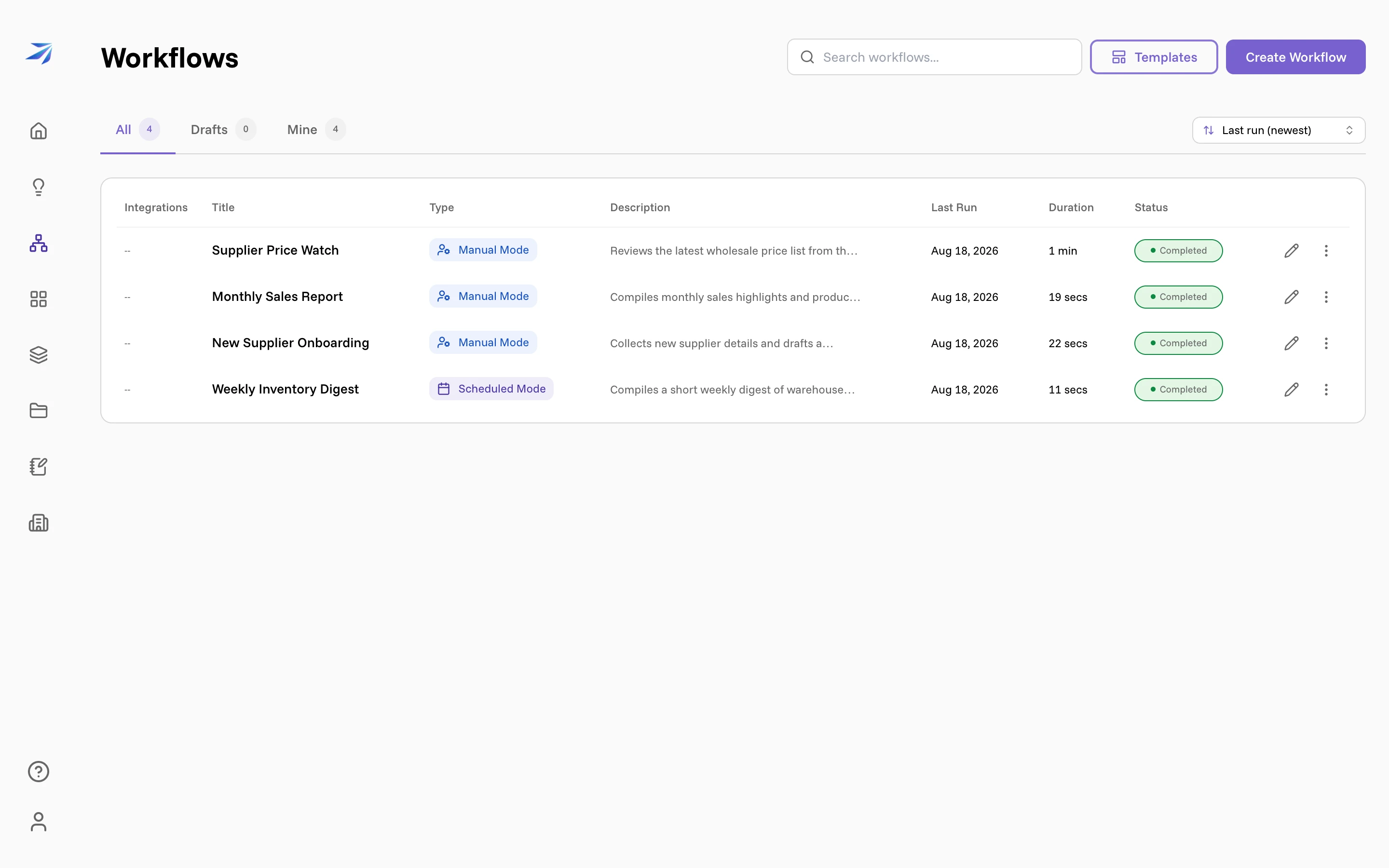
Everything your organization has built shows up on the Workflows page, with its trigger type, when it last ran, how long that took, and how it ended. The tabs above the table narrow it to Drafts or to Mine.
Steps, and the two kinds of them
Every step in a workflow is one of two things:
- Agent Task — "Let an AI agent complete this step using an integration." The step carries instructions written in plain language, and the agent carries them out with the same abilities it has in a chat: reading your Vault, searching, running code, using a connected tool. Most steps are these. Each Agent Task also names an executor, the person whose connected integrations it runs with. The default is the workflow's owner; Assign Myself or Assign Team Member in the step editor points it at someone else, and anyone other than the owner has to connect the integration and approve the step themselves before the workflow will run.
- Human Input — "Allow users to provide input, verify progress, or approve workflow steps." The run stops here and waits for a person. See Human input steps.
Steps run in the order you connect them, and a step can read what the step before it produced — "using the findings from the previous step" is the whole wiring. A step can also Split into Branches, so several steps run at the same time before the work rejoins.
Chat or workflow?
The same agent, Corint, runs both. The difference is whether the work is a conversation or a procedure.
| Reach for a chat when | Build a workflow when |
|---|---|
| The task is new, or you are still working out what to ask | The steps are settled and change little between runs |
| You want to steer — follow up, correct, change direction mid-answer | Nobody should have to be present while it happens |
| It happens once | It happens every week, or every time a supplier is added |
| You will read the result yourself | Someone else has to review or approve part of it |
| The conversation is the output | You need a record of what ran, what it read, and what it produced |
The honest test: if you would be annoyed to type the same request a fourth time, it belongs in a workflow. Until then, a chat is faster.
Workflow or dashboard?
These two get confused because both can run repeatedly and both are backed by an agent. The line between them is simple:
- Workflows do things. They act: check a supplier, draft a note, compile a report, wait for an approval, produce a file. A workflow's output is work completed.
- Dashboards show things. They answer standing questions against your live data and keep the answer current on a page. A dashboard's output is a picture of where things stand.
"I run the same checks every Monday" is a workflow. "I want to see order and shipment health at a glance" is a dashboard.
The two chain: a workflow does the work, and a dashboard widget can read its runs — what finished, what's waiting on a person — so the outcome of your automation shows up next to your other numbers.
What not to do is lean on a dashboard to run your process. A widget's agent technically can take an action, but a dashboard is built to display, not to execute — and a workflow gives you far better visibility into what actually happened: a full execution log, agent activity, output summary, and the files it produced, kept for every run.
What a workflow keeps
Every run leaves a trail, which is most of why teams move work out of chat and into a workflow:
-
Execution Log — each step with its state and timestamp. When a step fails, everything downstream of it is closed out in the same log as failed, with the reason (not started: Check supplier price changes failed), rather than being left showing as pending.
-
Agent Activity — what the agent did as it worked, including the files it opened and its reasoning between tool calls.
-
Workflow Output Summary — what the run concluded, step by step, with footnotes pointing at the exact sources.
-
Files Produced — anything the run created, ready to open or send.
-
Run History — every past run, filterable by how it ended. Editing or replacing steps does not delete historical step records; a removed step keeps its original node ID, which the execution log displays when the step name is no longer available in the current workflow.
-
Tool evidence — a separate, 30-day investigation record of executed tool calls: arguments, raw results before sandbox shortening, outcome, and timing, associated with the run and step. Calls outside a step have no step ID.
Anyone the workflow is shared with can open a run and watch it live, even with view-only access. They see the log, the activity, and the output, but they cannot start a run, answer a human input step, or cancel anything.
Tool evidence and customer data
Workflow runs keep a separate investigation record of executed tools, including integration and subagent calls. It includes arguments, results, errors, timing, and the associated step. Invalid calls rejected before execution are not recorded. This record does not add tool evidence collection to ordinary chats.
Evidence can contain financial figures, email contents and other customer data returned by tools. Recognized credentials and authorization material are redacted on a best-effort basis before storage. This is not anonymization: arbitrary text, including shell output, can still contain sensitive data. Redaction does not change what the tool or agent receives. Runtime environment variables, authentication context and surrounding messages are not additionally collected for this record.
Tool evidence expires 30 days after the call starts. Daily successful cleanup normally removes expired copies within a further 24 hours; storage outages can delay deletion. Existing messages, reports, sandbox files and backups have separate lifecycles. Evidence from older runs is not reconstructed, and expired evidence is no longer available.
Saving evidence is best-effort. Missing or incomplete evidence does not mean the tool failed, and storage failures do not cause an already-executed action to be repeated. A call with no recorded finish has an unknown outcome. Recorded timeouts do not prove that an external action stopped. Calls blocked because a user has taken browser control are recorded as failed without running the browser command. The investigation record has no public retrieval endpoint.
What a workflow will not do
- It does not watch for events. A run starts when someone presses Run Workflow, when a schedule comes due, or when another system calls it.
- It does not remember previous runs. Each run starts from the instructions, not from what last week's run concluded.
- It is only as precise as its instructions. Step instructions are a prompt — vague ones produce vague work, the same as in a chat.
- It does not run forever. A run is given 30 minutes of wall clock. Past that the run is stopped and marked Failed, with a summary naming the step that was still going, and any step that had not finished is closed out as failed too.
Three ways to build one
You can add steps by hand on the canvas, which is what Your first workflow! walks through end to end. You can describe what you want in the builder chat and have the steps drafted for you. Or you can start from a template your organization has already published, and change the parts that differ.