Roles and permissions
What each organization permission actually unlocks, and how to make someone an admin.
Everyone in your organization can already use Futurity: chat with Corint, keep files in the Vault, build workflows and dashboards, connect their own integrations. None of that needs a permission from you.
Roles are about the other thing — administering the organization itself. Inviting and suspending people, editing the roster, creating roles, wiring up integrations for everyone. A role is a named bundle of those powers, and a person holds as many roles as you give them; their access is everything their roles add up to. Organization permissions take effect only as organization-wide grants. A permission scoped to one workflow, file, or other resource cannot unlock organization administration.
Org → Roles lists what exists today. The roles sit in the left panel; picking one opens it in the editor on the right.
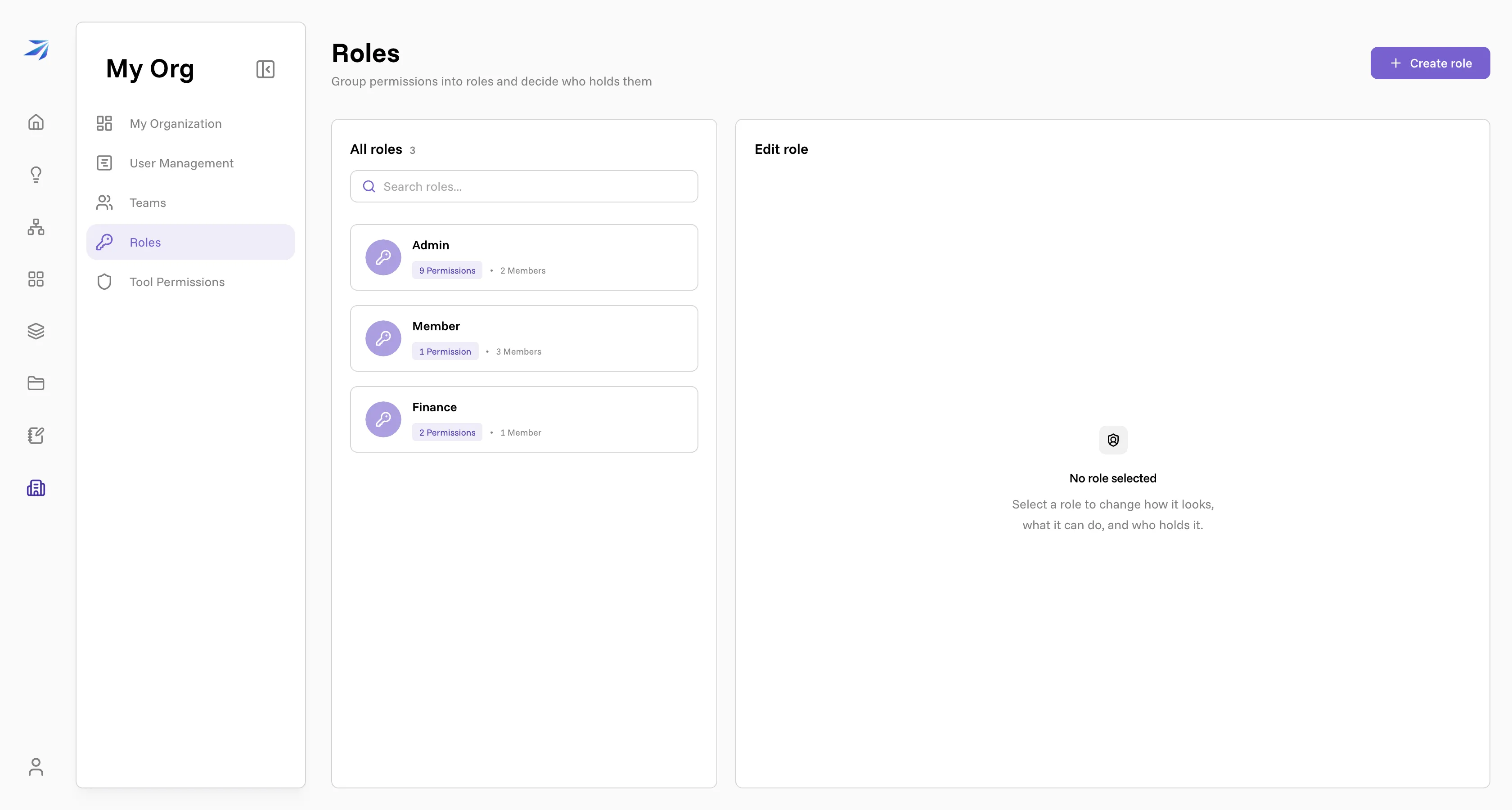
Each card carries the number of permissions the role grants and the number of people holding it. The role new members start in carries a Default chip and opens straight on its Permissions tab; it is an ordinary role otherwise, so what you grant it lands like any other role's. An organization that has never set one shows no chip at all. Admin, Member and Finance are ordinary roles rather than built-in ones: the names are what this organization chose, and you can rename them or add others.
The permissions
Open a role's Permissions tab and you get the full set, grouped by the area each one governs: Organization, Users, Integrations, Atlas, Workflows, Developer. Every row is a checkbox carrying the permission's action name, and every group heading counts what the role holds — 1 of 2 granted. Ticking a box only stages the change; it reaches the organization when you save.
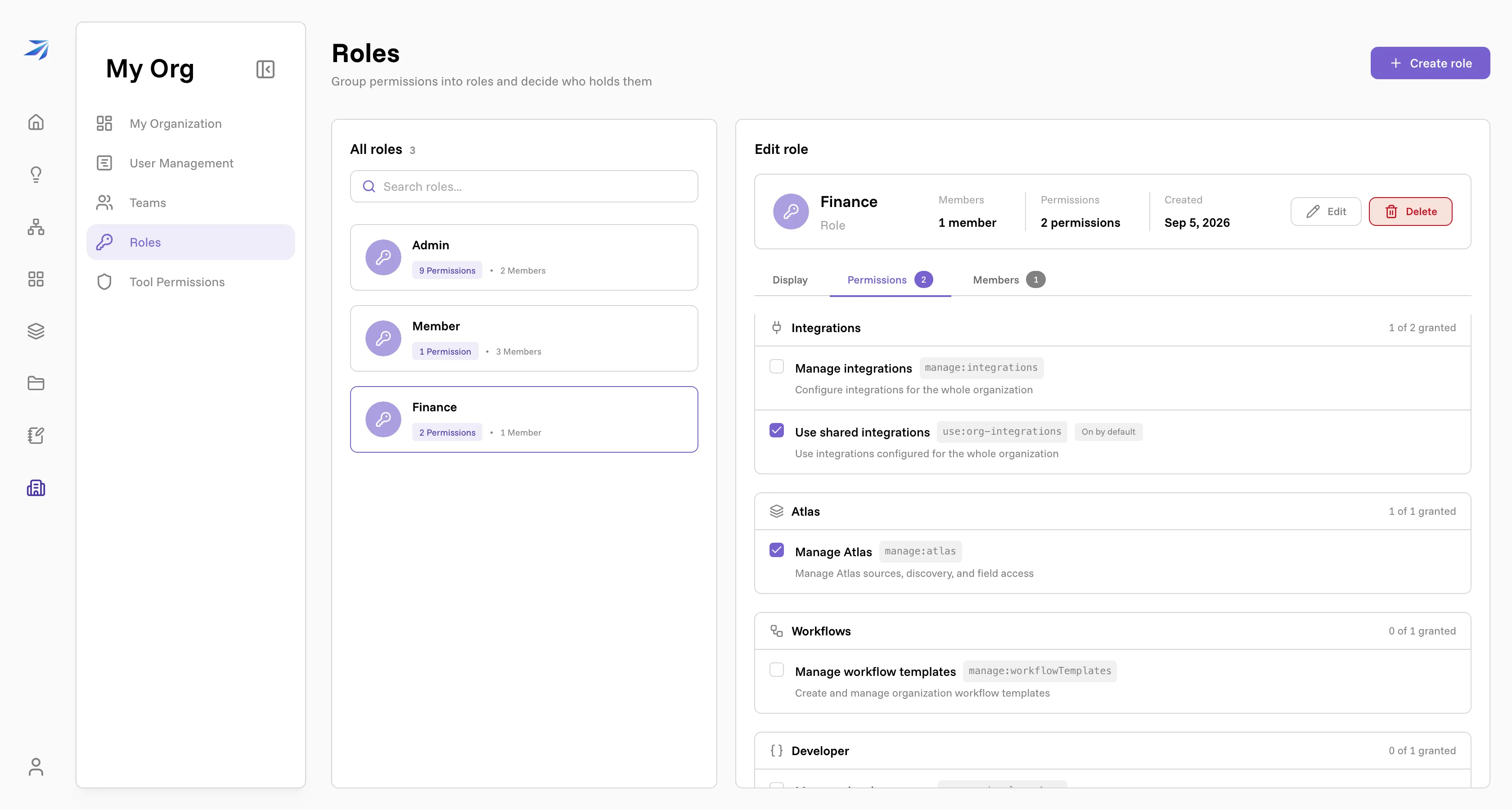
Here is what each one actually does, in the order the editor shows them.
manage:roles — "Manage roles within the organization". Puts Roles in
the Org navigation and lets the holder create roles, change which permissions
a role carries, rename or delete roles, and add or remove the people in them.
This is the permission that can grant every other permission, including itself.
Give it to the fewest people you can.
manage:organization — "Manage organization settings". Puts My
Organization in the Org navigation. Opening that page takes more than this one
permission: the org dashboard, the employees table, and the Create Invite
button sit behind all four of manage:organization, manage:users,
manage:userSensitive and manage:roles together, so give the whole set to
whoever administers the roster.
view:auditLogs — "View the organization's audit log". Read access to the
record of what happened in the organization: sign-ins, role and policy changes,
vault file operations, Atlas queries, OAuth grants, each entry naming who acted,
on what, and when. It only reads, and what it reads is everyone's activity, so
it belongs with whoever answers compliance questions rather than with everyone.
There is no page for it yet: the log comes back from
GET /api/v3/organizations/{organizationId}/audit-logs, narrowed by actor,
action, resource type, request ID, or date range. Pass the HTTP response’s
x-request-id as the request_id query parameter to find events caused by
one request. Results include requestId; events from background jobs have
no HTTP request ID. The search parameter matches literal text in event
actions and metadata without treating % or _ as wildcards.
Buffered API events are timestamped when
queued, not when the batch is written; delayed writes and retries preserve that
time. Results are ordered newest event first, not by insertion order.
manage:userSensitive — "Change user names, reset passwords, delete
users, create users". The heavier half of people administration. What it
authorizes in the Org area is Suspend and Unsuspend — blocking a login
and revoking every session that account holds. The menu item shows for anyone
who can open User Management; without this permission the request is
refused.
manage:users — "Move users, assign roles". Puts User Management and
Teams in the navigation. Editing an employee's record, creating departments
and assigning people to them, and creating, renaming, and deleting teams all
sit behind this.
manage:integrations — "Configure integrations for the whole
organization". Two things: connecting an integration once on the organization's
behalf, so members use it without their own login, and the Tool Permissions
page. See Org-level integrations and
Org-wide tool permissions.
use:org-integrations — "Use integrations configured for the whole
organization". The odd one out: this permission is held by default. Every
member has it from the start, so the editor shows it already ticked and tagged
On by default, and the Create role dialog starts with it selected.
Leaving it on grants nothing that wasn't already there. The checkbox works
in reverse. Clearing it records a denial, and the role's members lose access to
org-wide integrations; ticking it again removes the denial and restores them.
manage:atlas — "Full Atlas administration." This is the Atlas
superadministrator permission. It covers connecting and disconnecting sources,
running discovery, editing the schema, granting other people access to
individual fields, and resetting Atlas for the whole organization, which drops
every source and everything discovered from it and cannot be undone. It also
carries read access to every field, so a holder sees the entire graph regardless
of what anyone else holds. An imported source starts readable by the whole
organization; restricting a source, an entity or a field takes it back, and
granting it to a person, team or role hands it over without taking it from
anyone else. Give it to the people who own the organization's data, not to
everyone who needs to ask Atlas a question. See
Atlas field access.
manage:atlasSchema — "Edit Atlas entities, fields, and relationships."
Makes the Atlas Builder writable. A holder can rename and describe entities,
change field metadata, and add or remove relationships. Deleting an entity
requires full manage:atlas because deletion also removes fields the schema
manager might not be able to see. This permission does not grant source,
discovery, access-administration, reset, or unrestricted field access; the
holder can only work with the graph their field grants expose.
An explicit denial of manage:atlasSchema blocks schema edits even when the
user holds manage:atlas; entity deletion remains governed by manage:atlas.
manage:atlasAccess — "Manage Atlas access and view all data." Puts Set
Permissions in the Atlas workspace and unlocks the Atlas Permissions page. A
holder can grant or remove field access for anyone, including themselves and
their teams or roles, open or restrict sources, entities, and fields for
everyone in the organization, copy access between subjects, and read the
permission activity log. It includes view:atlasAllData, so the holder can also view,
query, and export every current and future Atlas field.
view:atlasAllData — "View and query all Atlas data." Bypasses entity and
field grants for Atlas reads, including queries and exports, so the holder can
use every current and future field. It is included automatically with
manage:atlasAccess, but can still be granted on its own to trusted analysts
who need organization-wide data without access administration. It does not
unlock sources, discovery, schema editing, or reset. Denying either
Atlas administration permission also denies the capabilities it bundles,
even when one of those capabilities has a separate allow rule.
manage:workflowTemplates — "Create and manage organization workflow
templates". Personal templates need nothing; this is specifically the right to
publish a workflow template to the whole organization, and to edit or delete
the org-visible ones. See
Templates and versions.
manage:developerApps — "Create and manage personal OAuth developer
applications". The right to register software against Futurity: registering a
plugin from the Developer Tools
tab on the Integrations page, and the OAuth developer portal at Developers →
OAuth Apps, where you register an OAuth app. The tab
itself is visible to everyone; without this permission the registration is
refused. A platform-level plugin-developer grant, handed to one account by
Futurity, opens the same two surfaces; this permission is how an organization
hands them out itself, on a role or a team rather than person by person.
view:auditLogs — "View the organization's audit log." Lets the holder open the
organization audit log and inspect recorded administrative activity. It does
not grant any of the permissions needed to perform those actions.
Make someone an admin
Roles carry their members with them, so promoting a person is a two-click job.
Pick the role in the left panel and open its Members tab.
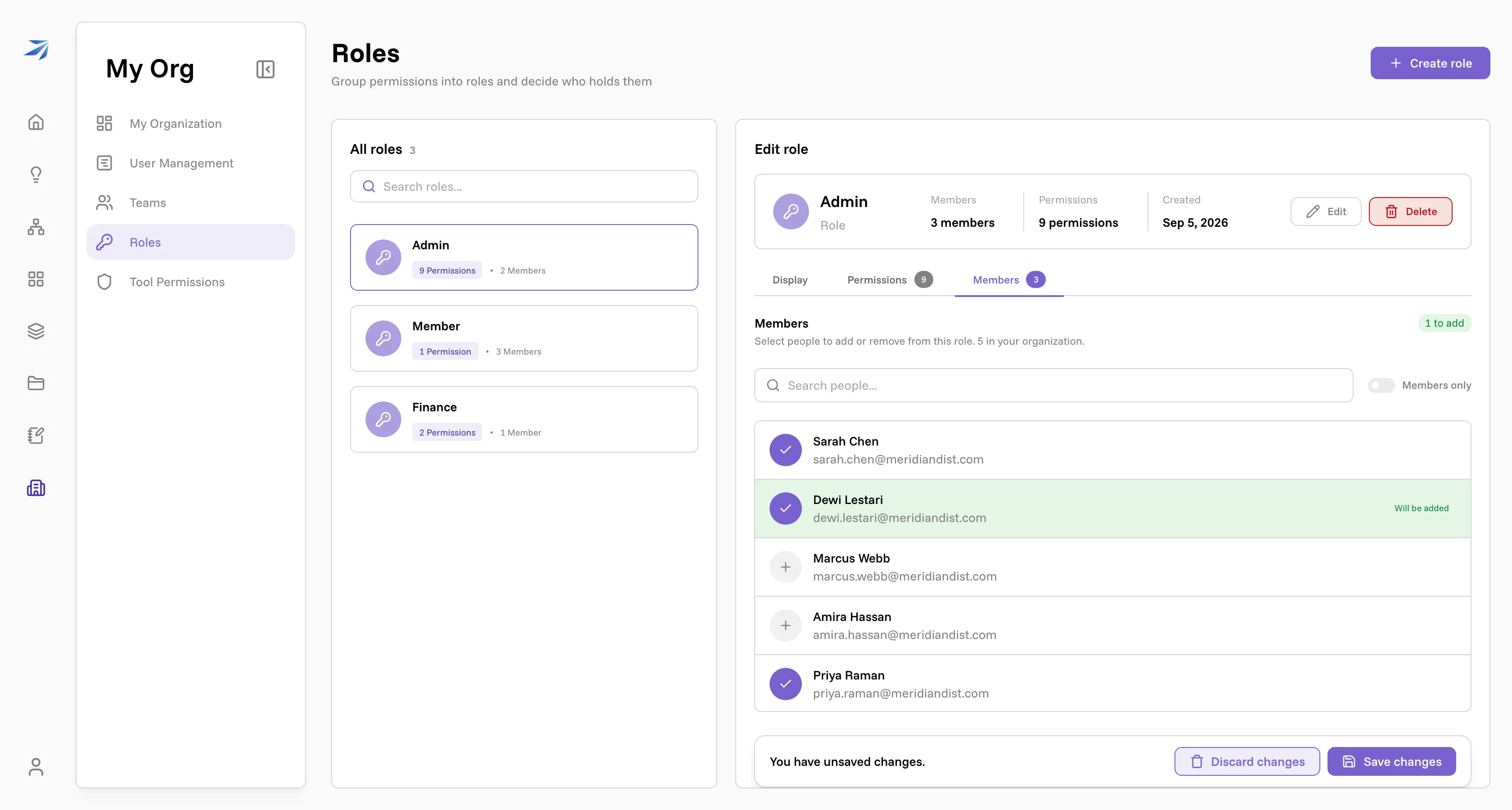
The tab lists everyone in the organization, not only the people who already hold the role: a tick means they hold it, a plus means they don't, and clicking a row flips it. Rows you have touched are marked Will be added or Will be removed, and the Members only switch narrows the list to current holders. Nothing is written until you press Save changes on the bar along the bottom; Discard changes throws the whole batch away. The counts on the tab and in the role's summary card move as you click; the card in the left panel catches up when you save.
Demoting works the same way in reverse. Removing a person from every role leaves their account intact — they keep chatting, building, and using their files, they just stop being able to administer other people.
Build a role of your own
Two roles rarely stay enough. A common third is someone who runs the people
side without touching integrations or roles — manage:organization,
manage:users, and manage:userSensitive, and nothing else.
Create role, at the top right, takes a name and the same permissions in the same grouped checklist the editor uses:
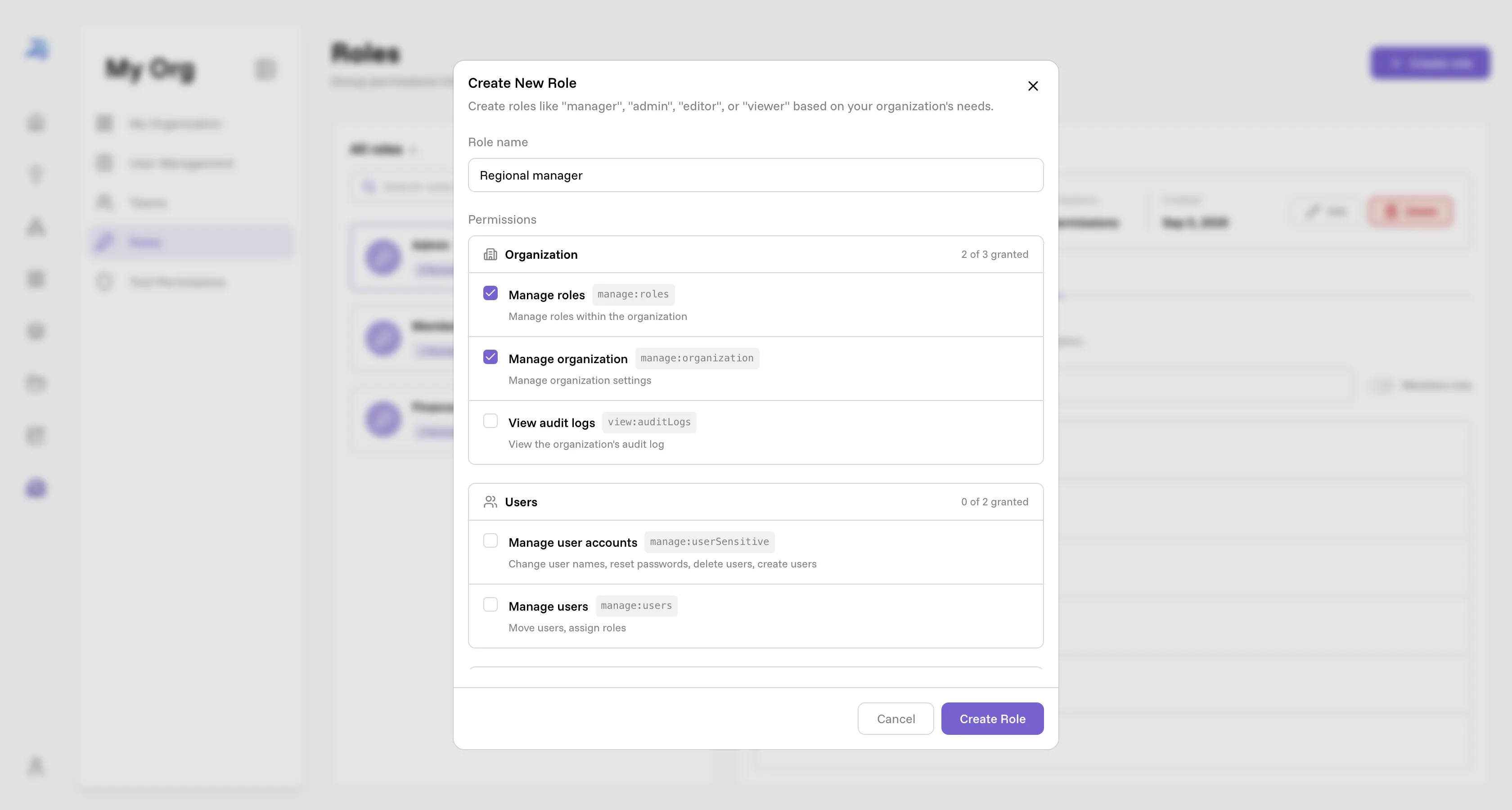
The dialog suggests the shape to aim for: "Create roles like 'manager', 'admin', 'editor', or 'viewer' based on your organization's needs." Name roles after jobs people recognize, not after the permissions inside them — the permissions change, the job doesn't.
Once a role exists, its editor has three tabs: Display for the name and color, Permissions for the checklist, and Members for the people. Delete, in the role's summary card, removes it after asking: Permanently remove "X"? You cannot undo this. A role that still has members refuses to go, so empty it first; the default role has no Delete button at all. The people who held a deleted role keep their accounts and lose whatever that role was giving them.