What is Atlas?
Your company's own data, connected once and answerable in plain language — with an honest answer when it can't be.
The numbers that decide things usually live somewhere awkward. The ERP knows what shipped, the warehouse system knows what's on the shelf, and the spreadsheet someone maintains knows what it cost. Getting one sentence out of that — which warehouse is running dry? — means finding the person who can query it, and waiting.
Atlas removes the waiting. You connect those systems once. Atlas reads their structure, measures the tables, writes a plain-language description of each one, and works out how they connect. After that, anyone who can read the fields involved can ask a question in a sentence and get an answer from the real data.
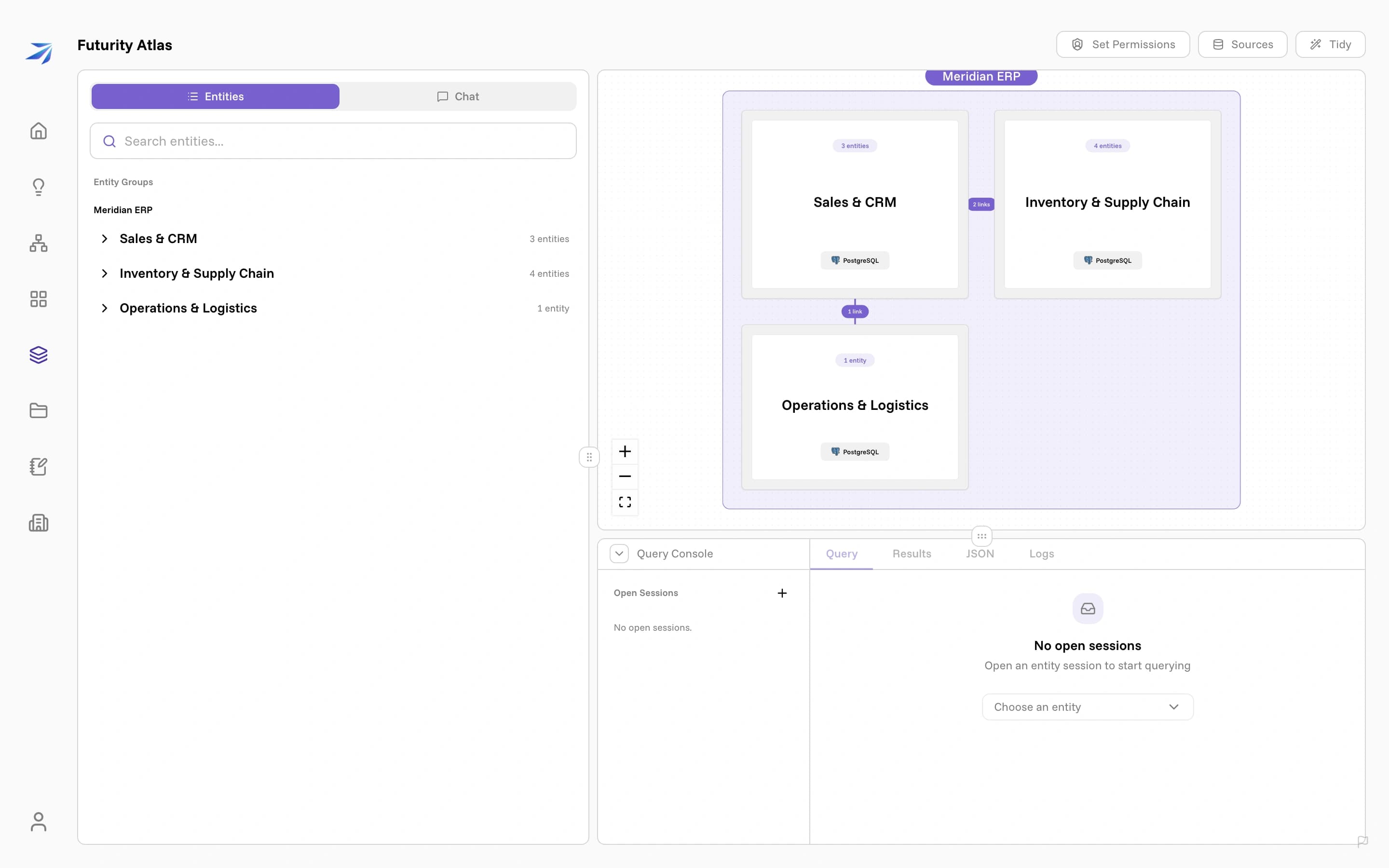
Open it from Atlas in the left navigation. If it's turned on for your organization and someone has already connected a source, you land in the workspace.
Who can see what
A source arrives readable by the whole company. Connecting one writes a single organization access grant that covers all members of your organization and everything under that source, so the graph is useful the moment discovery lands. You see an entity when you can read at least one of its fields, and a question can only reach the fields you hold — the rest are invisible rather than refused, so a query cannot filter, join or export on them. The source list itself is not filtered that way: all members of the organization see which sources exist and whether they are reachable, even the ones whose contents they cannot read.
Set Permissions, at the top of the workspace, opens the page where that changes. Organization access is the row pinned above the team, role, and user tabs, on whichever tab you are looking at. Select it to see that organization-wide grant. Each source, entity, and field has an access dropdown: Restricted, Can read, or Can read & write. Expand a source to see its entities, then expand an entity to manage its fields. Inherited access names the source or entity it comes from. Organization access applies to all members of your current organization.
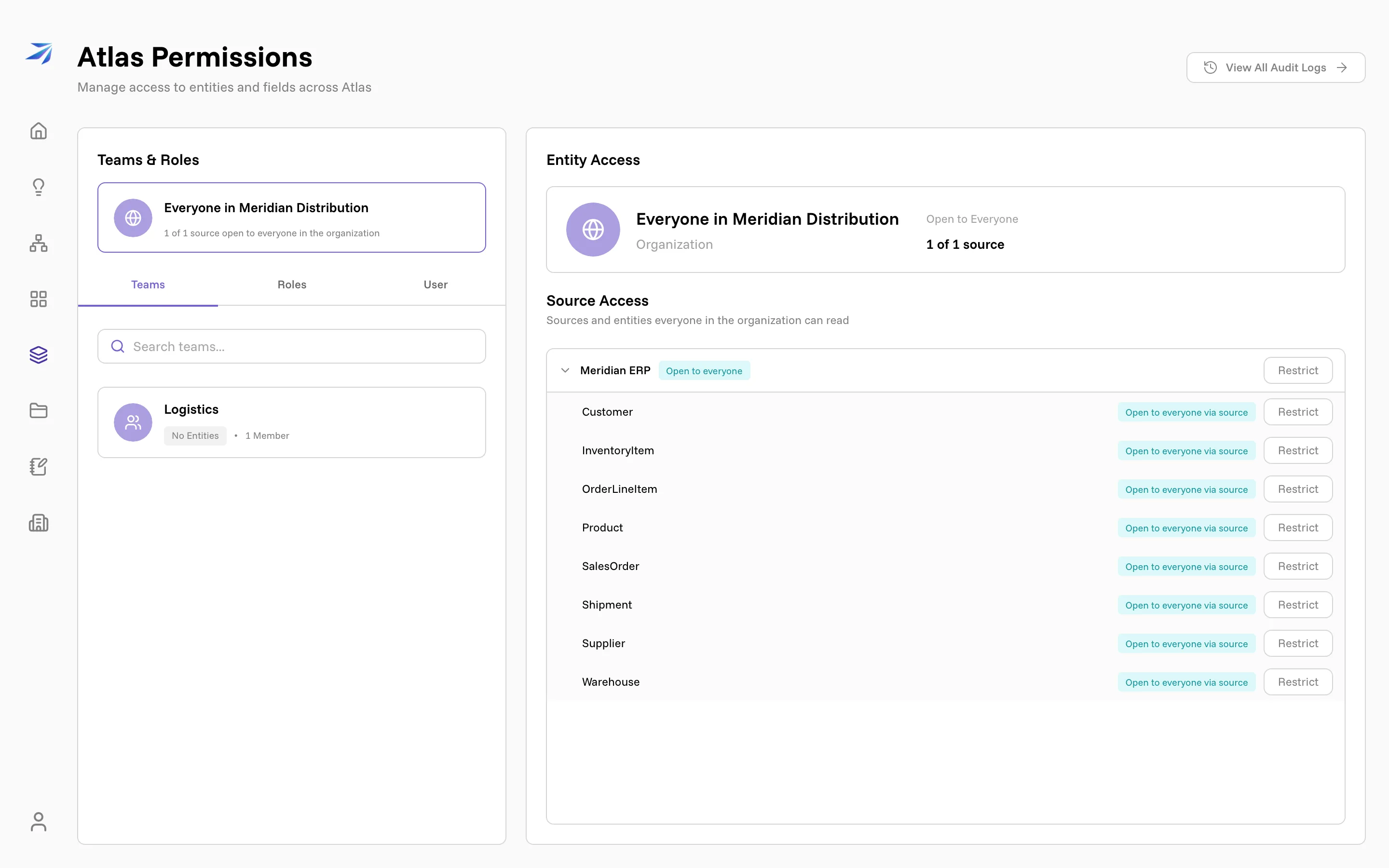
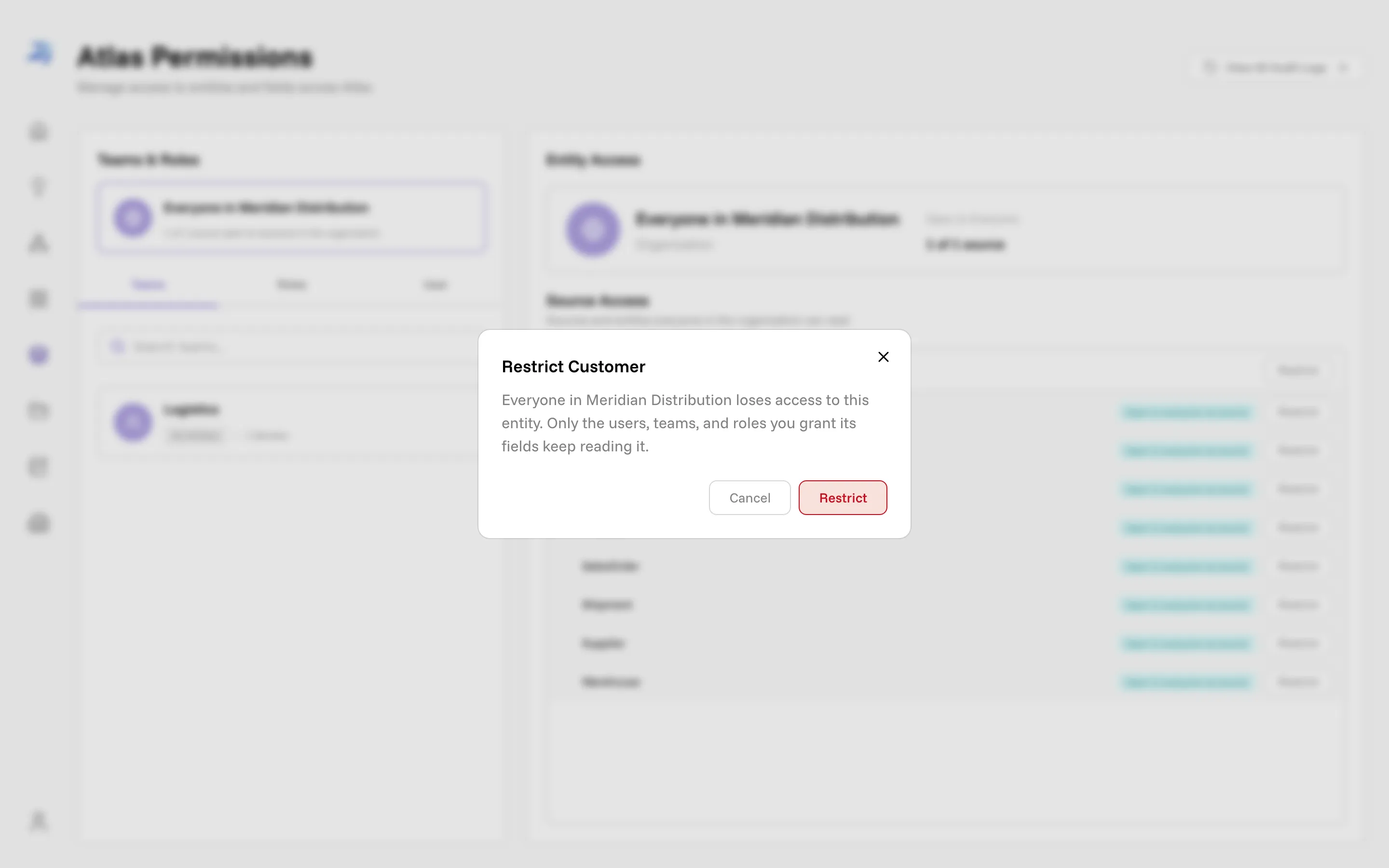
Choose Restricted to take something back at any level: a whole source, one entity, or a single field. A confirmation explains what changes before it applies. Changing either read level also requires confirmation; cancelling leaves the current grant unchanged. In the Organization access view, confirmed changes apply immediately.
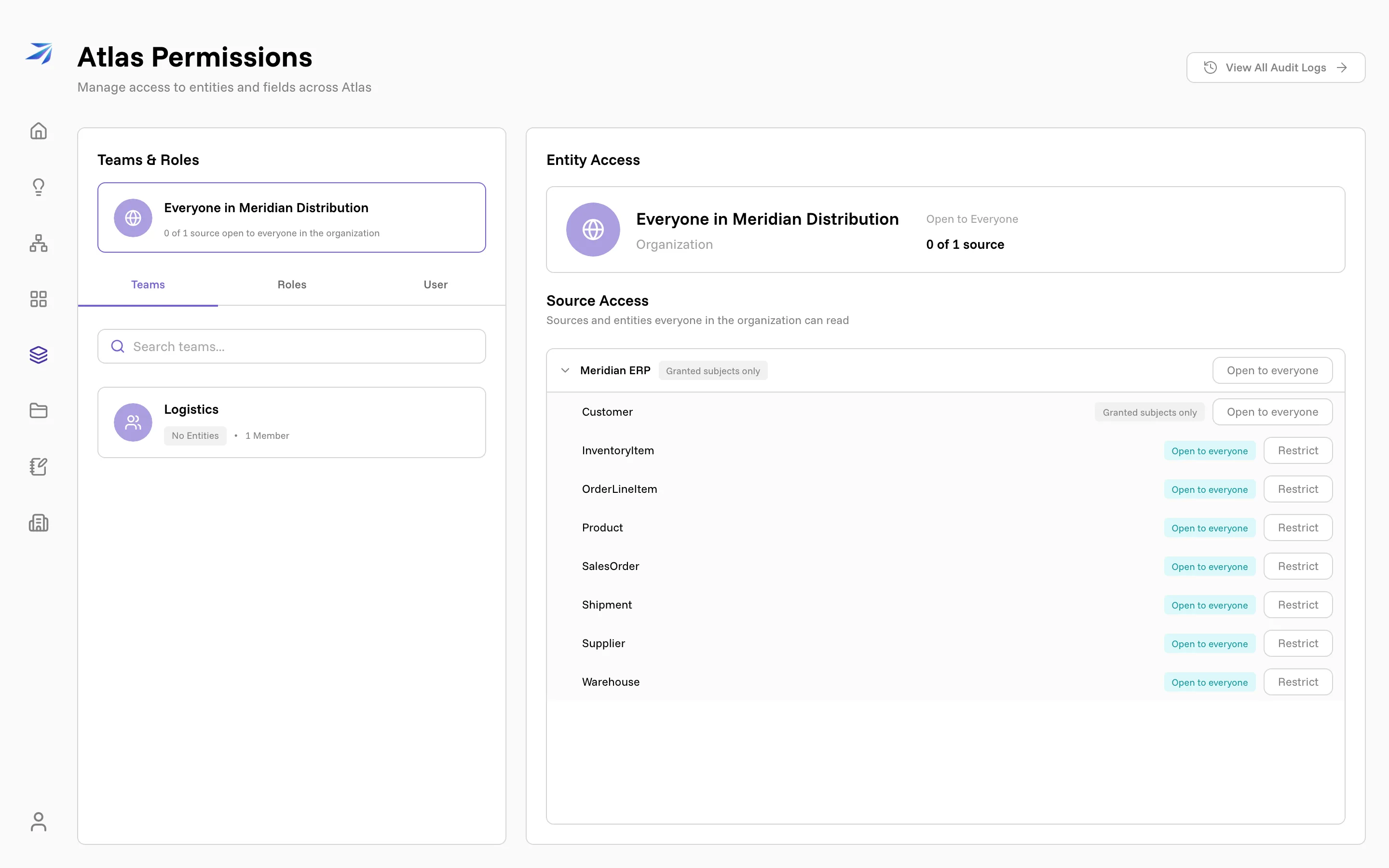
Only the thing you named goes dark. Restricting an entity moves the company-wide grant down onto every other entity of that source, so its siblings stay open; restricting a field does the same one level down, and the entity's other fields carry on. Restricting the source itself drops that grant outright, and anything reading the source only through it goes dark with it. An entity or field with its own organization access grant keeps that grant, so restrict it separately. Siblings retain their permission levels, including Read & write. Lowering an inherited Read & write grant to Can read uses the same approach: the stronger ancestor grant moves to siblings, while the selected scope gets Read. Descendants with their own grants keep them, and grants for specific people, teams, or roles are unchanged.
Then hand the restricted part to the people who should have it. Grants go to a person, a team, or a role, field by field. Granting a team or a role gives every member the same fields, which is usually what you want; grant a person directly for an exception. The Organization access column marks the fields that are still open to the company, so you can see what a grant would actually add — and restrict one of them without leaving the sheet.
In Grant Access, every direct permission and Everyone field change is a draft. Save changes applies both together; Cancel, the close button, clicking outside the sheet, or Escape discards all unsaved changes. Restricting an inherited field replaces the parent grant with grants for its siblings, so the parent is no longer open as a whole. Explicit subject grants remain.
While saving and refreshing this sheet's permissions, editing and dismissal are disabled. A rejected save applies neither kind of change and preserves the draft. If a connection failure prevents confirmation, the server may already have saved; retry the same choices or reopen the sheet to check saved access. If permissions fail to load, use Retry loading to recover without losing edits.
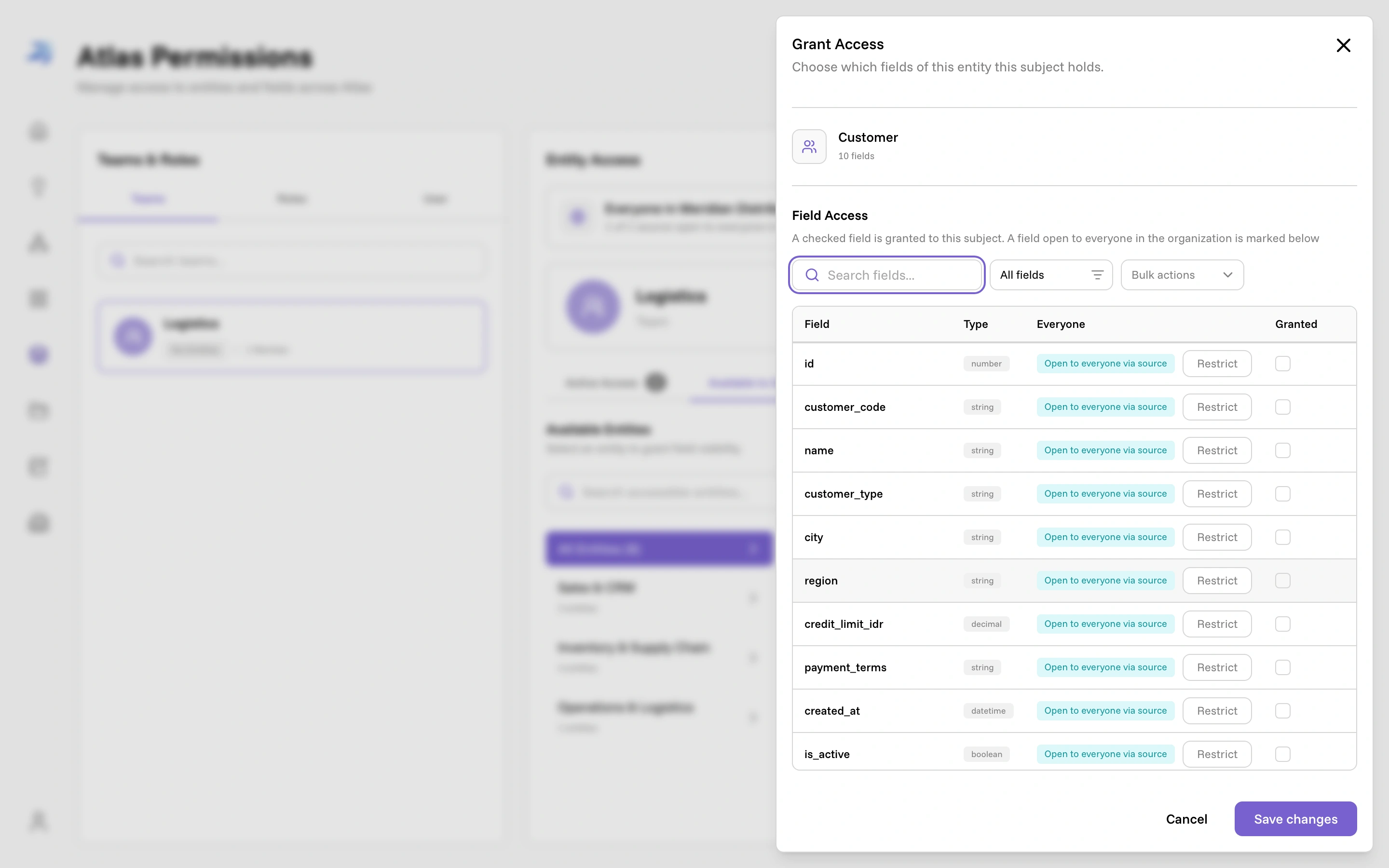
Grants only ever add. Granting a field takes it from nobody, and removing the last grant on a restricted field hands it back to nobody — it stays restricted until someone chooses Can read or Can read & write, on the field itself or on the entity or source above it.
The backend calculates Current effective access as the highest of the direct and inherited grants. Teams and roles inherit Organization access grants; users inherit organization access plus grants from their teams and roles. Organization access contributes its actual Read or Read & write level, whether granted on the field or inherited from its entity or source. Clearing or lowering a direct grant never removes stronger inherited access.
Unsaved direct and organization selections stay local: they make no preview requests and do not change current effective access. Has access and No access filter by the server's saved effective levels, not draft direct selections. Inheritance is calculated only on the backend. A refetch updates saved levels while preserving both drafts. If loading fails, use Retry loading. Cancel discards unsaved edits, and a failed Save retains them for retry.
Hover or focus the information icon beside current effective access to see organization access and whether it comes from the source, entity, or field. The Grant Access table shows inheritance details in this tooltip, not a separate chip. The highest saved grant applies; unsaved selections do not contribute to it. Individual role and team names are not available in this tooltip.
Bulk actions explicitly Set filtered to Read, Set filtered to Read & write, or Set filtered to No direct grant. They affect only direct grants on fields matching the current search and access filter; inherited and organization access grants stay unchanged. Choosing Read can lower a direct Read & write grant. Save applies direct edits and confirmed organization field edits together. Omitted fields stay unchanged, and No direct grant removes only the selected subject’s explicit grant. Save with no changes is disabled.
Each field grant records one of two levels:
- Read lets the person query and use that field in Atlas.
- Read & write records the higher level as permission metadata. It currently behaves like Read: Atlas remains read-only and cannot change data in a connected source.
Holding manage:atlas makes someone an Atlas superadministrator. It carries
the whole control plane — sources, discovery, schema editing, granting access,
and reset — and read access to every field, so a holder never sees a filtered
graph. A role with only
manage:atlasSchema can edit the entities, fields, and relationships visible
through its field grants without receiving the rest of the control plane.
Deleting an entity remains part of full Atlas administration because deletion
also removes fields the schema manager might not be able to see. A role with
manage:atlasAccess can administer every field grant, including its own team
and role grants, and can view, query, and export all Atlas data.
view:atlasAllData provides the same unrestricted reads without unlocking
access administration. See
Roles and permissions.
Someone with no grants at all sees an empty graph. Atlas says so plainly rather than pretending nothing is connected: chat tells them the sources exist and to ask an Atlas admin for access.
When an account moves to another organization, its direct field grants are removed. Those grants must be assigned again if the account returns. Team and role memberships are retained by an organization move, so access inherited from those memberships can return when the account rejoins.
Active access and available grants
In Permissions, Active Access lists entities where the selected user, team, or role has saved effective Read or Write access to at least one field. This includes Organization access grants on a field, its entity, or its source. Users also inherit grants from their roles and teams. Available to Grant contains the remaining entities. An entity with no fields is not active, even when its source or entity has organization access.
Subject entity counts use the same definition. Each card counts distinct accessible fields, so overlapping direct, membership, and organization access grants count only once. These lists and counts reflect saved permissions, not unsaved edits.
Import selection also shows effective access, but importing copies only the source team's or role's explicit field grants, replacing the target's explicit grants for the selected entities. Organization access and inherited grants are not copied; selecting an entity with no explicit source grants clears the target's explicit grants on that entity.
Imports preserve each explicit grant's Read or Read & write level, including across large selections. All selected entities update together; explicit grants on unselected entities stay unchanged.
Recent Activity records the resulting readable and writable field counts after direct grant changes. Writable fields also count as readable. Historical grant changes from before write levels were available show their granted fields as readable, with zero writable fields.
What Atlas actually builds
Discovery turns each table into an entity — Customer, SalesOrder, Shipment — and files it under a group like Sales & CRM or Inventory & Supply Chain. Click one and you get everything Atlas knows about it: the description it wrote, which source and table it came from, every field with its type, and the relationships that connect it to other entities.
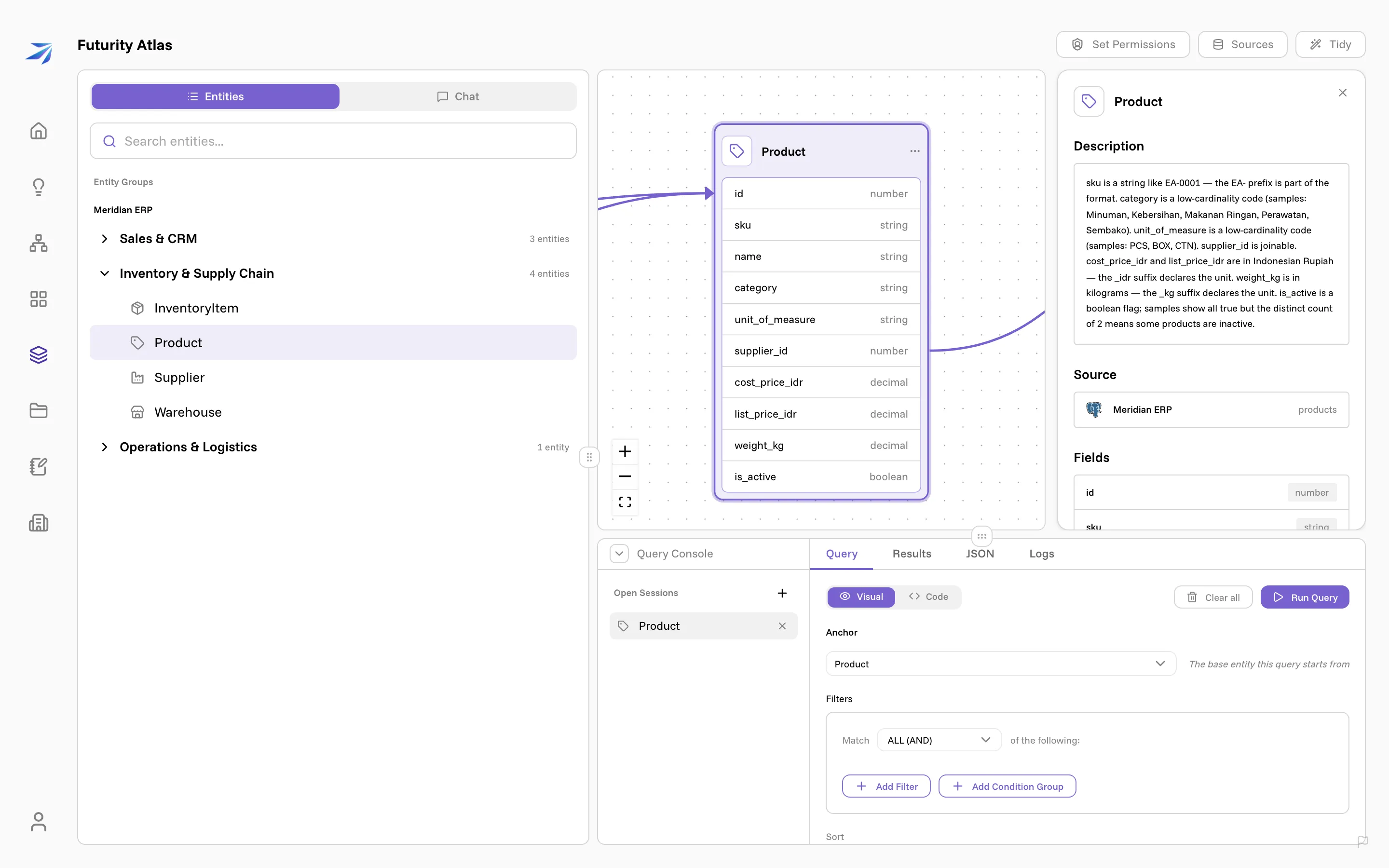
Read that description closely — it is the part that makes answers correct.
Atlas measured this table and wrote down what it found: that sku follows the
pattern EA-NNNN, that cost_price_idr and list_price_idr are in Indonesian
Rupiah with no stated unit, that supplier_id points at the suppliers table.
An assistant working from that will not quietly divide by a hundred or add two
currencies together, because the units are written down.
What you get depends on what you hold. An entity you can read only part of arrives with no description and no grain, because both quote field names and value ranges. A relationship shows only when you can read the fields at both ends.
The honest part
Atlas is deliberately narrow about what it will do.
- Every query is read-only. Nothing Atlas does can change, delete, or add a row in a connected system. There is no way to write through it.
- Questions stay inside your organization. A query can only reach the sources your organization connected.
- A query can only ask for what your data has. Filters and sorts are built from the fields the schema actually declares, so a question about a field that doesn't exist is refused instead of answered from thin air.
- Totals are computed, not estimated. A count or a sum runs over the whole matching set at the source. It is never scaled up from the first page of results.
- An error is never a zero. When something can't be answered — an
unanswerable question, a source that's down, a comparison the data doesn't
support — Atlas returns a refusal that says what went wrong. It does not
return
0and let you read it as "none". - Warnings travel with the number. If an answer carries a caveat — rows with no matching parent, values grouped under a null — that caveat is repeated with the result rather than dropped.
Ask Atlas a real question and the reply ends with a method line — which entity, which source, which filter, which grain, and any choice it had to make on your behalf.
Where Atlas answers questions
Once a source is connected, the same graph answers everywhere:
- In the Atlas workspace — the Chat tab beside the entity list, for questions about your data and for correcting the map itself.
- In a normal Corint chat — Corint can reach Atlas the same way it reaches your files, and shows its work as it goes.
- In dashboard widgets — a dashboard widget written as a prompt ("active orders right now") is filled from Atlas and refreshes against live data.
- In the query console — a point-and-click query builder under the canvas, with results, raw JSON, and a run log.
What it takes to set up
One person connects the sources, watches discovery run, and reviews what it found before anything goes live. For a small database that is a few minutes of work. The review step is where the quality comes from: correcting a name or a description there is what makes every later answer better.