Corint on WhatsApp
Link your number once, then message Corint from your phone the way you message anyone else.
Some questions arrive when you aren't at a desk: in a warehouse, in a taxi, standing in a client's shop. Linking your WhatsApp number puts the same assistant in the app you already have open, with your organization's integrations behind it.
Linking your number
Open the user menu at the bottom of the left navigation and choose WhatsApp. (The same dialog lives on your profile page, under "Connect your WhatsApp account".)
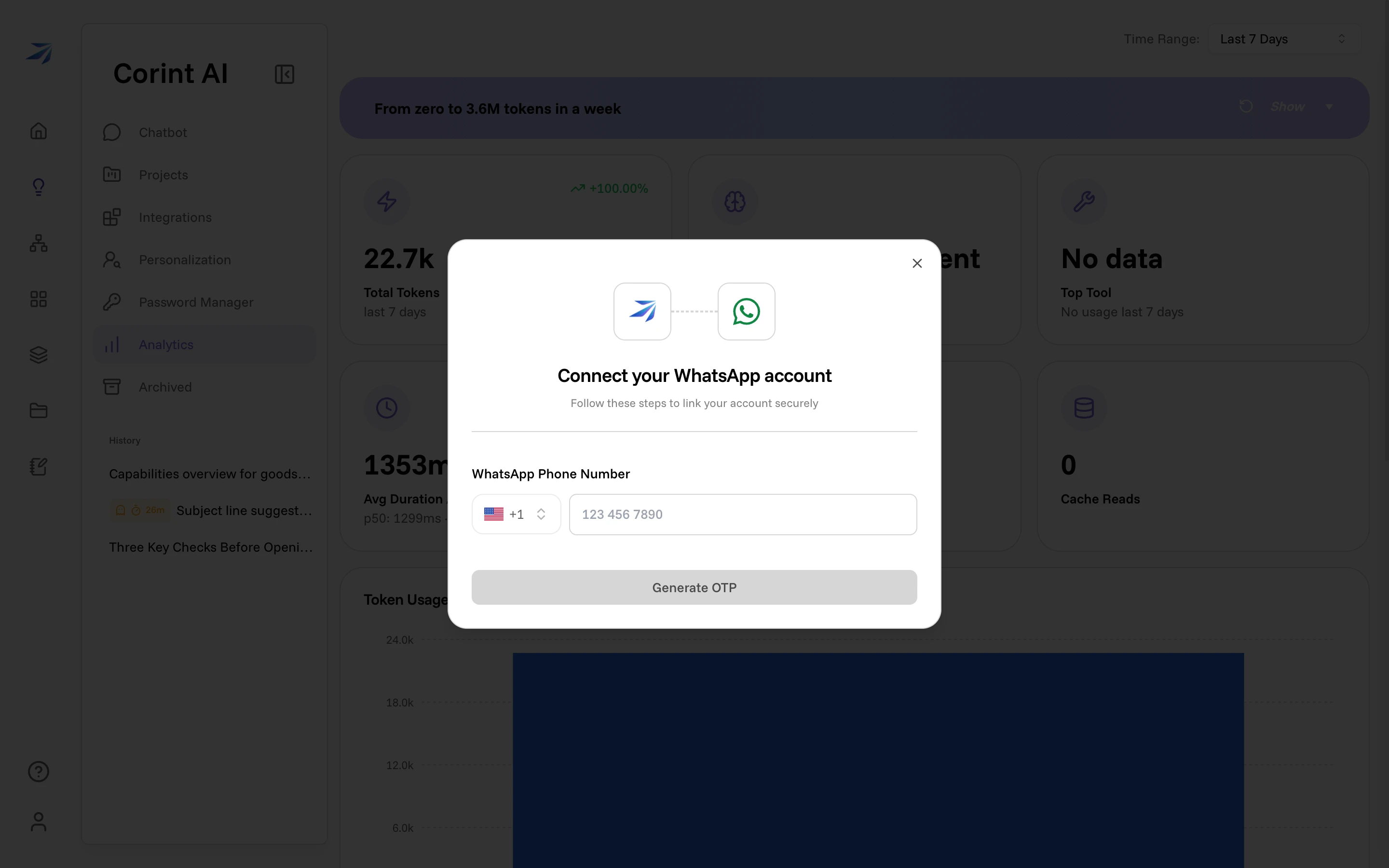
Pick your country code, type your WhatsApp number, and click Generate OTP. Three steps follow:
- Open WhatsApp: Click the green button below to open a chat with our bot.
- Send the message: Your verification code will be pre-filled. Just tap 'Send' without changing the text.
- You're all set!: Your account will connect automatically once we receive your message.
The button is Open WhatsApp & Send Code. If your phone isn't the device you're sitting at, the dialog also prints the number to send to and the code to send, so you can type both by hand. If a number was entered wrong, Disconnect & start over clears it.
Once the code arrives, Corint replies on WhatsApp:
Approved! Welcome to Futurity! You may now access Corint through WhatsApp, including connections to any of your existing integrations.
What it's like to use
Message it the way you'd message a colleague. Your messages run through the same pipeline as a chat in the browser (the same assistant, the same tools, the same connected integrations), so the answers are the ones you'd get at your desk.
Three differences are worth knowing:
- It's one continuous conversation. WhatsApp has a single thread with Corint, separate from the chats in your History. Nothing you say there shows up in the web sidebar.
- Long answers arrive in pieces. WhatsApp caps message length, so a long reply is split into several messages, broken at sentence ends.
- You'll get progress notes. When a request takes real work, Corint sends short updates about what it's doing.
You can send photos, documents, audio, and video. Attachments are saved into the conversation's files, so "what's the total on this invoice?" with a photo attached works.
Commands
Five messages are handled as commands instead of being passed to the assistant:
| Command | What it does |
|---|---|
/help | Lists the available commands |
/status | Shows connection info: name, email, message count |
/stop | Cancels the task currently running |
/clear | Clears your WhatsApp chat history |
/disconnect | Unlinks your WhatsApp account |
The last two ask before acting: they reply with what will happen and wait for
/clear confirm or /disconnect confirm. Clearing history deletes the whole
WhatsApp conversation, and the next message you send starts a fresh one.
Managing the connection
Your profile page shows the state of the connection, Not Connected with a Connect WhatsApp button until you link a number:
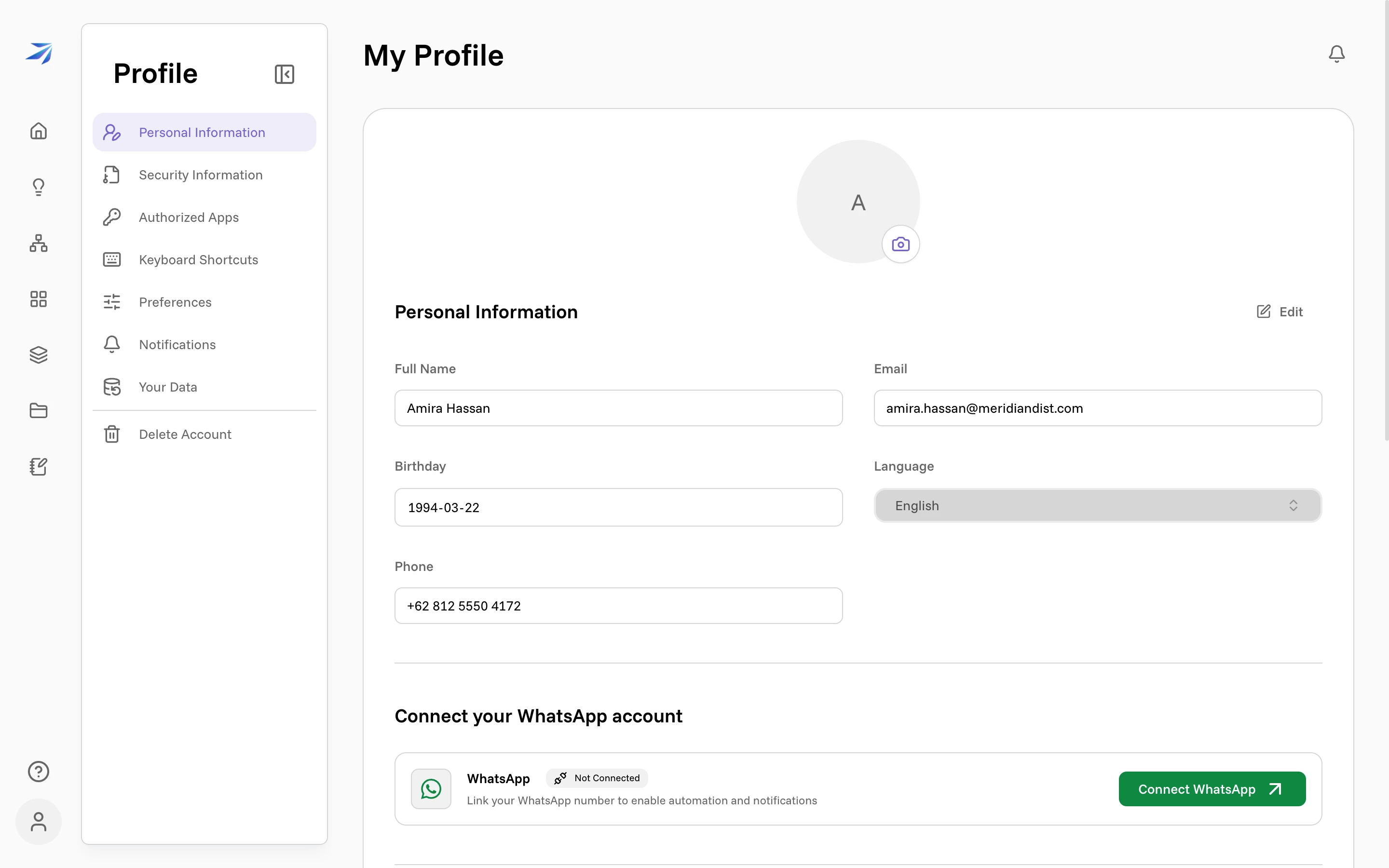
Once linked, the same card shows Linked Number plus Clear History ("This will permanently delete all your WhatsApp messages. This cannot be undone.") and Disconnect ("This will unlink your WhatsApp number from your account. You can reconnect at any time.").
If someone messages the Corint number from a phone that isn't linked to a Futurity account, they get an introduction and a link to connect — nothing from your organization is exposed to an unlinked number.