Introducing Corint
The assistant built into Futurity, and what a first conversation with it looks like.
Corint is the assistant built into Futurity. You ask for something in plain language — analyze a spreadsheet, draft an email, look into a supplier — and it does the work: searching the web, reading your files, running code, and showing you each step as it goes.
What makes it different from a chat window on the open web is where it lives. Corint works inside your organization's account, so it can reach the things your work actually depends on: the files in your Vault, your team's Argos wiki, the data connected through Atlas, and a private Desktop where it can run real programs.
Starting a conversation
Click Corint in the left navigation. You'll land on the chat home: a greeting, a few example prompts, and the composer at the bottom of the screen.
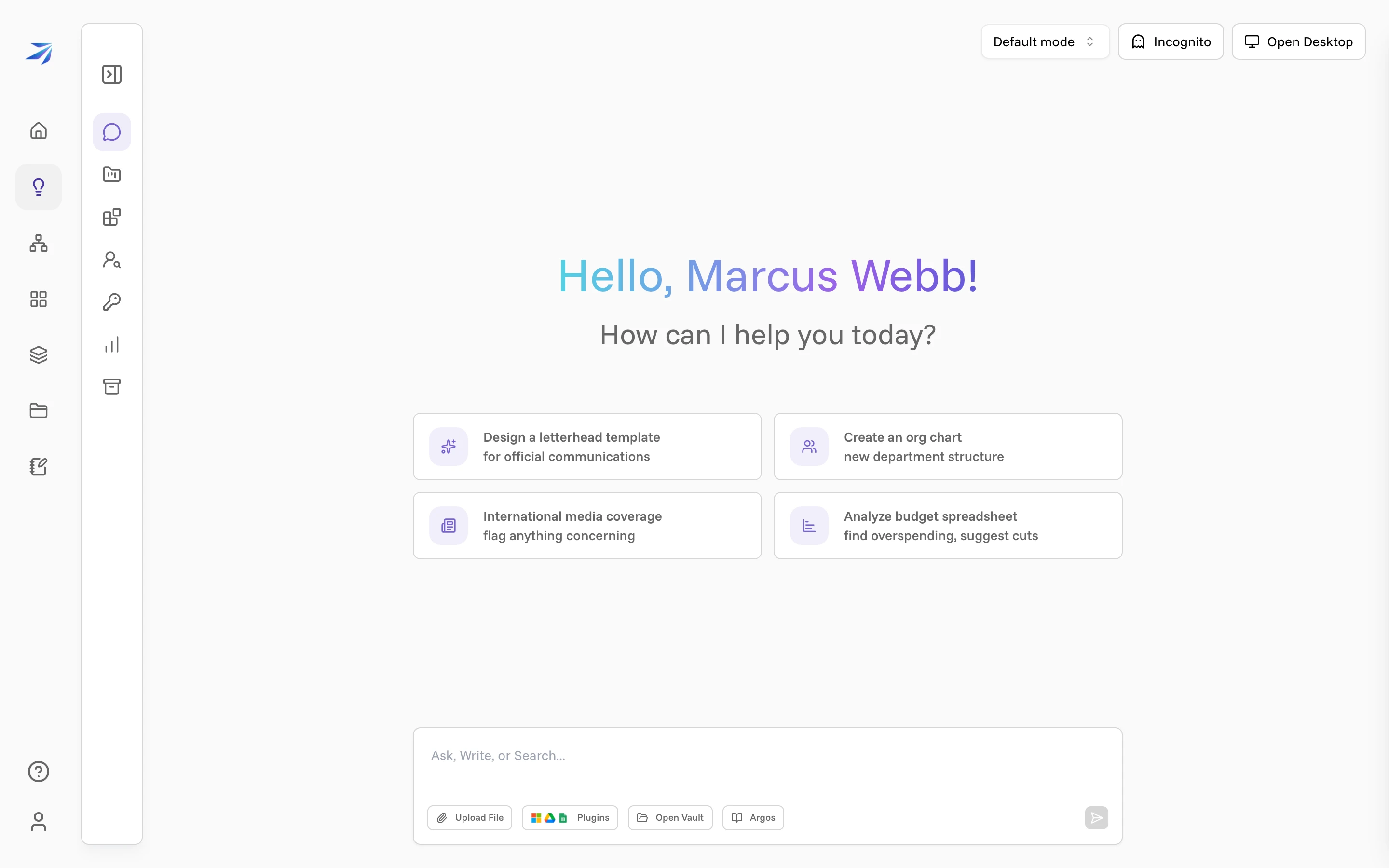
The composer reads Ask, Write, or Search..., a fair summary of the three things people use it for most. Type what you need and press Enter. The four buttons under the text field bring in material:
- Upload File: attach a file from your computer.
- Plugins: jump to the integrations catalog to connect outside tools.
- Open Vault: pick a file you already keep in Futurity.
- Argos: reference a page from your team's wiki.
The example prompt cards are real tasks, and they rotate: "Top industry trends now — browse news, compile a digest", "Extract receipt data — organize into a spreadsheet". Clicking one runs it.
Finding your way around
The panel on the left is Corint's own sidebar. Expand it with the toggle at the top and you'll see everything that belongs to the assistant:
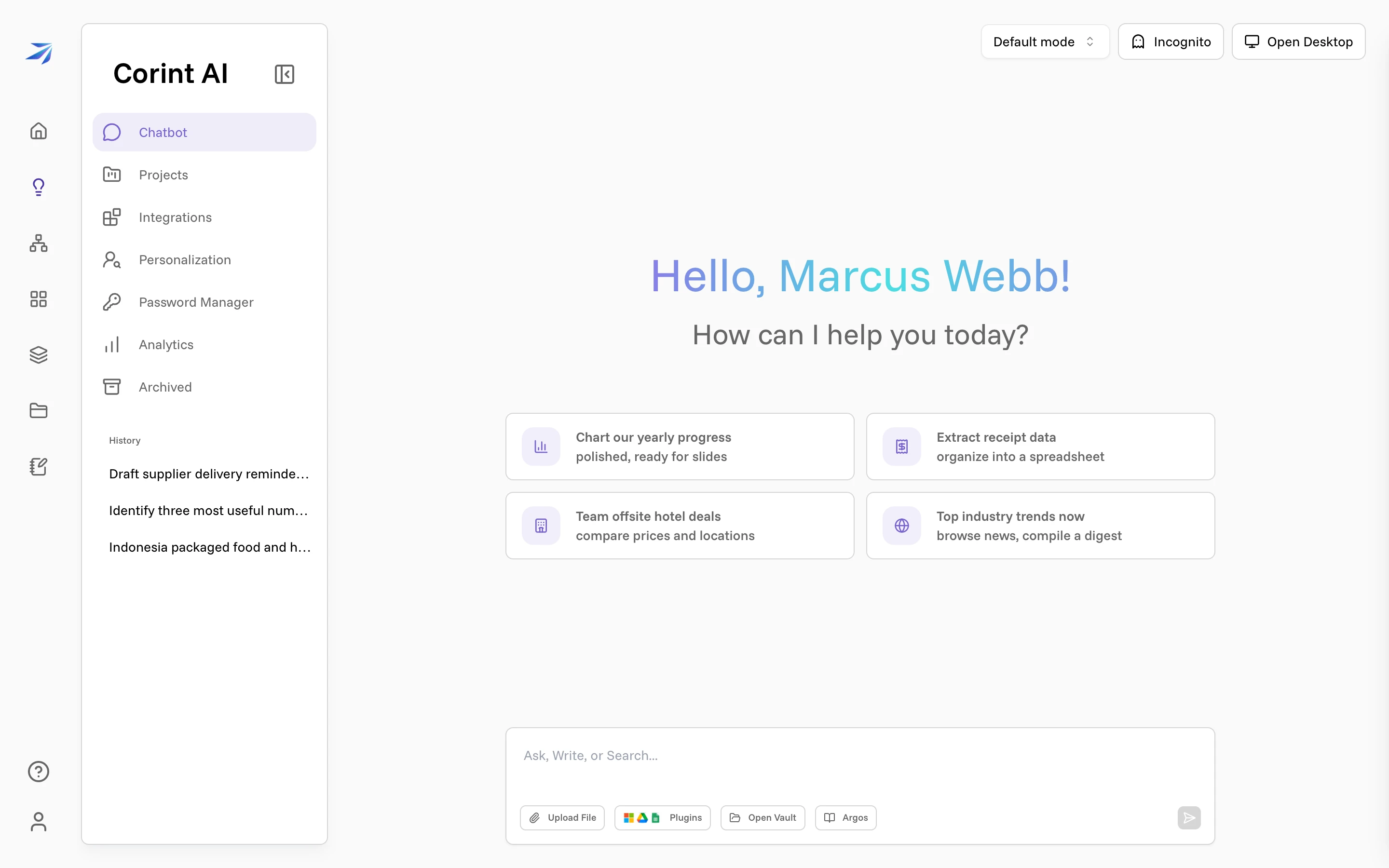
- Chatbot: the chat itself. Clicking it starts fresh.
- Projects: containers that group chats and files around one piece of work, with their own instructions.
- Integrations: the catalog of built-in capabilities and connectable tools. Built-in tools covers it.
- Personalization: how Corint addresses you, your writing-style preferences, and what it remembers.
- Password Manager: credentials Corint can use on your behalf without ever showing them in a chat.
- Analytics: your own usage, broken down by tokens, top tools, and timing.
- Archived: chats you've archived out of the way.
- History: every past conversation, newest first. Chats name themselves after the first exchange.
Above the conversation, three controls travel with every chat: the tool permission mode for the chat, covered in Tool permissions; Incognito for conversations that delete themselves instead of joining your History, and Open Desktop, the window onto the machine where Corint runs real programs.
Corint on WhatsApp links your phone number, so the same assistant answers from the messaging app you already use.
A good first ask
Corint does its best work when you tell it the outcome you want, with the context you'd give a colleague. Compare:
Sales numbers?
Here's our Q2 sales spreadsheet — what are the three most useful numbers in it, and what do they tell us?
The second version gives Corint a file to read and a shape for the answer. Chatting with Corint shows what happens next: how answers stream in, how to read the steps, and how to steer a conversation that went the wrong way.