Give Corint your files
Put a file in the Vault and Corint can find and use it by what it's about — no filename to remember, no re-attaching it every time.
Your work already lives in files — price lists, policies, contracts, exports from your ERP. Put them in the Vault and Corint can pull the right one into a conversation on its own. You ask a question, and Corint finds the file that answers it.
This page uploads one file and then asks a question that never names it.
Put the file in the Vault
Open the Vault and click Upload. Drag files onto the box or click Select Files to browse.
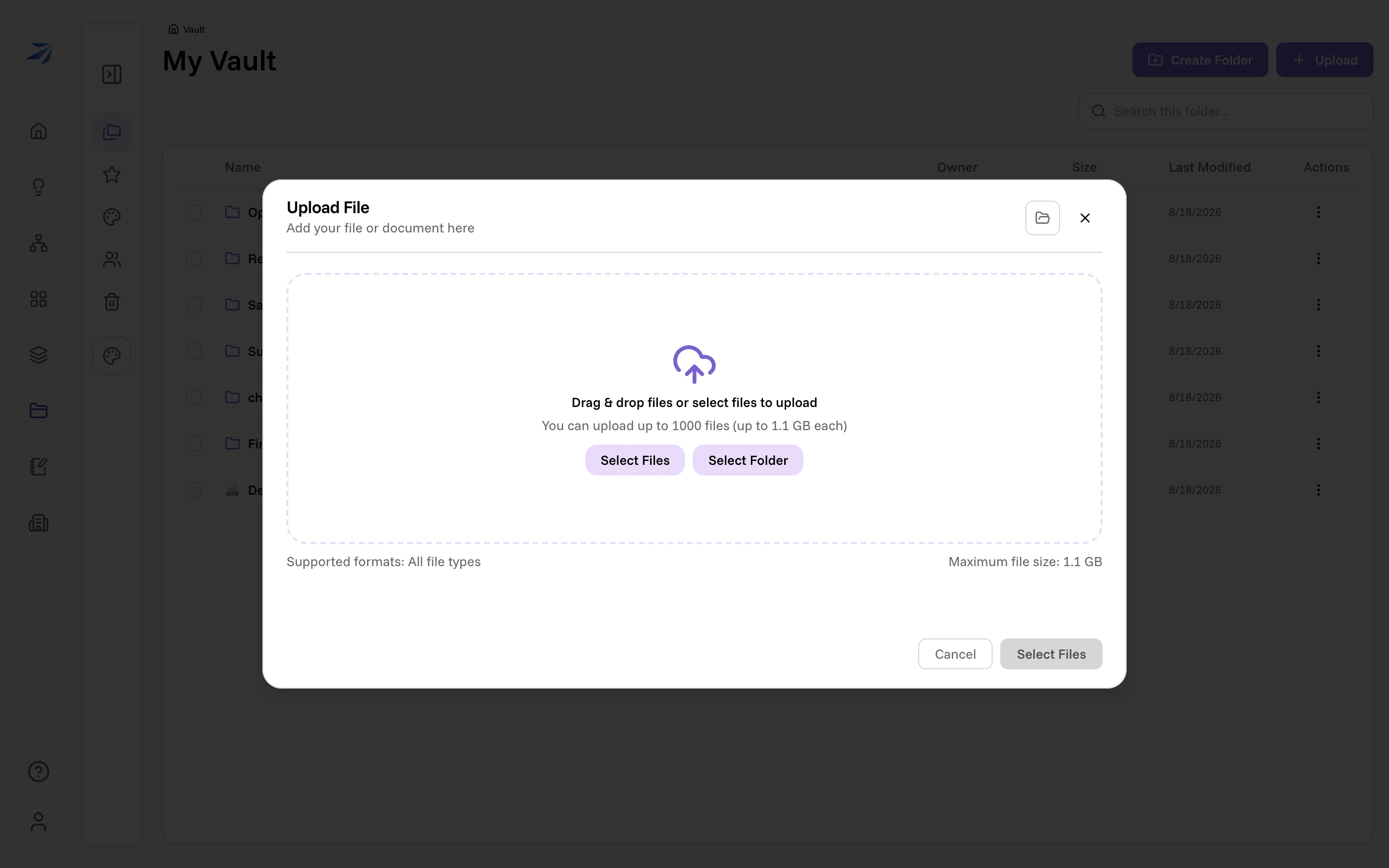
We're uploading one file: a short Customer Returns and Restocking Policy. There's nothing special about it — a normal document a team would keep.
Let it process
Once the upload finishes, Futurity reads the file in the background so its contents become searchable. The file appears in the list right away.
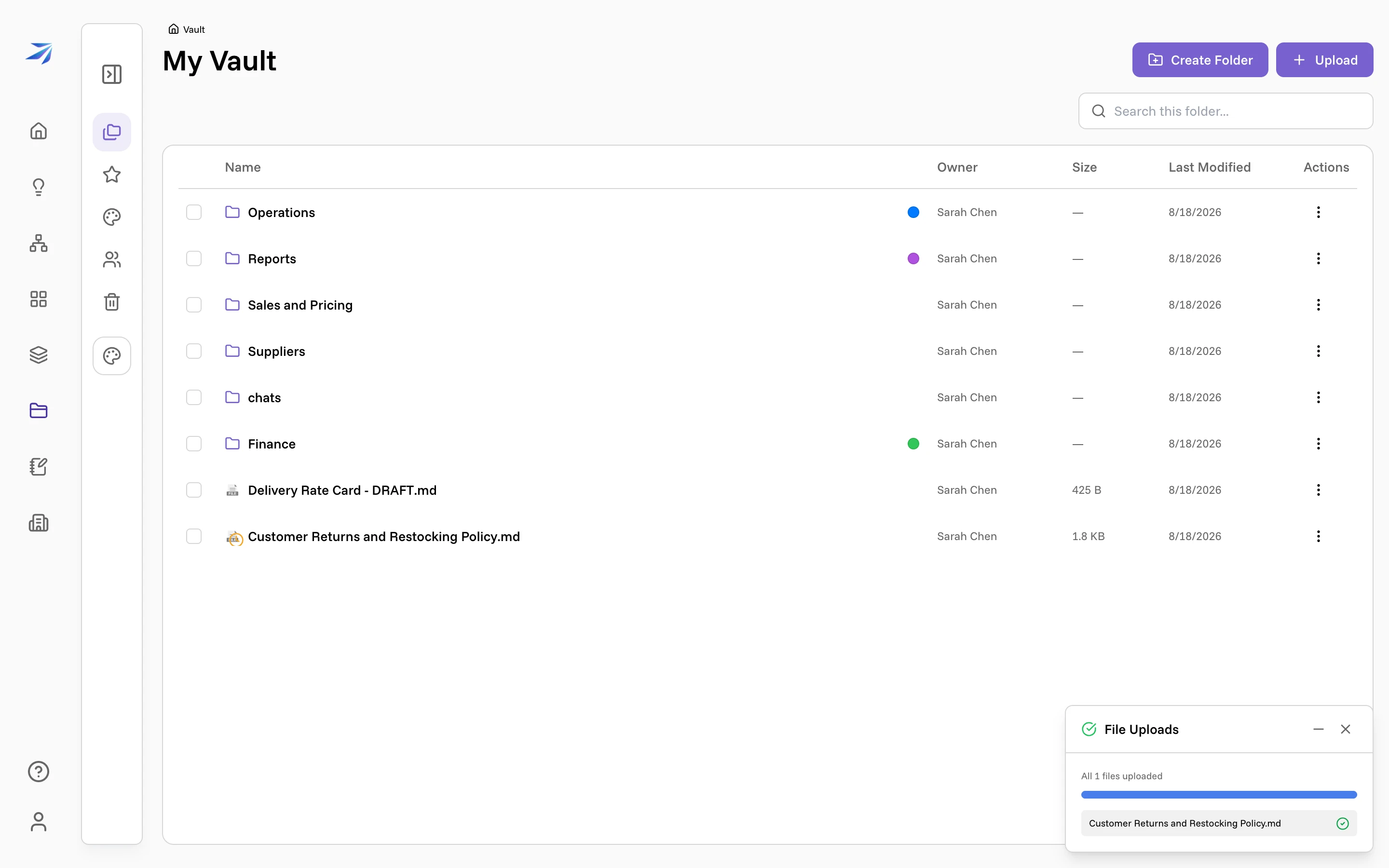
Give it a moment
A file has to finish processing before Corint can find it by its contents. A short text file is ready in seconds; a long PDF or a scanned document takes longer.
Ask by description
Now start a chat and ask a question in your own words — without naming the file. Here the question is about a customer wanting to send part of an order back and what the company is allowed to charge. The word returns never appears in the question.
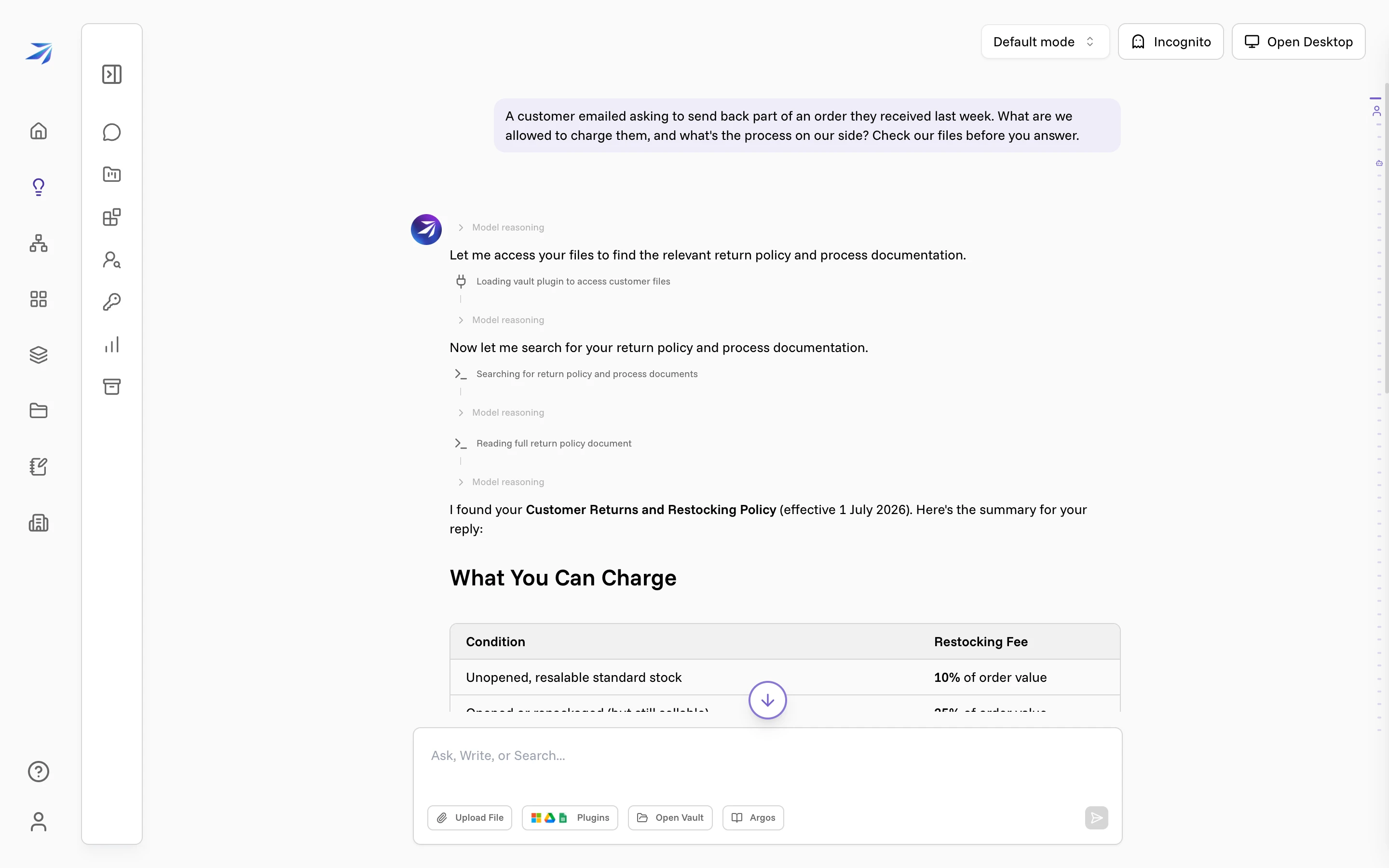
Corint searches the Vault, finds the Customer Returns and Restocking Policy on its own, reads it, and answers with the actual numbers from the file — the 10% and 25% restocking fees, the return-authorization step.
How Corint finds the right file
Corint didn't guess. When a file finishes processing, Futurity makes it findable in three ways, and they work together:
By meaning
Reads the text and matches on what it's about, so a question about sending an order back finds a returns policy
By exact words
Also indexes the real words, so a specific term, code, or name still matches
By name
Matches the filename itself, so 'the July price list' finds the file called that
By meaning is the one that found a file nobody named. As a file is processed, Futurity breaks its text into passages and turns each one into a numeric fingerprint of its meaning. Your question gets the same treatment, and Futurity compares fingerprints to find the passages that are about the same thing — even when they share no words with what you typed. That's how "a customer wants to send an order back" reaches a document titled Returns and Restocking Policy.
By exact words covers the cases where meaning isn't enough — an invoice number, a product code, someone's name.
When Corint searches your files it uses both of these together and reads the passages it finds, so its answer is grounded in what the document actually says. By name is how it opens a file it already knows — the same way you'd double-click one in the Vault.
None of this needs setup from you.
One file, just this once
If you only need Corint to use a file in a single conversation, you don't have to put it in the Vault at all — attach it straight to the chat with Upload File in the composer. That hands Corint the whole file for that chat. Making sense of a hard document does exactly that with a dense one.
Where to go next
Build a website
Ask Corint for a landing page or a working demo, and get back a real site the sandbox builds, serves, and shows you running.
Make sense of a hard document
Hand Corint a dense file — a long audit log, a policy, or a contract — and ask real questions about what's in it, what matters, and what connects to what.