Chatting with Corint
How a conversation unfolds — watching the work, reading the answer, and editing a message to try a different path.
A Corint conversation turns into a work log the moment you give it something real to do: the assistant reasons out loud, runs tools in front of you, and delivers an answer you can check.
This page follows a real conversation (a market news digest) from the question to the finished answer, then picks up a second one to show what editing a message does.
Watching Corint work
Ask for something that takes research, and Corint narrates as it goes:
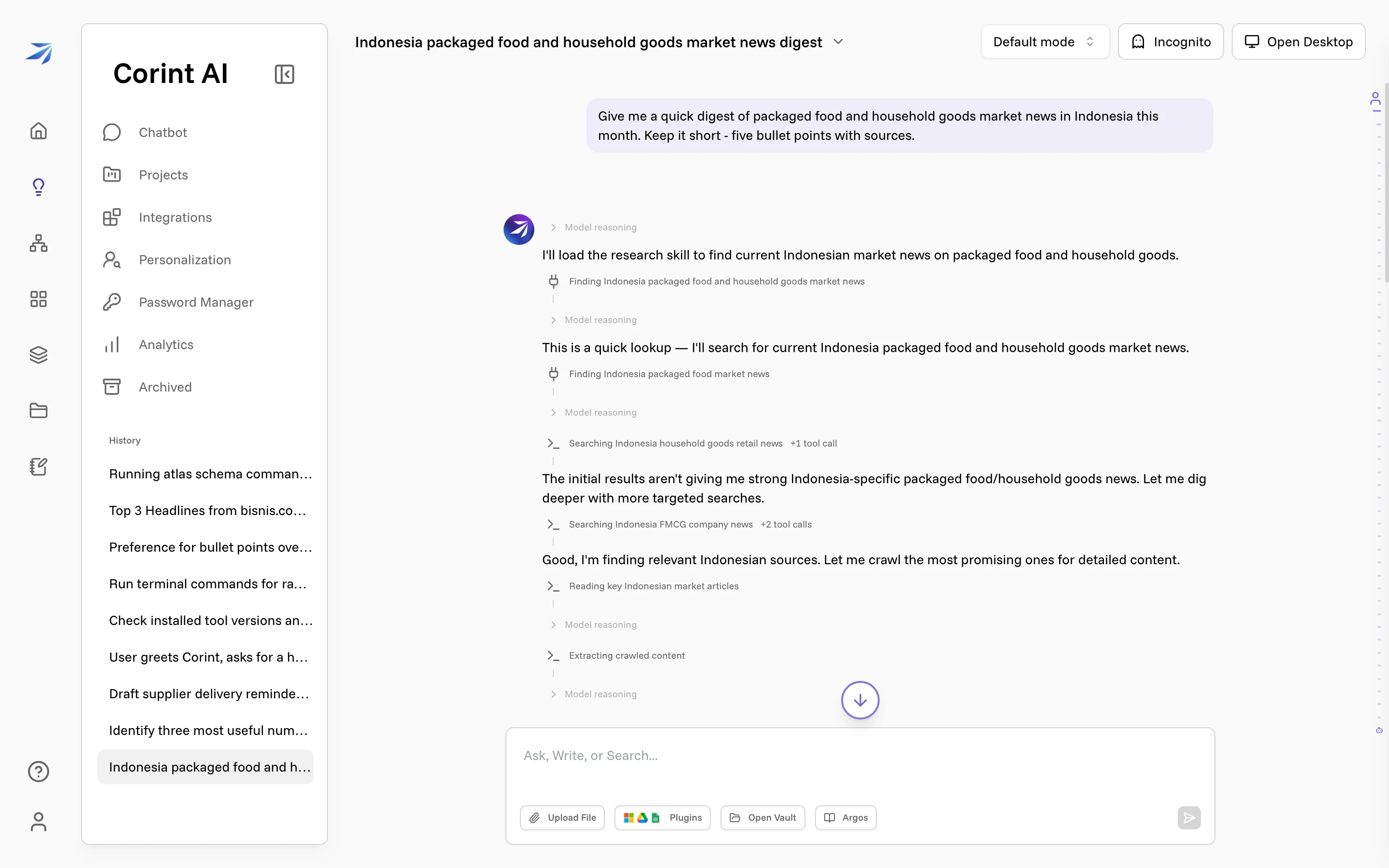
Three kinds of lines interleave here:
- Plain text: Corint telling you what it's doing and why. "The initial results aren't giving me strong Indonesia-specific packaged food/household goods news. Let me dig deeper with more targeted searches."
- Tool steps: the grey lines with icons, one per action. "Searching Indonesia FMCG company news +2 tool calls", "Reading key Indonesian market articles". Click any step to see exactly what the tool was asked to do.
- Model reasoning: collapsed by default. Click one open to read the thinking between steps:
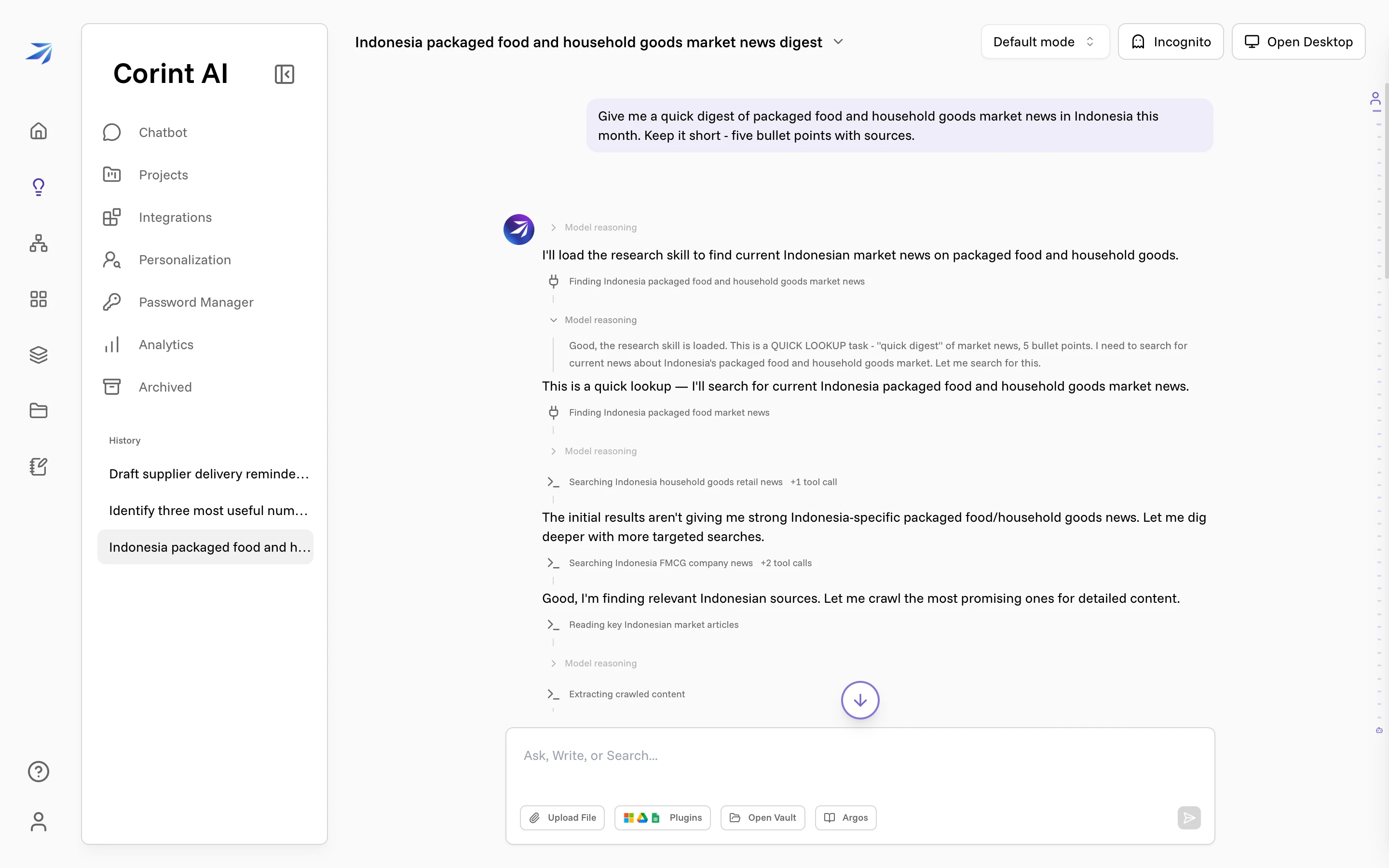
Most of the time you'll skim past all of this. It earns its place when an answer surprises you — you can trace where a number came from instead of taking it on faith.
While Corint works, the send button becomes Stop. Press it (or Esc) to halt a run that's heading somewhere you didn't intend.
Reading the answer
When the research settles, the answer arrives with its evidence attached:
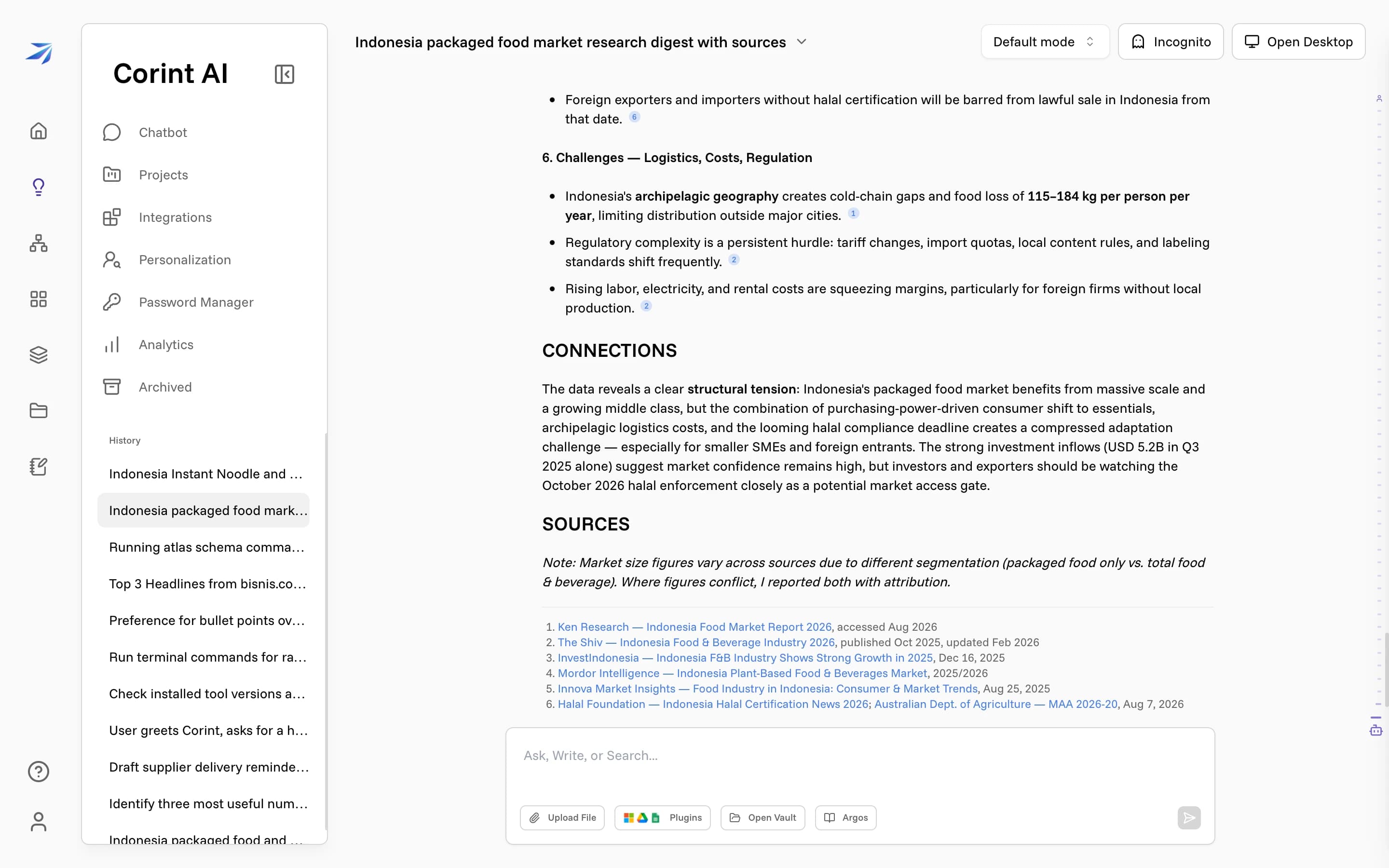
Each claim ends with a small numbered marker, and the numbers resolve in the SOURCES section at the bottom — every report the answer drew on, each one linked. Click a marker to jump to its entry; the links open the articles themselves. The italic note above the list flags a conflict in the evidence: market-size figures differ between sources, so the digest reports both with attribution.
A conversation keeps its context, so follow-ups can be short: "expand the third bullet", "make this a table". Start a new chat (Chatbot in the sidebar, or Ctrl/Cmd + O) when the next task doesn't need this history.
Editing a message
Hover over any message you sent and a pencil appears. Click it and the message becomes editable, with Cancel and Save & Submit:
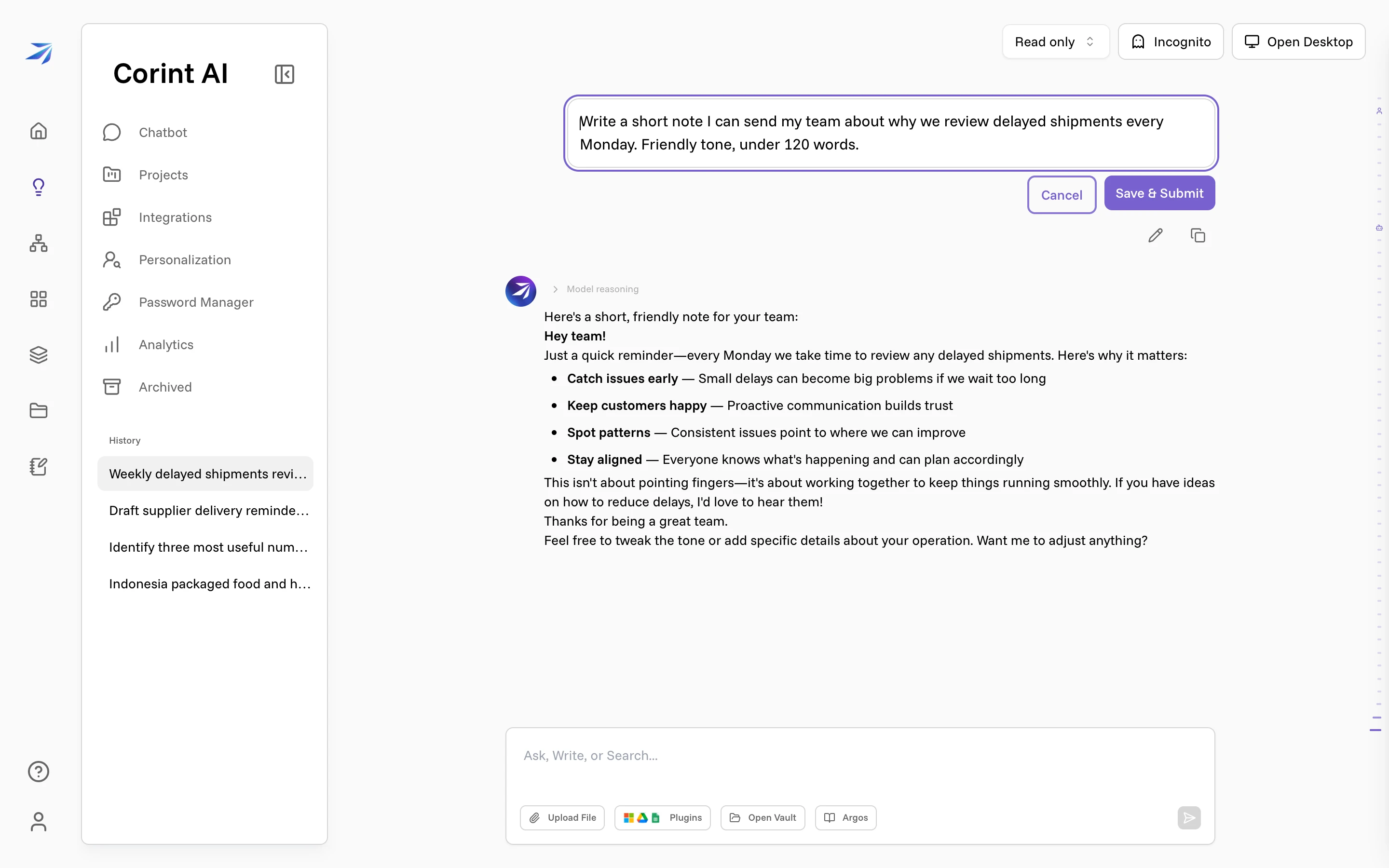
Save & Submit re-runs the conversation from that point with your new wording. The original isn't lost: a version selector appears under the edited message, and the arrows flip between each version of the question, with the full answer each one produced:
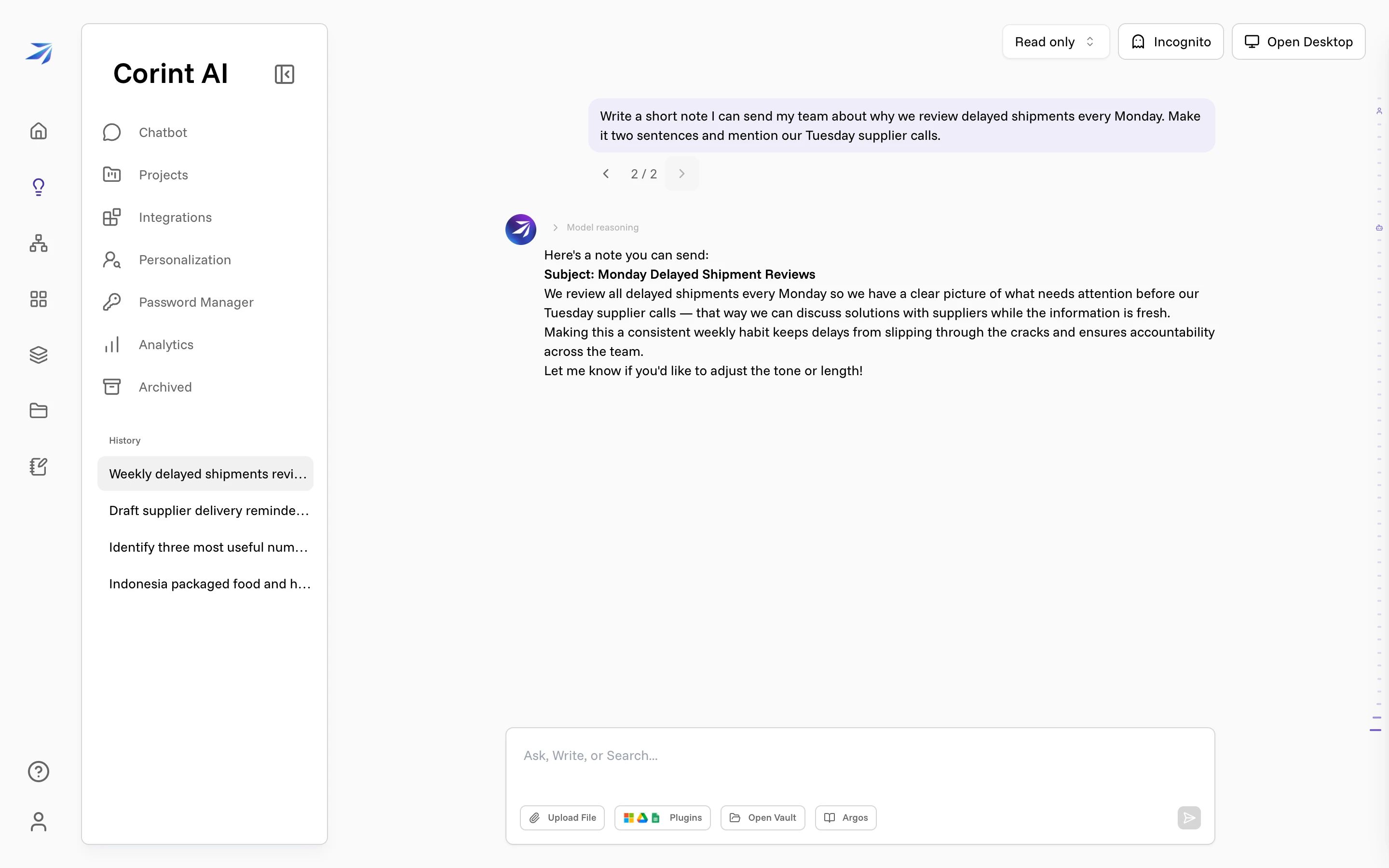
This is the cheapest way to fix a prompt that came out wrong, or to compare two framings of the same ask without cluttering your History with retries.
Keeping chats organized
Every conversation titles itself after the first exchange and lands in History in the sidebar. Hover a chat there for its menu:
- Rename: replace the automatic title with your own.
- Archive: move it out of History into Archived, where it stays searchable.
- Delete: remove it after a confirmation.
For conversations that shouldn't be kept at all, the Incognito button in the chat header starts a temporary chat that is deleted automatically instead of joining your History.