Projects
Group the chats, files, and standing instructions for one piece of work into a single named workspace.
A project is a named workspace that keeps the chats, files, and standing instructions for one piece of work together, so the context is set once instead of retyped into every new chat.
Creating one
Click Corint in the left navigation, then Projects in the Corint sidebar, then New Project.
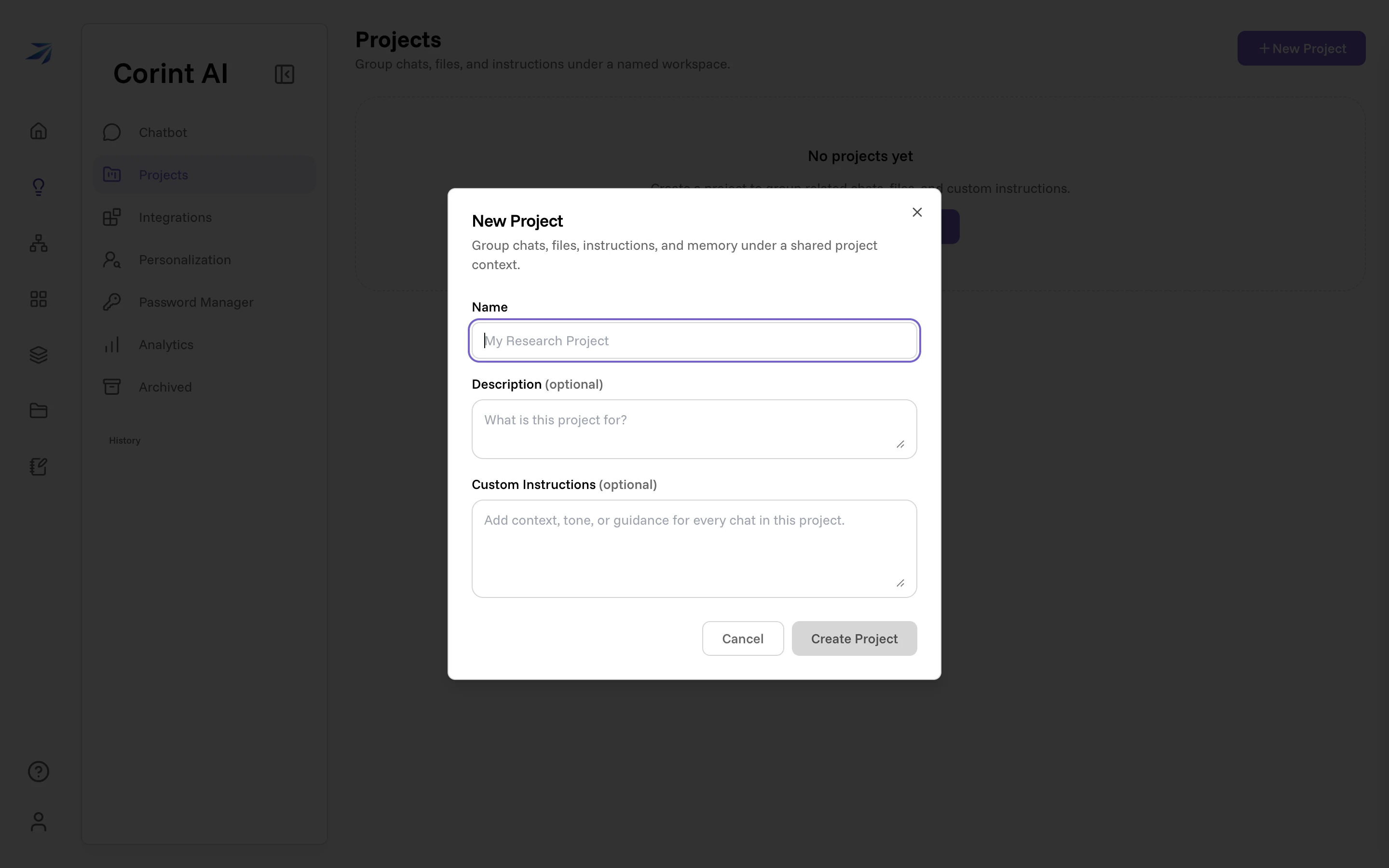
Only the name is required. The other two fields are optional, but useful to fill out as they give Corint more information about what you're working on:
- Description: "What is this project for?" One line, shown under the project title so anyone who opens it knows what it covers.
- Custom Instructions: "Add context, tone, or guidance for every chat in this project." These reach Corint at the start of every conversation you start here.
The examples on this page come from Meridian Distribution, a fictional goods distributor we use throughout these docs. Its project is called Q3 Retail Expansion, and its instructions read:
Everything here is about our retail expansion. Prefer short, decision-ready answers, use IDR for currency, and flag anything that affects delivery lead times.
Write these as rules rather than background. "Use IDR" changes every answer. "We are a distributor" mostly doesn't.
Working inside a project
The project page opens on its own composer (Message your project… with a New chat button) and a list of Chats in this project underneath.
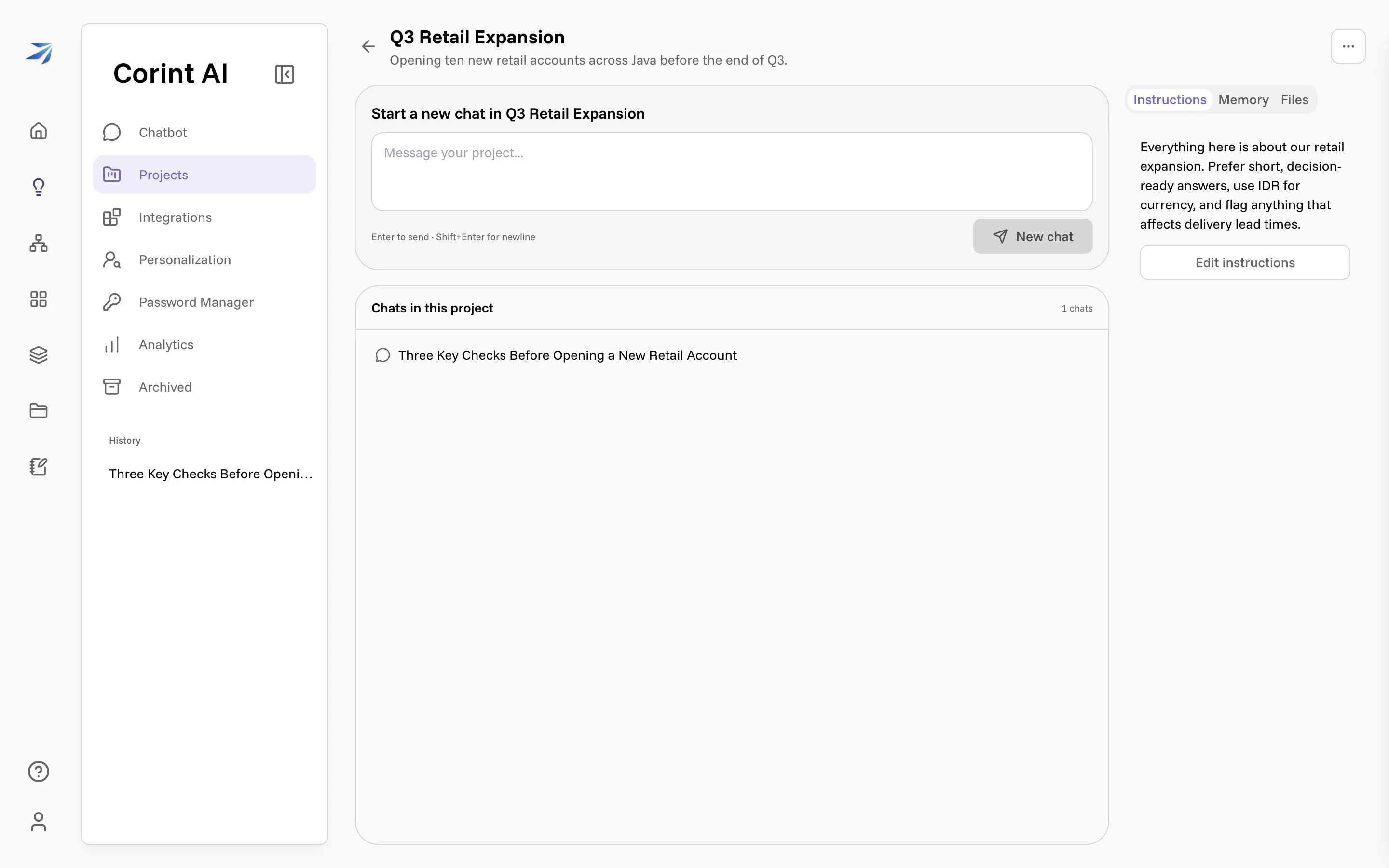
Every chat started from this composer belongs to the project and carries its instructions and files. Chats you start from Chatbot don't, even if they're about the same subject, so start them here when the context matters.
The panel on the right has three tabs:
- Instructions: what you wrote at creation, with an Edit instructions button. Rewrite them whenever the work changes.
- Files: documents attached to the project rather than to one chat. The empty state says what they're for: "Upload documents to give the AI project-specific knowledge." A price list, a contract template, or a territory map uploaded here is available to every chat in the project.
- Memory: Relevant Memory, the remembered facts that apply here. See Memory and personalization.
Moving an existing chat
On the chat's own page in the desktop web app, open the menu beside its title and choose Add to Project. Select a project you own or can view, or choose New Project to create one. The project name appears beside the chat title and the chat uses that project's context for subsequent messages.
To move the chat elsewhere, choose Remove from Project, then Add to Project and select its new home. Removing it clears the project label and context for later messages; it does not delete the chat or its messages.
Renaming, sharing, deleting
The button beside the project title holds Rename, Share, and Delete.
Share opens the same picker used elsewhere in Futurity: add a teammate or a team as Can View or Can Edit, set Organization Access the same way, or hand out a link under Public Access, which is view-only, and take the link with Copy Link. Both access settings start at None, so a project is private to you until you change one.
When should you use a project?
A project is overhead. It pays for itself when at least one of these is true:
- The work will take more than a handful of conversations.
- You keep repeating the same instruction ("in IDR", "one page", "for the board").
- The same two or three documents come up again and again.
- Someone else will pick this up and would otherwise have to be briefed.
For a one-off question, a plain chat from Chatbot is still the right tool.