Files and context
Handing Corint the files, documents, and wiki pages your question is actually about.
Most questions at work are about something: a spreadsheet, a contract, a policy page. Corint can only be precise about material it can read, and the composer gives you three ways to hand that material over.
Attaching a file
The direct route: Upload File in the composer attaches a file from your computer.
If the file already lives in Futurity, use Open Vault instead. It opens the Document Vault picker on the right — browse your folders or search, and click a file to add it to the chat:
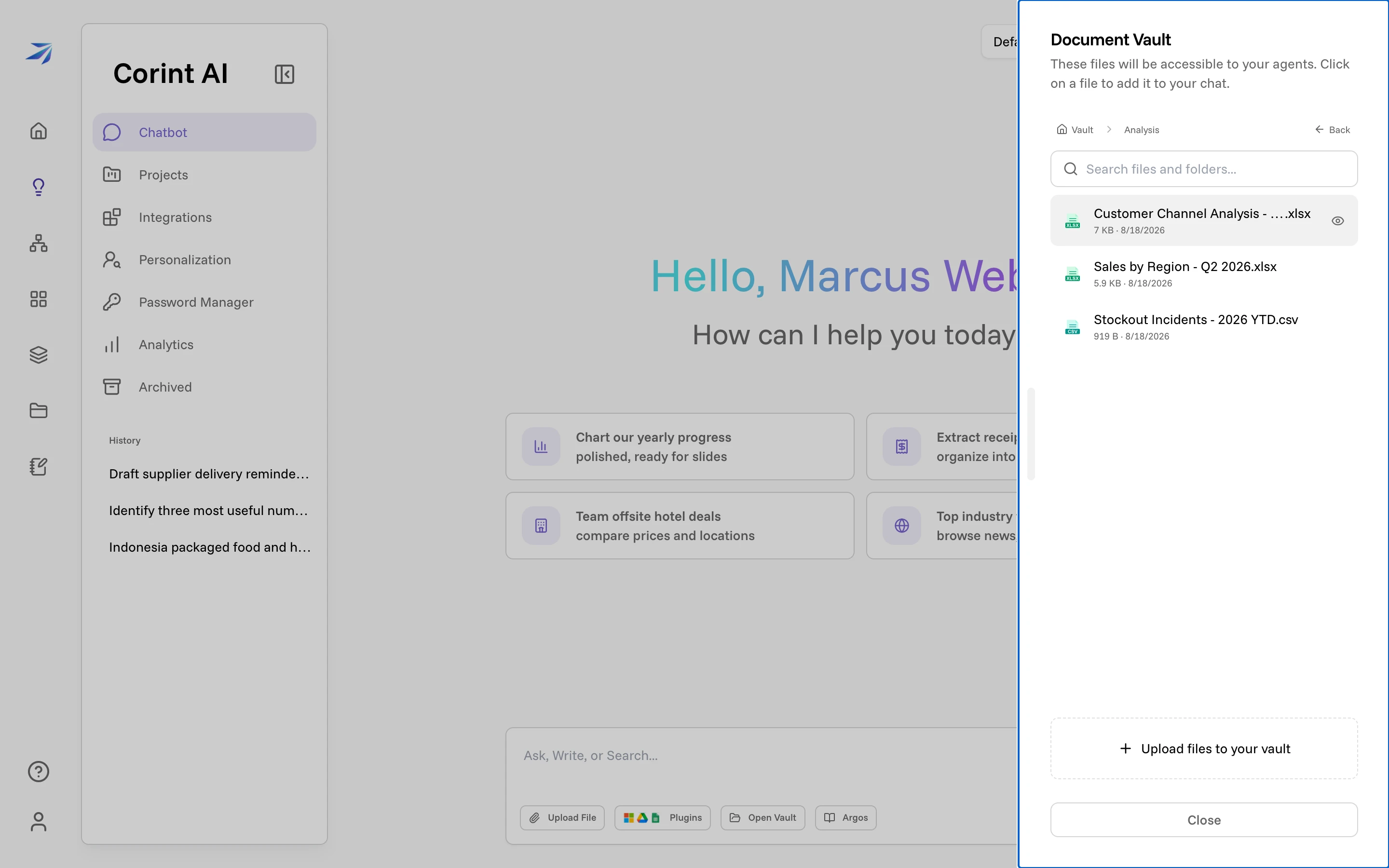
Pick a file, and it becomes accessible to your agent. The file stays in your Vault. Attaching it points Corint at it. Corint may read your Vault on its own, but attaching it helps Corint move faster.
The Vault is where your organization keeps its files. What is the Vault? covers folders, sharing, and search.
Copying a Vault file into a chat
In the Vault, choose Copy Link from a file's menu, then paste the link into the Corint message box. The file appears as an attachment. You can also select several files and choose Copy File Links, or press Ctrl+C (Cmd+C on Mac) while the My Vault file list has focus, then paste them together. Paste up to 100 file links at a time.
The links must come from the same Futurity site you are using for the chat. Futurity checks your current access to every file before attaching the batch. Files still uploading or processing, or whose processing failed, must be ready in the Vault before you paste them; check their status and try again. Files shared with you must be shared directly with you, your team, or your organization; access through a public link alone does not give Corint access. If a file was deleted or you no longer have access, no files from that paste are attached; copy the files you can still access and try again. Repeated pastes do not add duplicate attachments.
To copy a file out of a chat, use Copy Vault file link on its attachment card. You can paste that link into another Corint composer or send it to someone who already has access. Copying a link does not grant access or put the file's contents on the clipboard. Use the Vault's download action when you need a local copy.
Folder links, links from another Futurity site, and links mixed with other text stay as message text. Pasting a file from your computer into the message box still uploads it.
What Corint does with a file
An attached file appears as a chip above your message. Corint reads it when the question calls for it — you'll see the read as a tool step, like any other work it does:
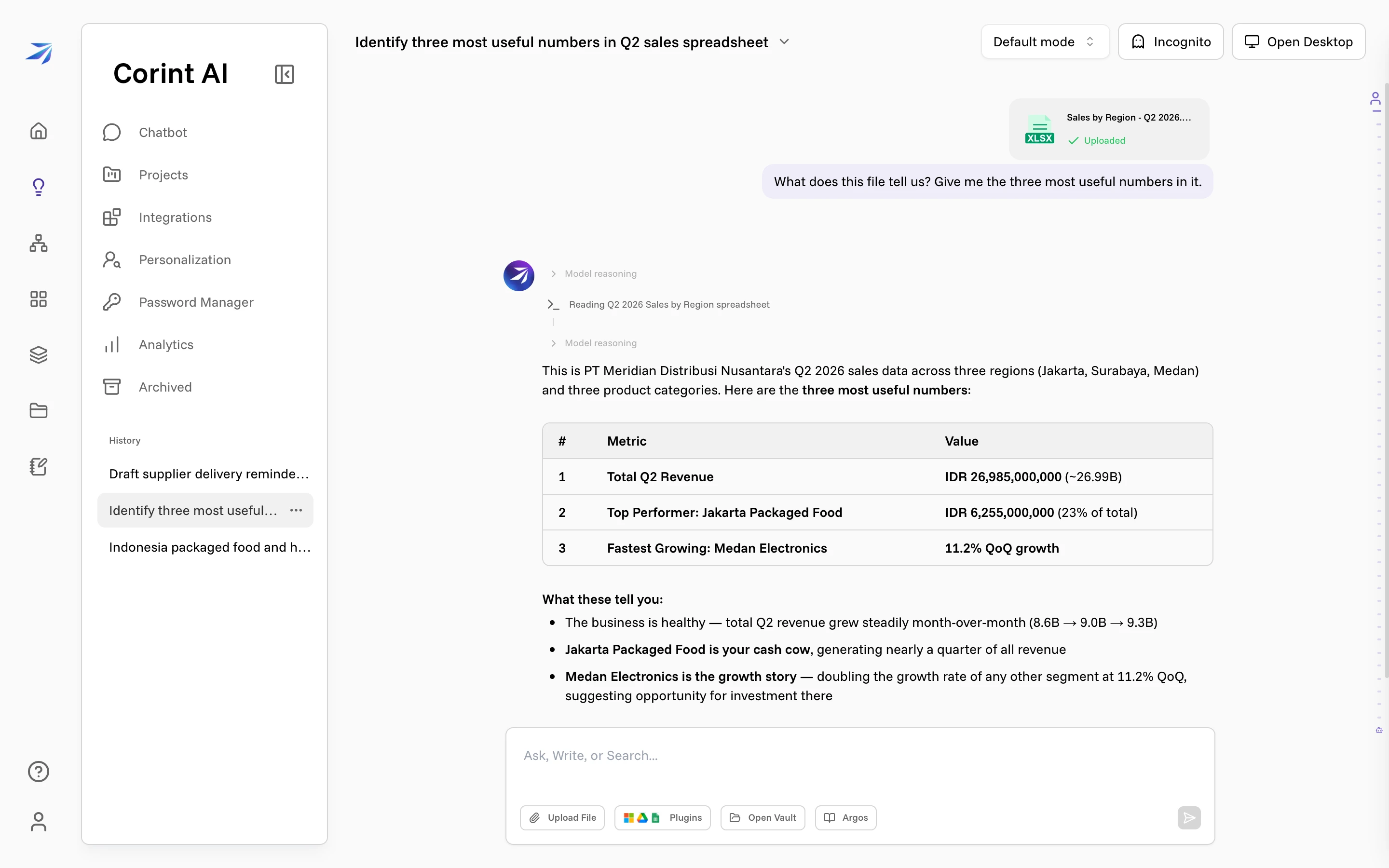
This is the pattern from Chatting with Corint applied to your own data: for a spreadsheet like this one, "what are the three most useful numbers in it?" gets you a table with real figures and what they imply.
You don't always have to attach anything. Vault access is one of Corint's built-in tools, so telling Corint about "the Q2 sales spreadsheet" is often enough for Corint to find the file itself. Attaching the file means Corint doesn't have to search for it, and guarantees that it will find the right file without any guessing.
For a start-to-finish walkthrough of getting a file in and working through it, see Give Corint your files. When the document is long and dense, like a contract, a policy, or a machine log, making sense of a hard document shows how to interrogate it a piece at a time.
Referencing your wiki
The Argos button in the composer opens a drawer for your organization's wiki. Pick a page and it becomes a reference in your message — Corint reads it on demand while answering.
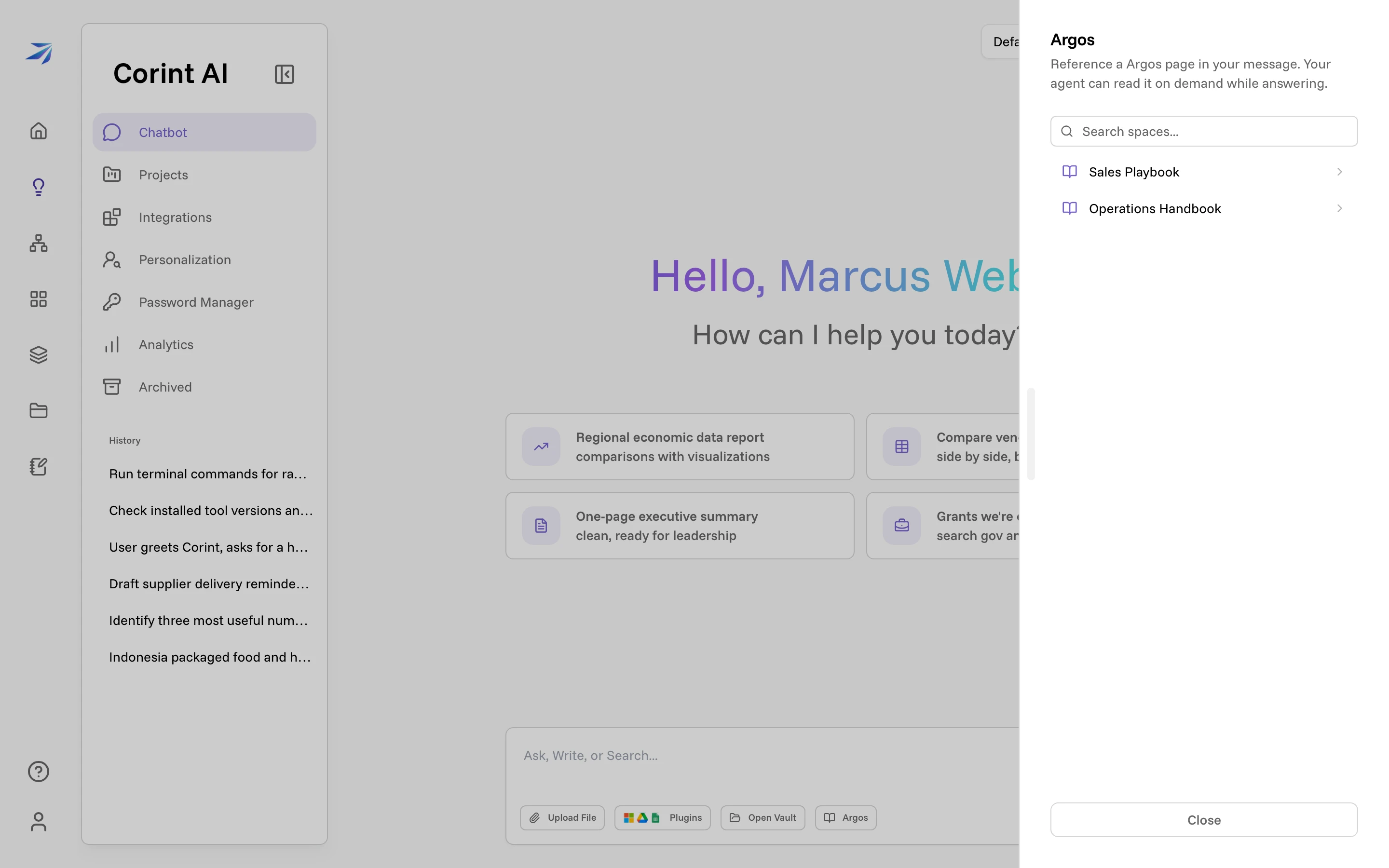
If your organization hasn't built anything in Argos yet, or doesn't have it enabled, the drawer says so instead.
Where Corint's own files go
When you request a file, Corint builds and checks it in the Desktop sandbox attached to your conversation. Finished results belong in your Vault's folder for that chat, with a file link in the reply. From there, you can share, star, or move them.
A workspace or temporary path points to a working copy. If Corint gives you only that path, ask it to save the finished result to your chat's Vault folder and provide its file link. Reading or analyzing a file does not require creating another deliverable.