Password Manager
Store an API key or login once, so Corint can use it in the sandbox without you pasting it into a chat.
Sooner or later a task needs a credential: pull yesterday's numbers from a carrier's API, sign in to a supplier portal, call a service your team pays for. Pasting the key into a chat message is the obvious move and the wrong one — the value then lives in a conversation, in your history, and in anything that conversation is shared with.
The Password Manager is the alternative. Its subtitle states the deal:
"Store credentials for Corint Desktop to use with pm read." A badge beside
the list reads Encrypted at rest.
Reaching a database? Consider Atlas first.
The Password Manager is right for a one-off: a personal credential Corint uses in the sandbox to hit an API or a portal during a task. But if the goal is to ask questions of a company database (sales, inventory, orders), an org admin connecting it once through Atlas is the better path. Atlas is governed and shared, so everyone queries the same live data safely, without each person holding raw credentials, and Corint can reason across sources instead of running loose SQL.
Find it under Corint in the left navigation, then Password Manager in the Corint sidebar.
Creating an item
Click New Item. An item is a name plus one or more named fields.
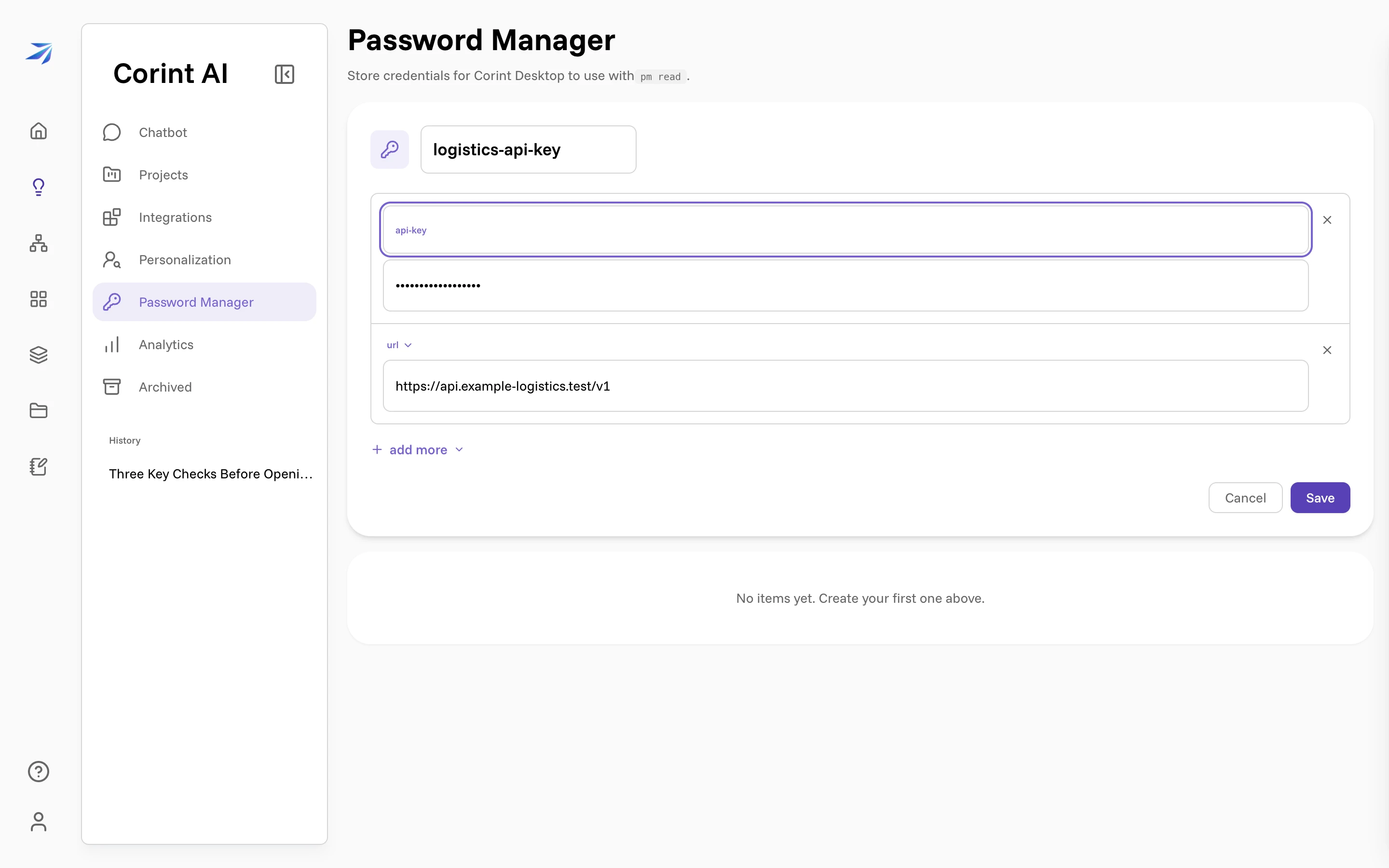
Names here work like identifiers. The item name and every field name must start
with a letter and use only letters, numbers, hyphens, and underscores:
logistics-api-key saves, Logistics API key gets rejected for the spaces.
That's what makes each value addressable later.
Each field row has a type picker: Username, Password, Email, URL, Text, Phone, One-Time Password, Note, Recovery Keys, or Custom name… for a label of your own. + add more adds another row, and the × at the end of a row removes it. Every row you keep needs a value.
The value in this screenshot is a placeholder. Put the real credential here, and only for a service you're willing to let an agent operate.
What the list shows
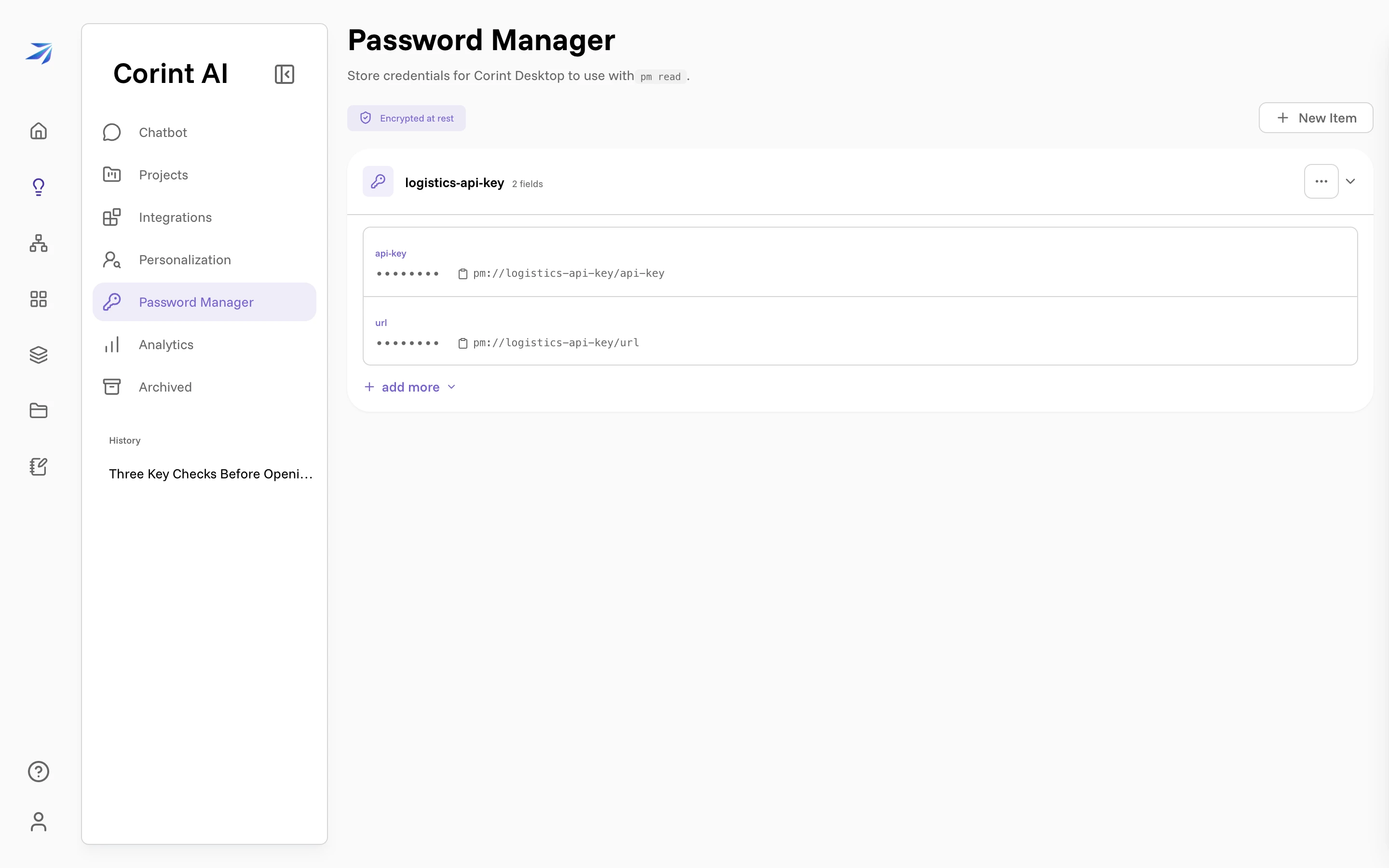
Saved values are never displayed again. Each field shows dots, its name, and
its address, pm://logistics-api-key/api-key, with a copy button beside it.
The … on a field offers Rename, Set Value (replace the secret without seeing the old one), and Delete. The … on the item itself offers Delete Item. + add more appends a field to an item that already exists.
How Corint uses it
Corint knows the addresses, not the secrets. When a task needs one, it reads the value inside its sandbox with a command:
pm read "pm://logistics-api-key/api-key"A typical use puts that straight into a request, so the value passes through a running command and never through the conversation:
curl -H "Authorization: Bearer $(pm read "pm://logistics-api-key/api-key")" \
  https://api.example-logistics.test/v1/shipments
pm list prints the addresses available in that sandbox. Corint is instructed
never to print or echo a stored value, so you should not see one appear in a
chat — if you ever do, delete the item here and rotate the credential at its
source.
The sandbox is the private Linux machine attached to your conversation; see What is the Desktop for what else runs there.
What belongs here
Store the credential for a service you want Corint to actually operate: a read-only API key, a service account for an internal tool, a login for a portal you'd otherwise fill in by hand.
Keep out anything you wouldn't hand to a capable assistant working unattended: production admin credentials, anything that can move money, and anything your organization's policy says must stay in its own vault.