Tool permissions
The three permission modes, what triggers an approval prompt, and what saying no looks like.
Corint's tools differ in what they can affect. Searching the web reads; saving a memory about you writes; removing something deletes. Every tool is classified at one of those three levels (read, write, or delete), and tool permissions decide which levels run freely and which stop to ask you first.
The three modes
Your account default lives under Profile → Preferences, and its options describe the whole system:
- Read: Prompt before tools that write to or delete your data or connected systems. Sandbox scratch work runs without prompting. Safest default.
- Write: Let tools read and write without prompting. Still prompts on delete.
- Bypass: No prompts at all (except tools marked explicit-consent).
Two things run through all three. Ordinary read tools run without prompting: searching, opening your files, and working inside the conversation's own isolated sandbox all count as reading. And a few tools are marked explicit consent, which means they ask for permission every time, in every mode, unless you enable Skip explicit-consent prompts in your account preferences.
Setting the mode for one chat
Each chat carries its own mode in the header, next to Incognito. It reads Default mode until you choose (meaning the chat follows your Preferences setting), and opening it shows the three options with the current one checked.
The chat-level pick only covers that conversation. A practical pattern: leave your default at Read, and raise a single chat to Write when you're doing something that would otherwise prompt repeatedly.
What an approval prompt looks like
When a tool's level is above the chat's mode, or the tool requires explicit consent, the run pauses and a prompt appears above the composer. This one is Corint asking to save a memory about a formatting preference:
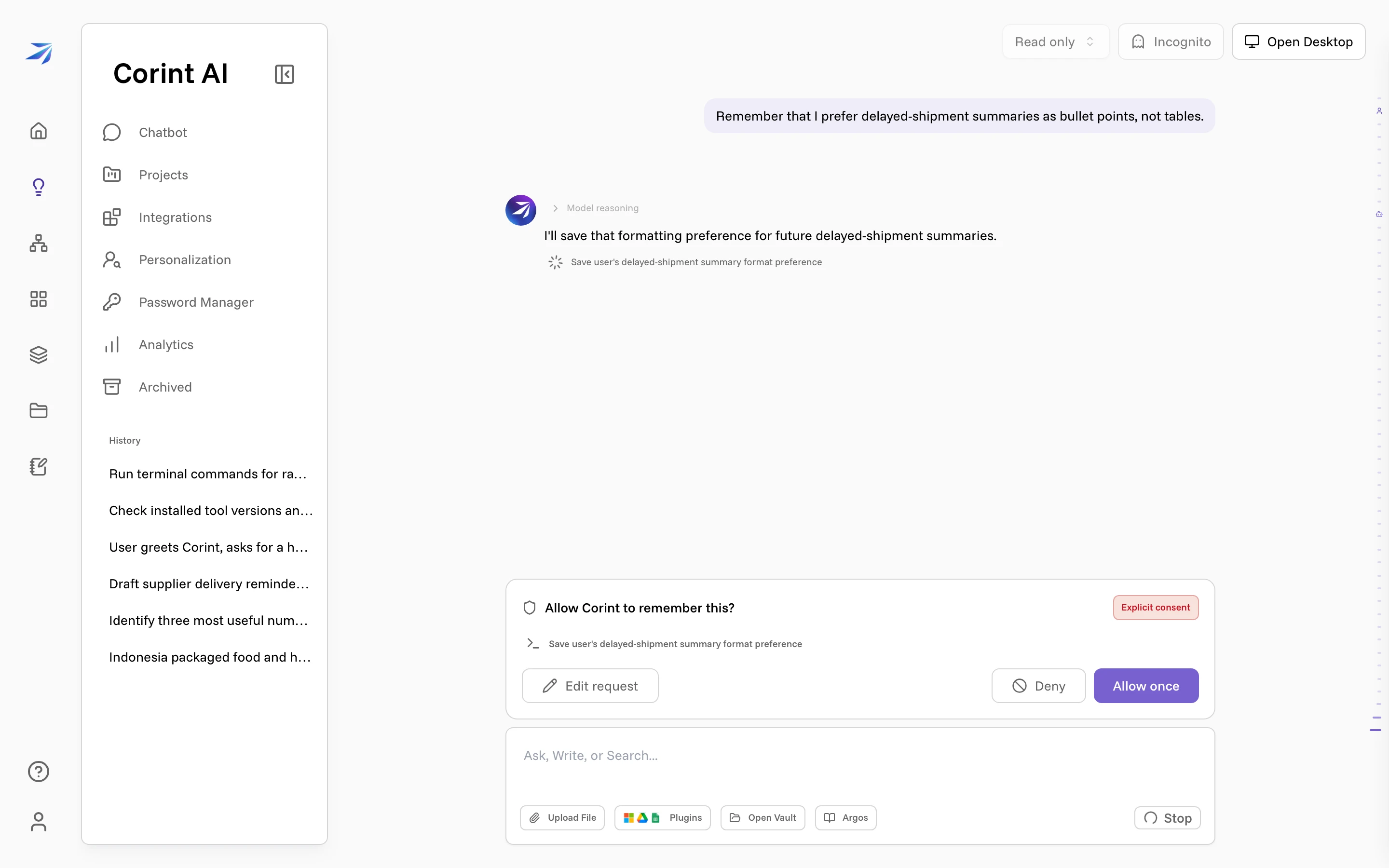
The prompt names the action, shows the exact request underneath, and flags the Explicit consent classification when it applies. Your options:
| Action | Keyboard |
|---|---|
| Allow once | Enter |
| Allow for the rest of this chat | Shift + Enter |
| Always allow this tool | Ctrl/Cmd + Enter |
| Deny | Esc |
| Edit the request before it runs | E |
Edit request is worth knowing about: instead of a yes or no, you can change what the tool is about to do and then let it proceed. Explicit-consent requests are the strict case: they offer only the one-time allow, because "always" is exactly what that classification rules out.
Saved Always allow and Allow for chat approvals can be reviewed and revoked in Profile → Preferences. Revocation affects subsequent tool calls in existing chats. A mode or another active grant may still allow the tool. Organization-blocked tools cannot run, even in Bypass mode or with a saved approval.
Saying no is safe
Denying doesn't end the conversation. Corint carries on without the blocked action and tells you what it couldn't do — in the example above, it explained that the memory wasn't saved and pointed to the Personalization page where the preference could be set by hand. Deny freely: the worst case is that Corint finds another way or asks you to do that one step yourself.
Organization-wide rules
Admins have their own layer: Org → Tool Permissions sets overrides that apply to everyone in the organization. An override can raise how strictly a tool is treated (a higher classification, or an explicit-consent requirement), and personal settings can't lower it back. If a tool prompts you even in a permissive mode, an org rule may be the reason.