Connecting your data
Add a database to Atlas end to end — pick the kind, test the connection, and start discovery.
This page connects a real source. The example is Meridian ERP, the PostgreSQL database behind Meridian Distribution — the fictional goods distributor used throughout these guides. Swap in whatever your organization runs; the shape of the flow is the same for all 18 kinds.
Connecting takes a couple of minutes. Discovery, which runs afterwards, takes anywhere from ten seconds on a small database to several minutes on a large one.
Before you start
You need Atlas enabled for your organization and a login for the system you're connecting. Use a read-only account where you can: Atlas never writes to a source, and a read-only login keeps it that way no matter what.
Open the source picker
Click Atlas in the left navigation. If nobody has set Atlas up yet, you get a Welcome to Atlas screen — click Set Up Atlas. If a source is already connected, you land in the workspace instead; click Sources in the top right.
Either route opens Select Data Sources, listing every kind Atlas can connect to, with a search box for finding one by name.
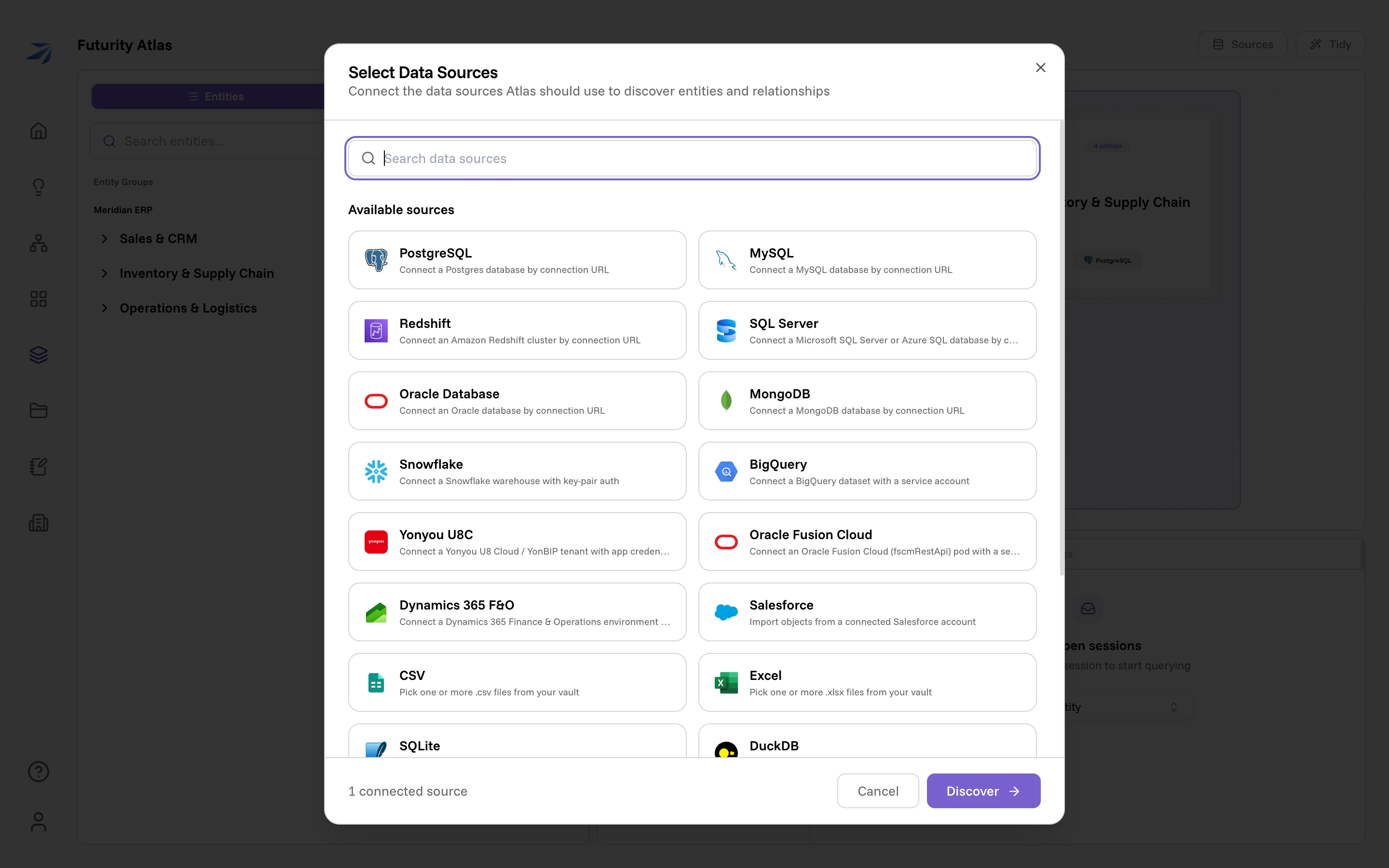
Choose the kind of source
Click the card that matches the system you're connecting — here, PostgreSQL. Each kind opens its own short form, because each one needs different things: a connection URL, a service account key, a file from your Vault, or a connected account. Source kinds covers what every kind asks for.
Fill in the connection
The database kinds want two things.
Source name is what people will see everywhere else — in the entity list,
on the canvas, in an answer that says where a number came from. Name it after
the system, not the technology: Meridian ERP reads better than postgres-1.
Connection URL is the standard URL for that database, in the form the
field's placeholder shows:
postgres://user:password@host:5432/database. Append the options your server
needs — ?sslmode=require, for example.
The URL is stored encrypted as soon as you add the source, and it is never shown again to anyone, including you. When a credential changes, disconnect the source and reconnect it with the new URL.
Test the connection
Click Test connection. Atlas opens a connection with the credential you typed and reports back inline — Connection succeeded, or the exact error the server returned, which is usually enough to tell a wrong password from a firewall.
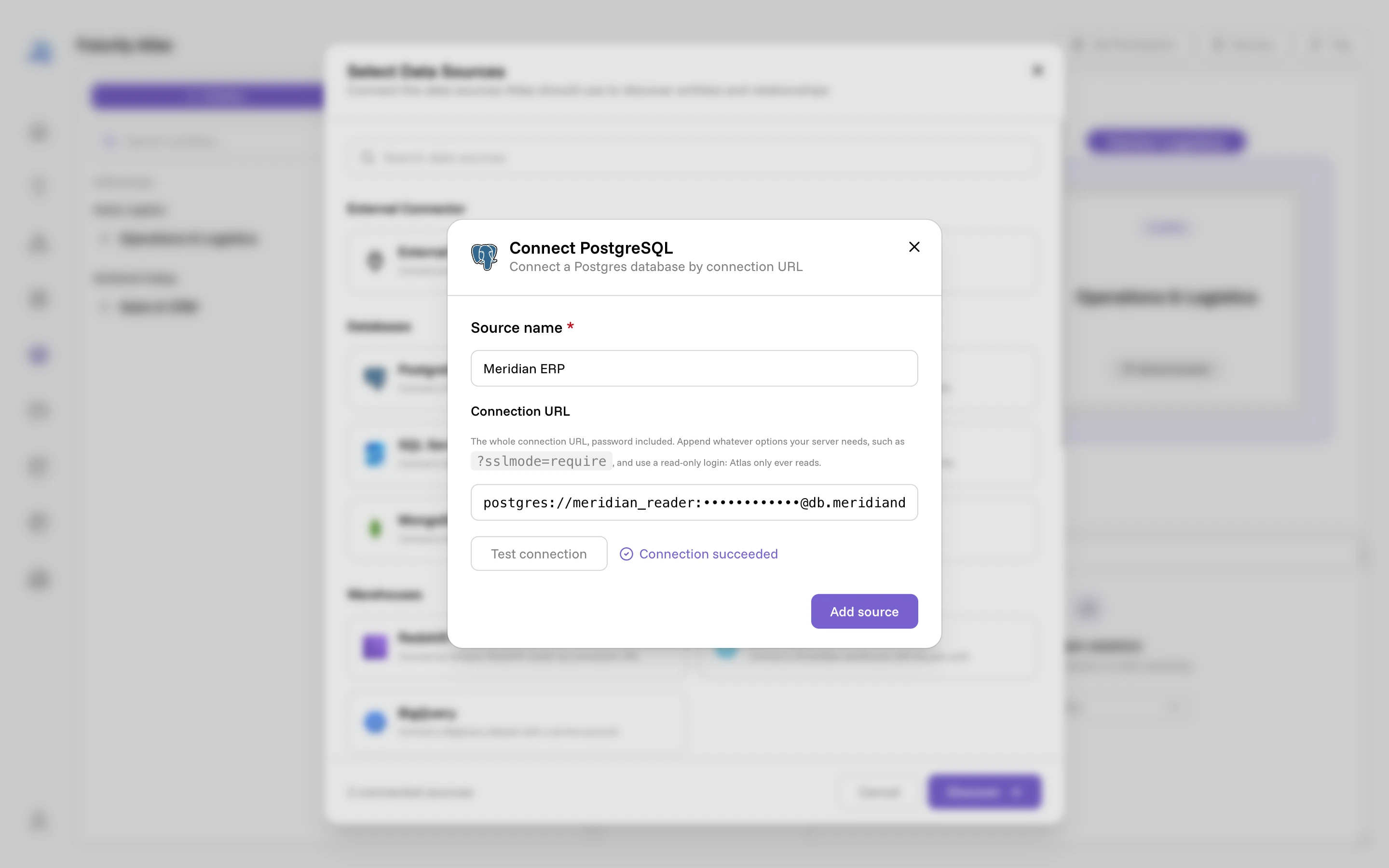
Add the source
Click Add source. The form closes and your source appears in the Sources list at the bottom of the dialog, with its kind beside it and the footer counting what's connected.
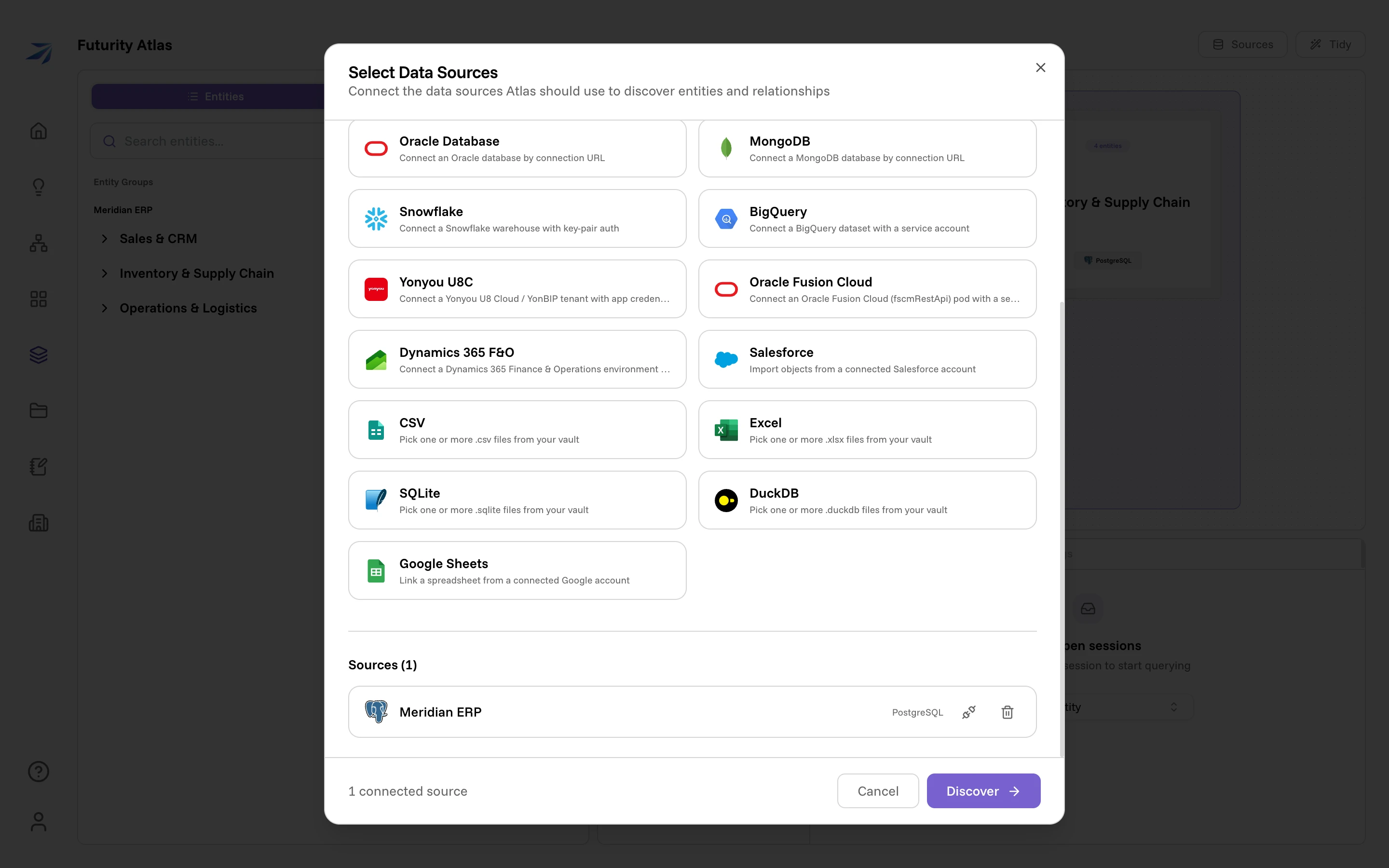
Add more sources now if you have them — everything connected in one round gets discovered together, which is how Atlas notices that a customer id in one system matches a customer id in another. Two icons on each row handle the rest of a source's life: disconnect it (it stops being queried, and can be reconnected with new credentials later) or remove it. Removing stages the source rather than deleting it on the spot — the row picks up a will be removed chip, the footer counts it as staged for removal, and the restore icon that replaces the other two puts it back.
New sources have Organization access enabled, so all members of your organization can read them as soon as discovery lands. Set Permissions in the Atlas workspace is where you narrow that access. See Who can see what.
Run discovery
Click Discover. The dialog turns into a live progress view titled Discovering your data model, and the work starts: reading the schema, measuring the tables, naming and describing what it finds, and checking the relationships it proposes.
Leave the page if you want — the run continues on the server, and coming back to Atlas reconnects you to the progress.
What happens next
When discovery finishes, Atlas doesn't switch itself on. It shows you what it found — every entity, its fields, its description, and the relationships between them — and waits for you to approve it.
Discovery and review walks that screen: what each phase of the run is doing, how to read the results, what to untick, and what changes when you add another source later.