Templates and versions
Share a workflow as a template, and view or restore any earlier version.
A template makes a working workflow reusable: anyone it's shared with can start from a copy instead of rebuilding it. Edits are tracked too — any earlier state of a workflow can be viewed or restored.
The template library
Templates sits beside Create Workflow at the top of the Workflows page.
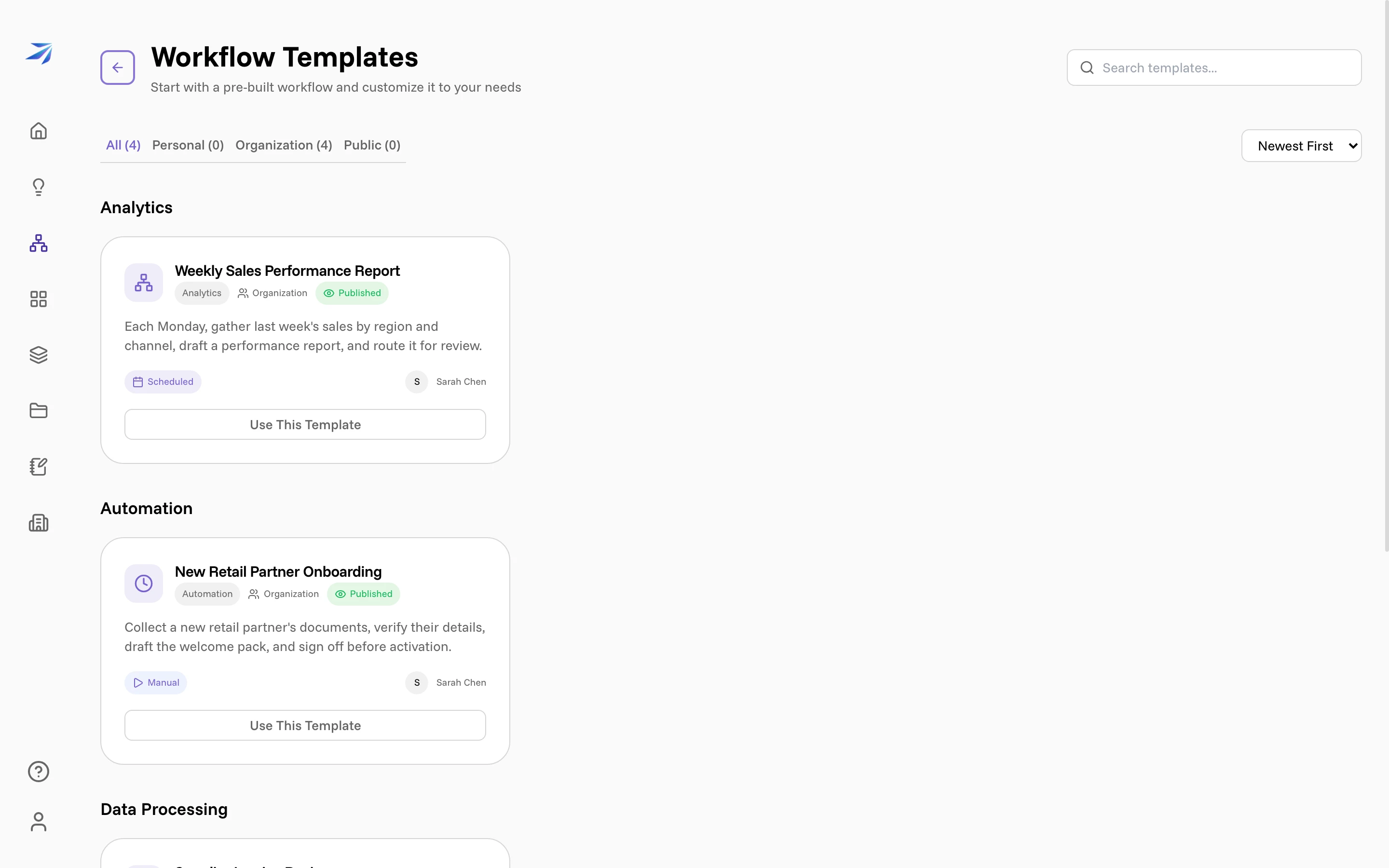
Templates are grouped by category and filtered by who can see them — Personal, Organization, Public — with search and a sort across the top. Each card carries the category, the visibility, whether it is Published, its trigger type, and who wrote it.
Use This Template creates a new workflow from it, in your account, immediately editable. It is a copy: changing your copy does not touch the template, and changing the template does not touch workflows already made from it.
Saving one of your own
In the workflows list, open the menu on the workflow's row to reach Save as Template.
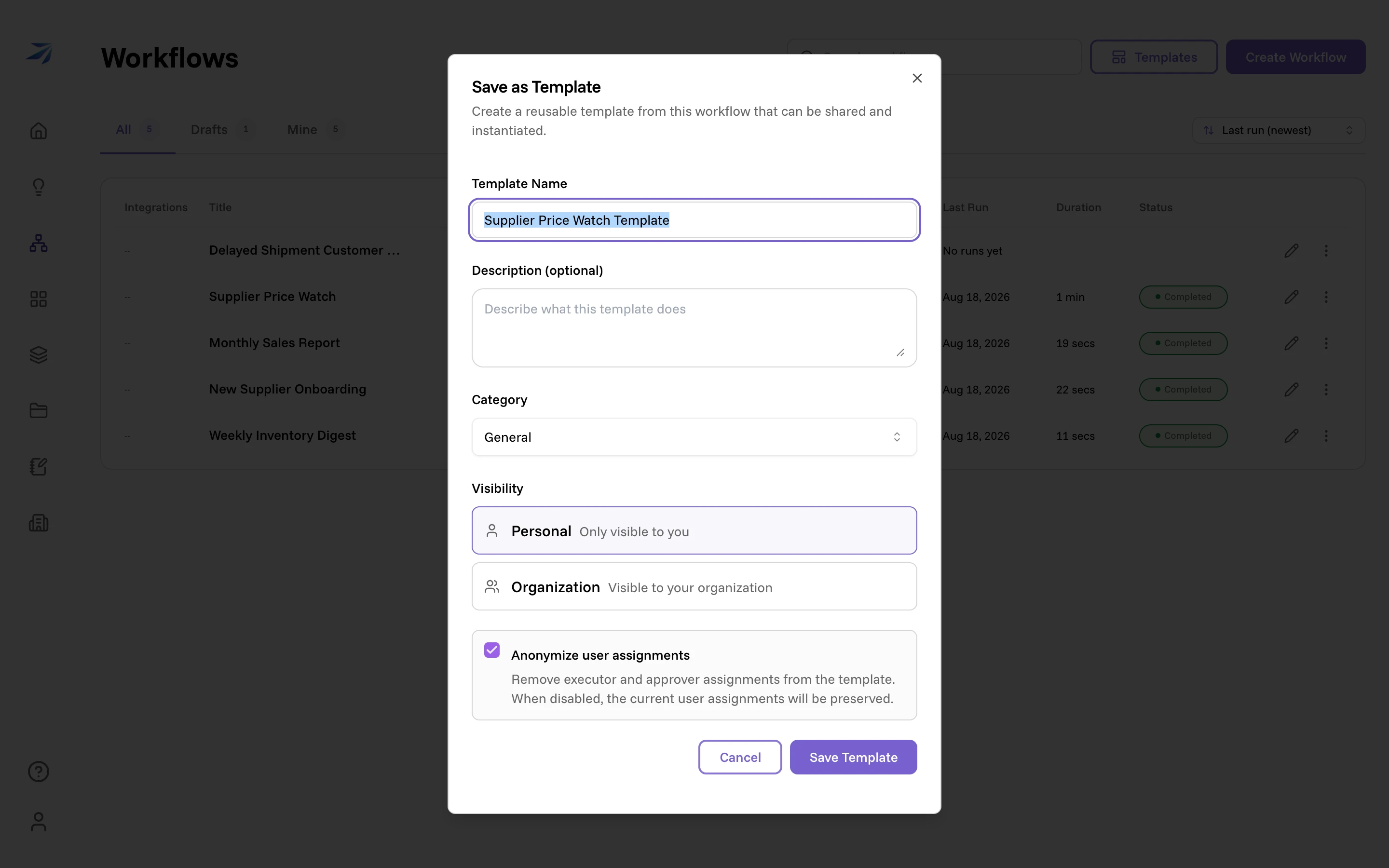
- Template Name starts as the workflow's name plus "Template". Rename it to describe the job rather than your copy of it.
- Category files it in the library: General, Analytics, Automation, Communication, Data Processing, or Reporting.
- Visibility is Personal ("Only visible to you") or Organization
("Visible to your organization"). Publishing to the organization needs the
manage:workflowTemplatespermission; without it the save is refused. See Roles and permissions. - Anonymize user assignments is on by default: "Remove executor and approver assignments from the template. When disabled, the current user assignments will be preserved." Leave it on unless the template is meant for one specific team with those exact people in it.
Hovering a template card you own reveals a menu with Use Template, Publish or Unpublish, and Delete. Unpublishing takes an organization template out of circulation without destroying it.
Versions
Every save writes a version. The clock icon in the top-right of the builder opens Version History — "Browse and restore previous versions of this workflow".
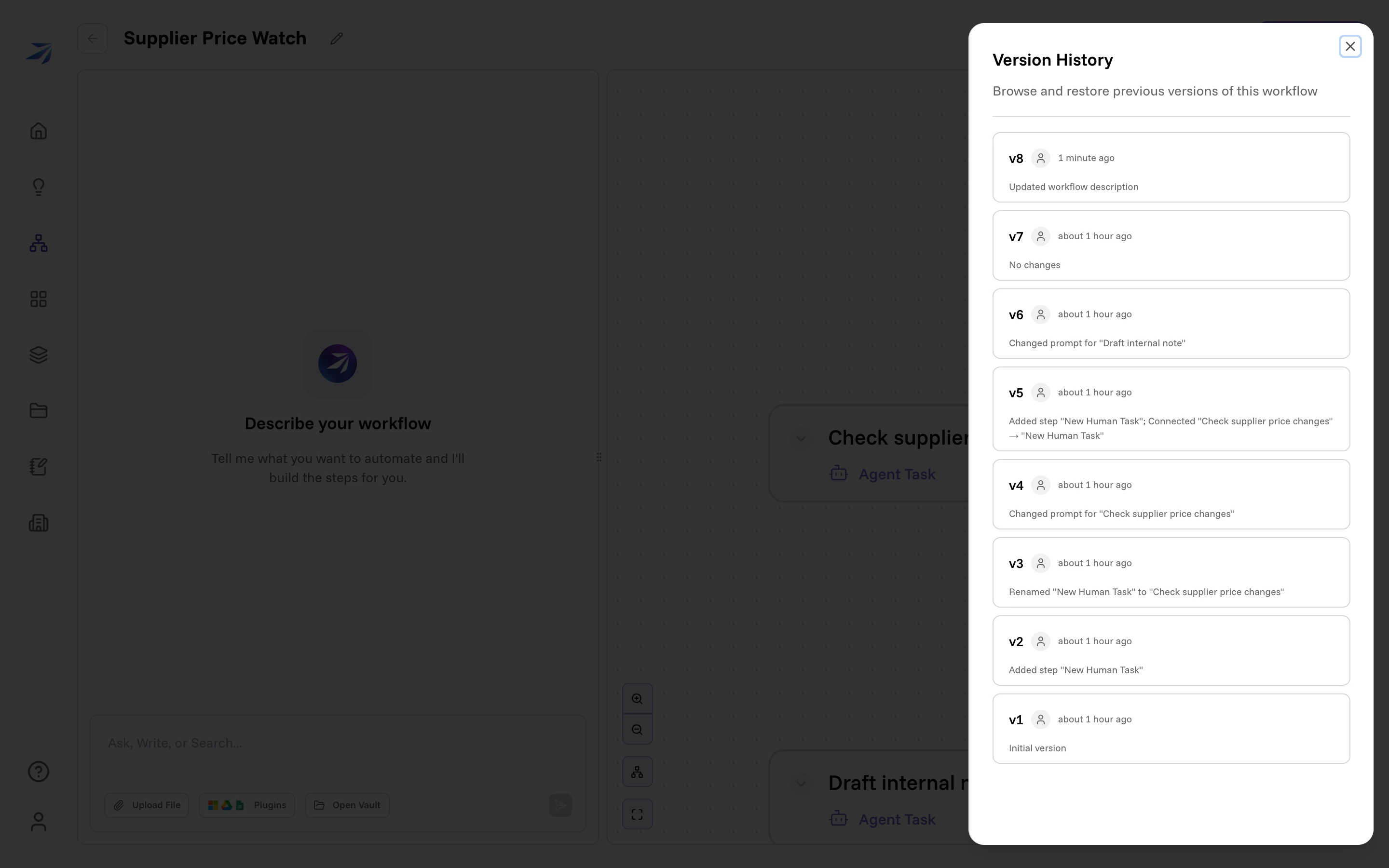
Each entry says what changed in that save: Added step "New Human Task", Renamed "New Human Task" to "Check supplier price changes", Changed prompt for "Draft internal note", Updated workflow description. A version you want to find again can be renamed, so v4 can become before the pricing rewrite.
Each version offers three actions: View this version, Restore this version, and Rename this version. Viewing shows you that older shape of the workflow without changing anything.
Restoring asks first: "The current state will be saved as a new version. All future runs will use the restored version."