Triggers and scheduling
Run a workflow by hand, or on a calendar, and set what a schedule actually means.
Every workflow has one trigger type, shown as a chip on the Workflows page and at the top of its Run Workflow panel:
- Manual Mode — someone starts it. The panel notes "Manual mode active. The workflow will pause at human-input nodes for your review or data input."
- Scheduled Mode — a schedule starts it, and manual runs are switched off.
Switching a workflow back to Manual Mode does not delete its schedules. They stop firing and disappear from the panel while the workflow is manual, and come back, unchanged, when the trigger type is Scheduled again.
A scheduled workflow
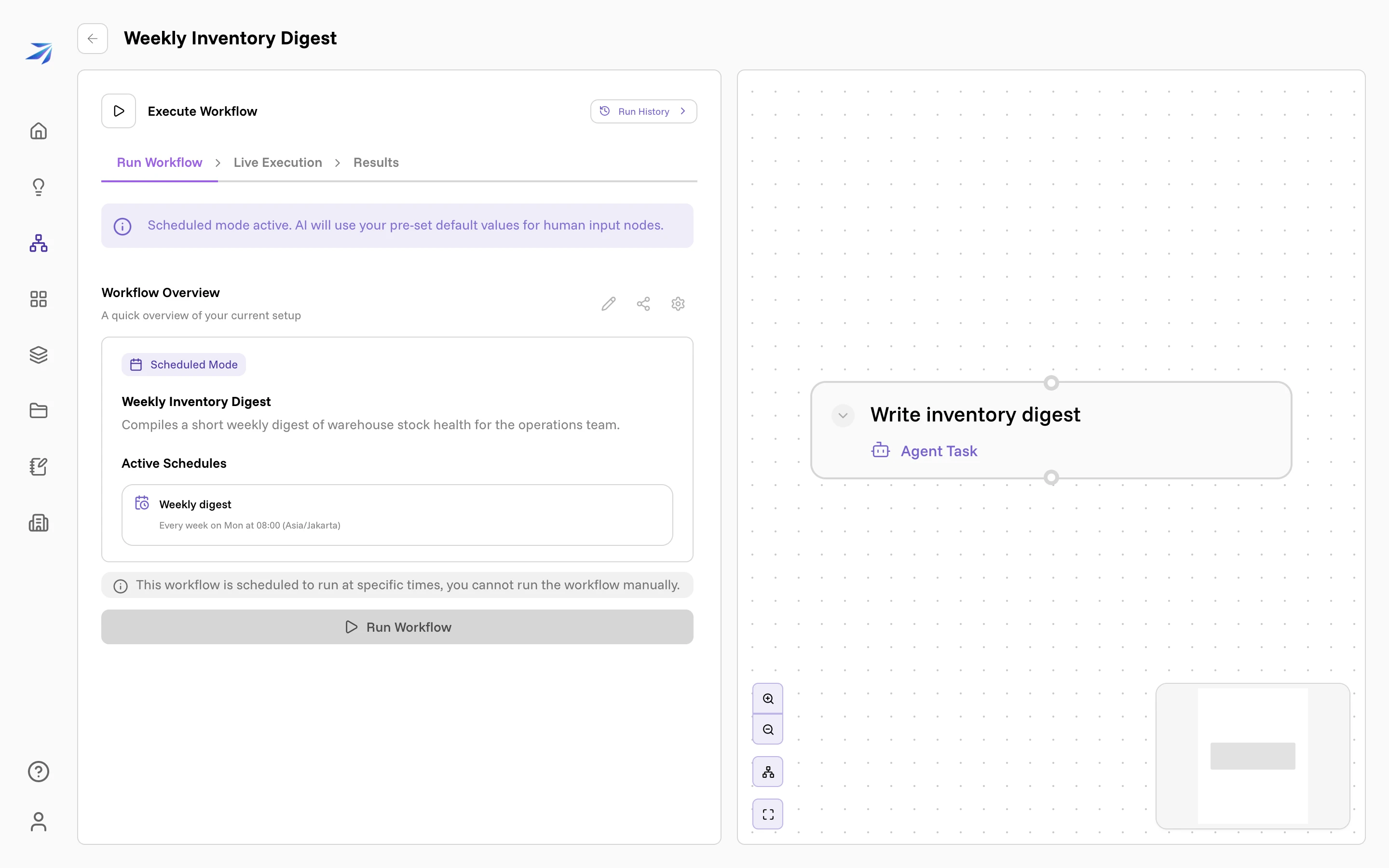
Active Schedules reads back what will happen in one line — Every week on Mon at 08:00 (Asia/Jakarta) — and the button below is greyed out, because "This workflow is scheduled to run at specific times, you cannot run the workflow manually."
The other banner matters more than it looks: "Scheduled mode active. AI will use your pre-set default values for human input nodes." Nobody is present at 08:00, so any Human Input step has to carry a default answer.
Changing the trigger
Open the workflow and click the gear beside Workflow Overview to get Workflow Settings.
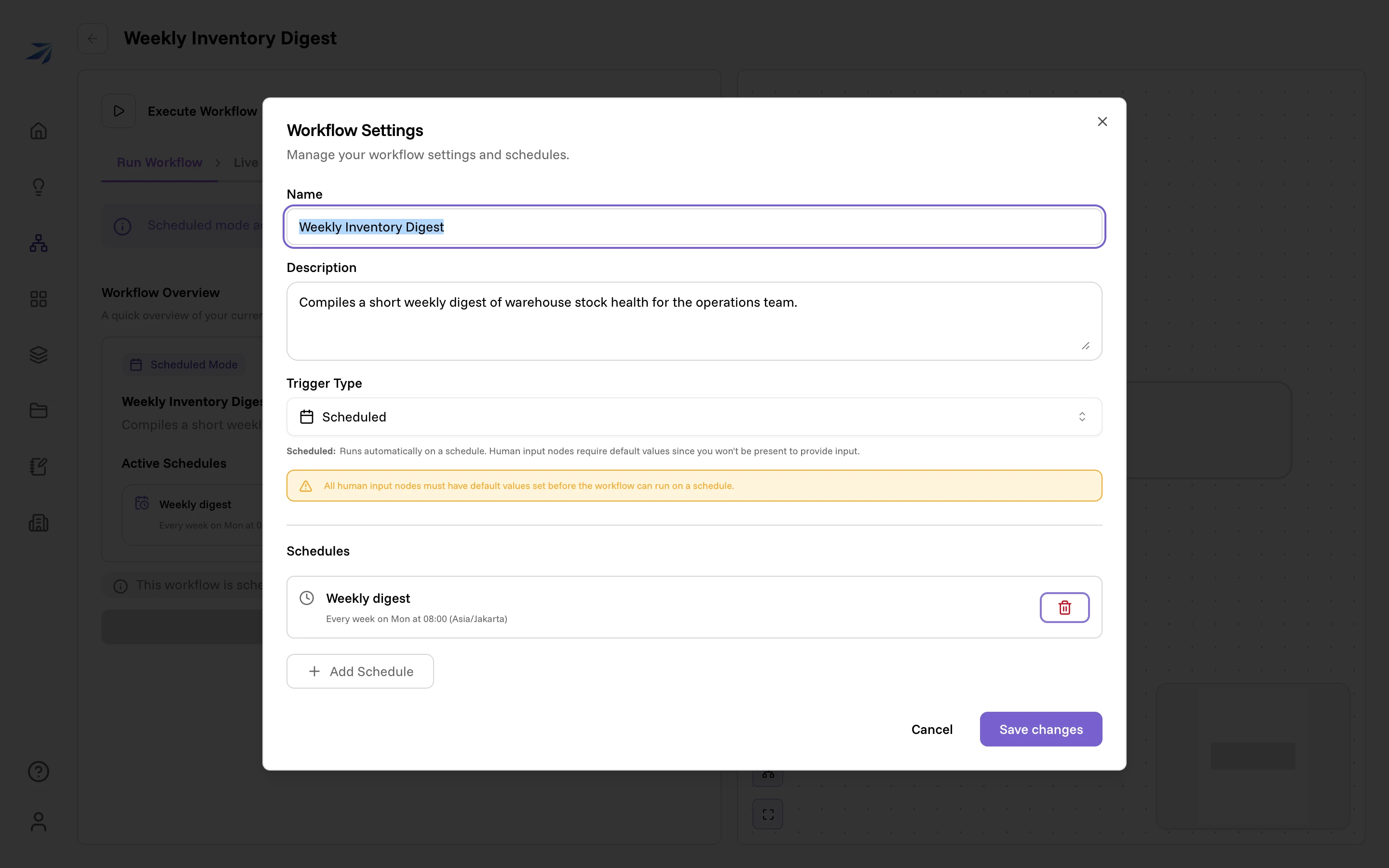
The same dialog holds the workflow's name and description. Switching Trigger Type to Scheduled spells out the trade: "Runs automatically on a schedule. Human input nodes require default values since you won't be present to provide input." Until every human step has one, the dialog keeps warning you and the workflow will not run on its schedule.
Building a schedule
Add Schedule opens a small form. Give it a Name (optional) — worth doing, since a workflow can carry several — then pick a Schedule Type:
- Fixed Interval — "every 30 minutes". Set Every and a Unit: Minutes (min 15) or Hours (min 1). Fifteen minutes is the floor; anything shorter is rejected.
- Calendar-based — "daily at 9am". Set Every and a Period — Day(s), Week(s), Month(s), or Year(s) — then one or more times under At time(s). Add time allows four times per period, so a twice-daily digest is one schedule, not two. A fifth time is rejected when you save, not when you add it. The times are independent: 08:00 and 17:30 fire at 08:00 and at 17:30.
Weekly schedules can pin the days they fire on, under On days.
Times use the timezone of the browser you created the schedule in, and the summary always names it. A schedule built in Jakarta keeps firing at 08:00 Jakarta time when you open the workflow from Vancouver.
The trash icon beside a schedule asks first. A Delete schedule dialog names the schedule and warns that the workflow will no longer run automatically on it, and the schedule goes only when you confirm. There is no undo, so a schedule you delete has to be added again.
Runs started from outside
There is a third way in. A workflow can be triggered by another system over the API, which is how a workflow becomes a step inside someone else's process — a form submission, a nightly job, a CRM automation. That path has its own page: API keys and webhooks.