Human input steps
Pause a run so a person can supply information, review the work, or approve it before the next step.
Some steps should not happen without a person. A supplier's terms have to be typed in by whoever negotiated them. A customer notice needs a second pair of eyes before it goes out. A payment gets approved by someone with the authority to approve it.
A Human Input step is where a run stops and waits. Everything before it has already happened; nothing after it runs until a person answers.
Adding one
In the builder, a step's type is set under Human / Plugin (optional) — choose Human Input, whose own description is "Allow users to provide input, verify progress, or approve workflow steps."
Under Task Instructions, write what you want from the person. That text is what the agent turns into a request when the run reaches this step, so be specific: "Enter the new supplier's details: company name, primary contact, product categories, payment terms, and delivery regions."
Human Input steps gain a second tab, Assignment.
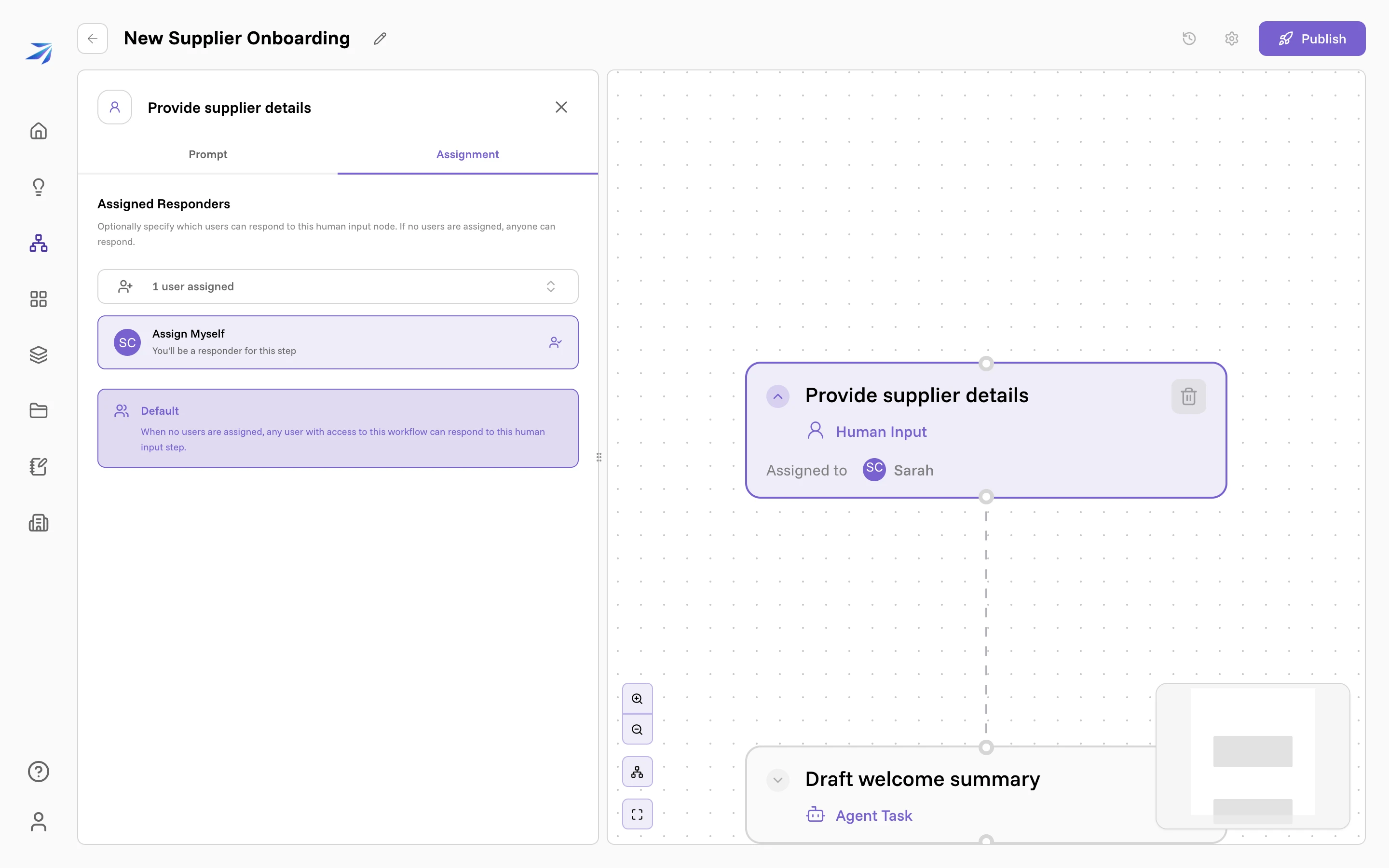
Assigned Responders decides who may answer: "Optionally specify which users can respond to this human input node. If no users are assigned, anyone can respond." Every responder also needs edit access to the workflow. Leave it empty and any editor can answer; name responders and only those editors can answer. Assign Myself is the one-click case.
What a run looks like when it stops
The run's state becomes Paused, and the people assigned to the step are notified — or the workflow's owner, if nobody is assigned. Workflow notifications are one of the categories you can route to email or in-app under Notifications.
On the Workflows page the row shows Paused. Open the workflow, then Run History, and the run is listed with what it is waiting on: Waiting for human input on "Provide supplier details".
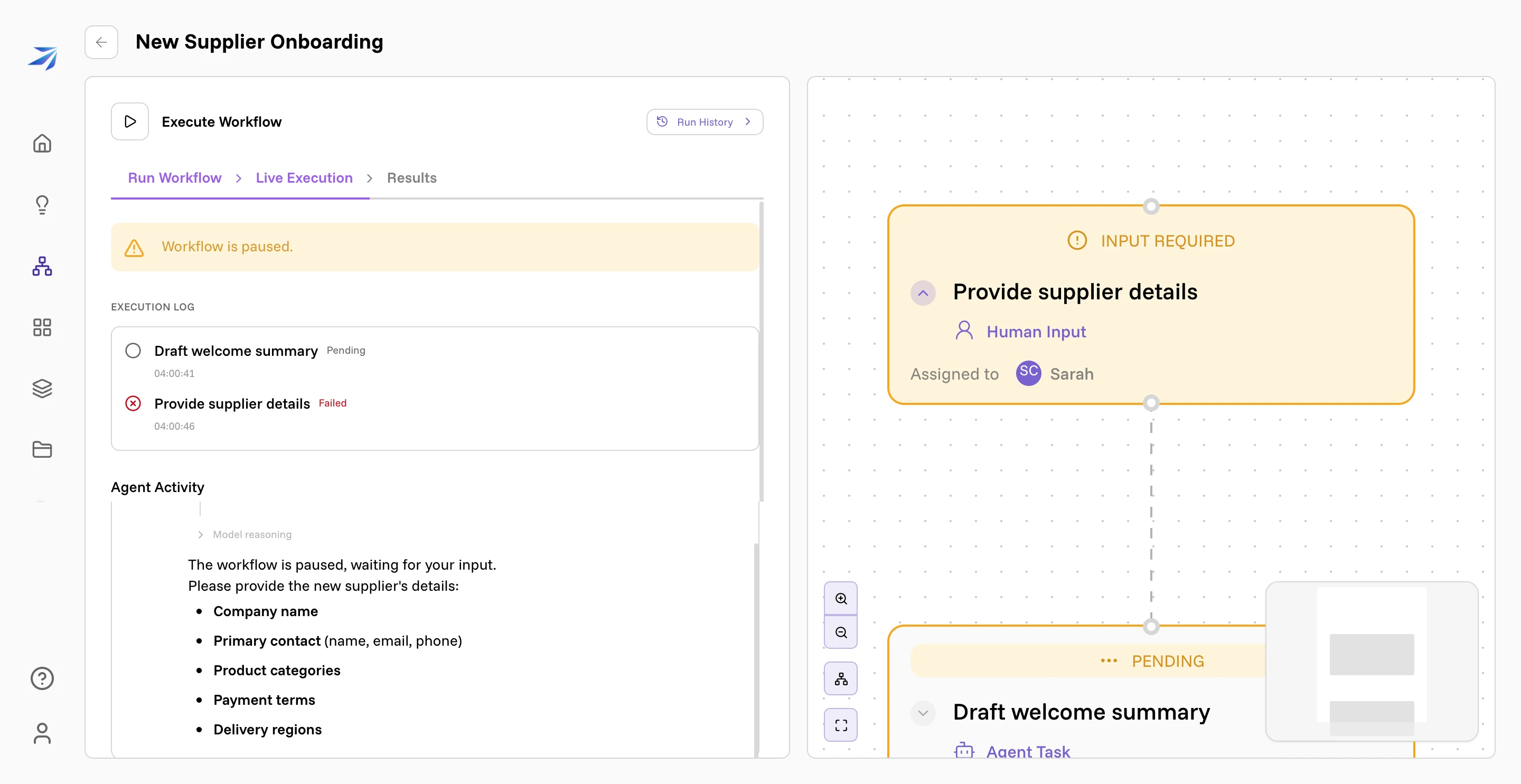
The canvas marks the waiting step INPUT REQUIRED and everything downstream PENDING. In the Execution Log, the human step reads as failed with the summary Waiting for user input — that is how a stop is recorded, not a problem with the run. Agent Activity above it shows the agent asking, in its own words, for exactly what your instructions asked for.
Answering
Below the log sits Workflow Paused - Input Required.
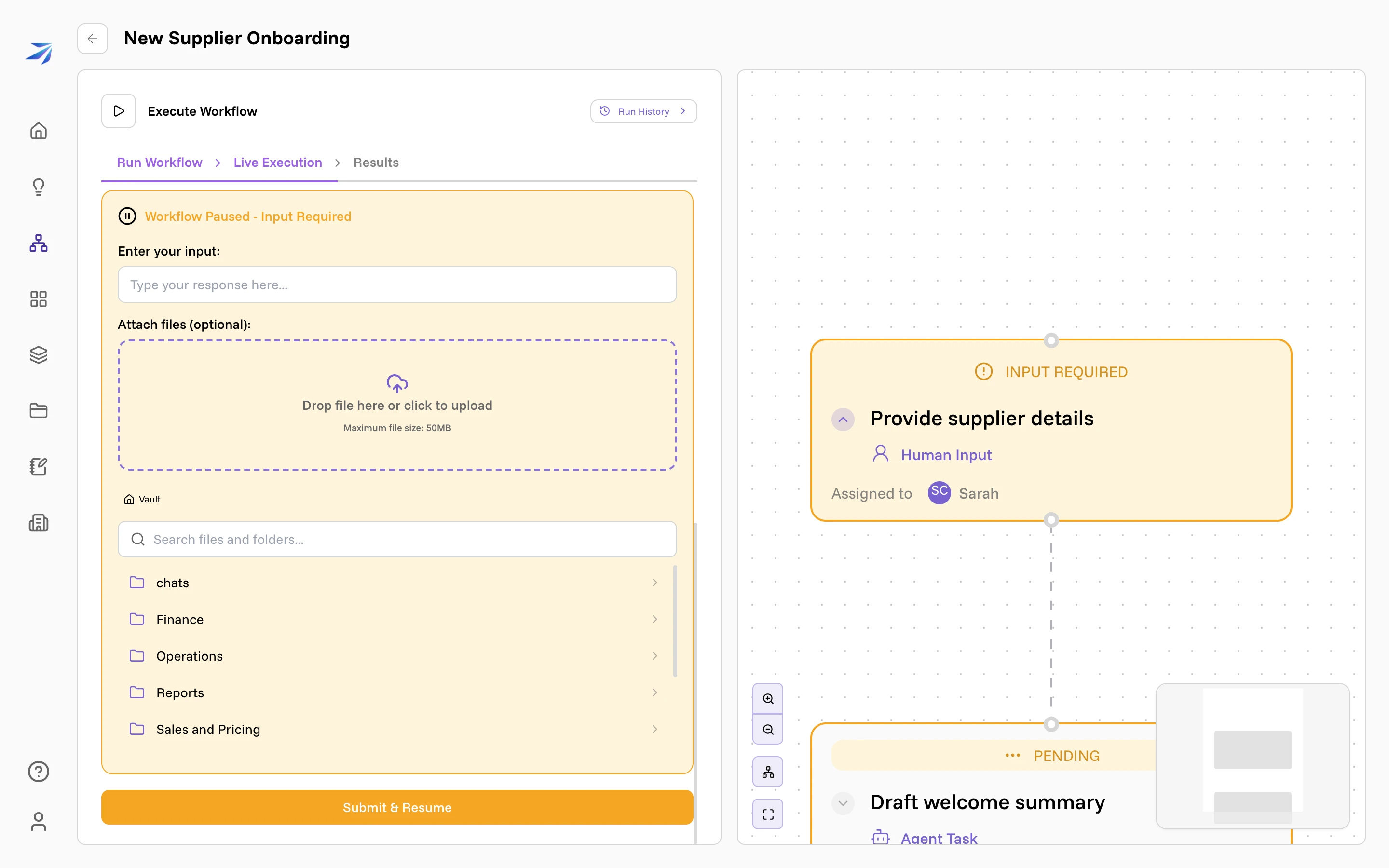
Type the answer under Enter your input. If the step needs a document, Attach files (optional) takes an upload of up to 50 MB, and the Vault browser underneath attaches something your organization already keeps. Then click Submit & Resume.
The run picks up where it stopped. The step you just answered turns Completed with your answer recorded beside it, and the next step starts.
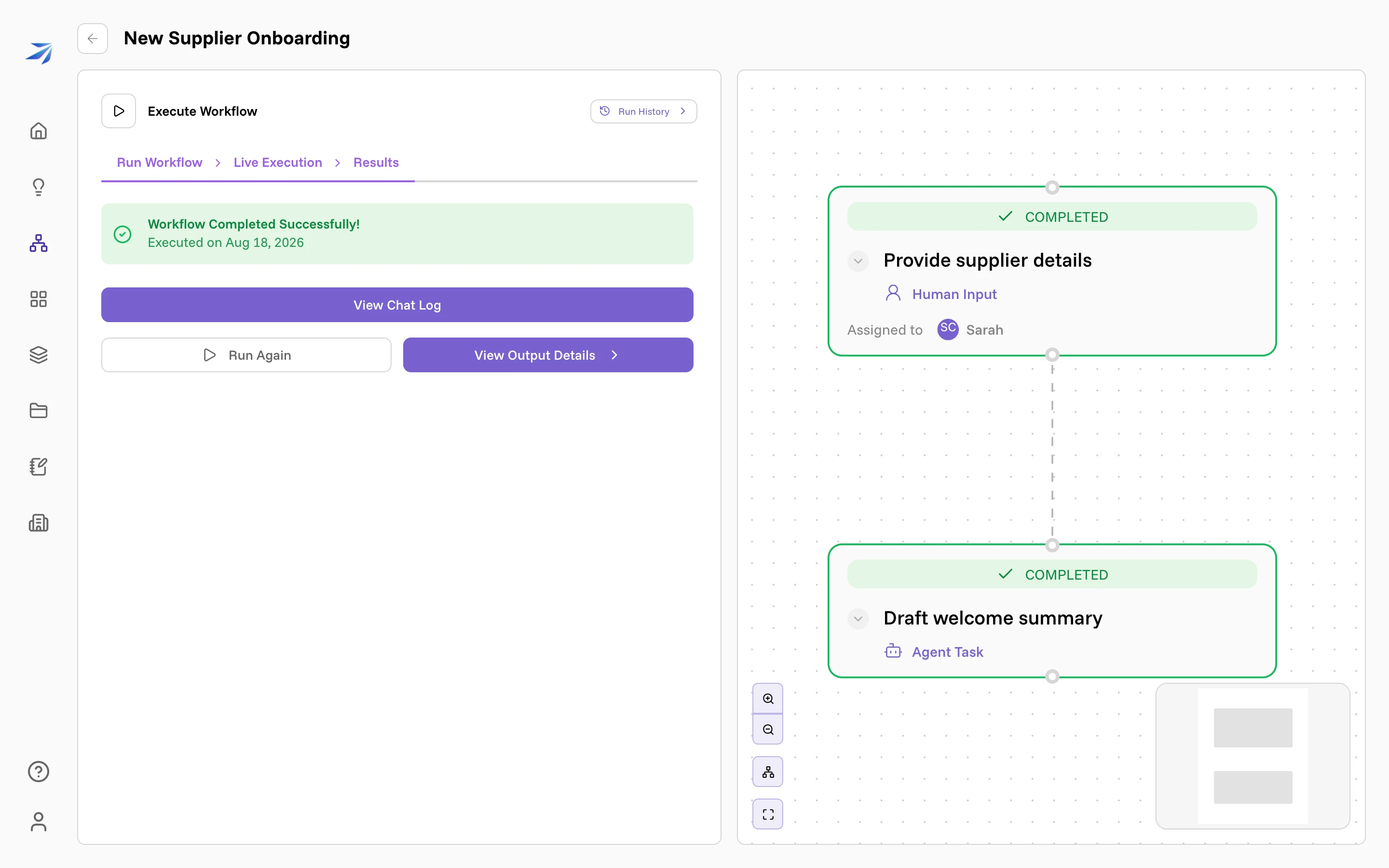
The answer becomes part of the run, the same as any step's output, and the steps after it read it as their input.
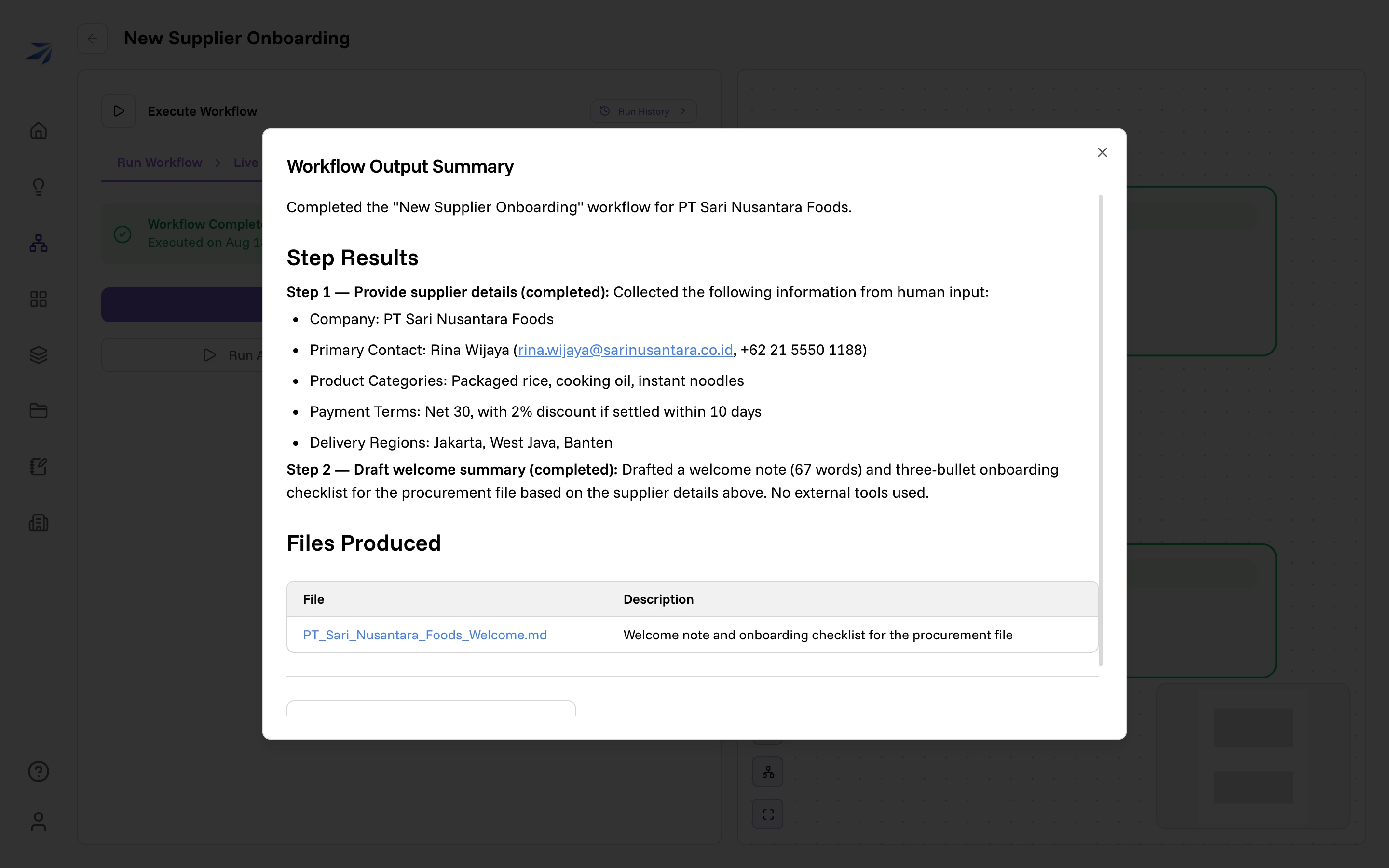
In the run above, the details typed into the box became the summary's step 1, and the step after it turned them into a welcome note and onboarding checklist saved as a real file under Files Produced.
Human steps in a scheduled workflow
A schedule fires at 08:00 whether or not anyone is at their desk, so a scheduled workflow cannot stop and wait. Human Input steps in one gain a Default Input tab, and the rule is stated plainly in the builder: "Default input is required for all human input nodes. This value will be used automatically when the workflow runs on schedule."
If a step genuinely needs a person's judgement every time, keep the workflow on manual and start it by hand — or trigger it from another system, which can hand a paused run its answer over the API.