Your first workflow!
Build a small two-step workflow in the visual builder, run it, and read what it produced.
A workflow is a set of steps that run in order without you driving each one. This page builds a real one from scratch: Supplier Price Watch, in which one AI step reviews a wholesale price list from the Vault and a second step turns the findings into a short note for the procurement team. Building it takes about ten minutes.
Before you start
The screenshots come from Meridian Distribution, a fictional goods distributor we use throughout these docs. Its Vault holds a price list and supplier files; swap in whatever files your own organization keeps.
Create the workflow
Click Workflows in the left navigation. The page lists your organization's workflows with their type, last run, duration, and status.
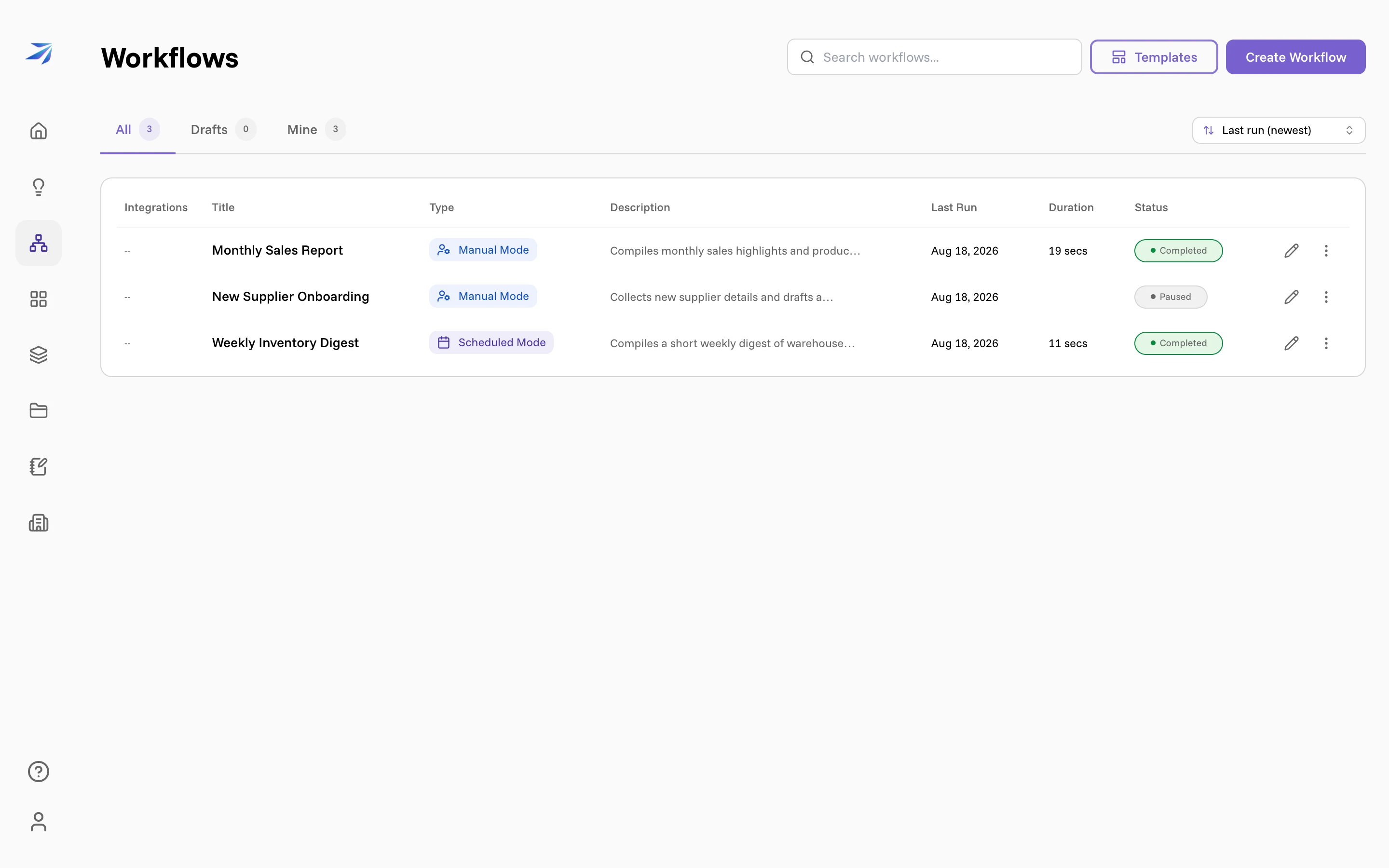
Click Create Workflow in the top right.
Get to know the builder
The builder has two halves. On the left is a chat titled Describe your workflow — "Tell me what you want to automate and I'll build the steps for you." This tutorial builds by hand instead, so that every part of a workflow is familiar by the time you read one someone else made.
On the right is the canvas, currently showing No Nodes Yet.
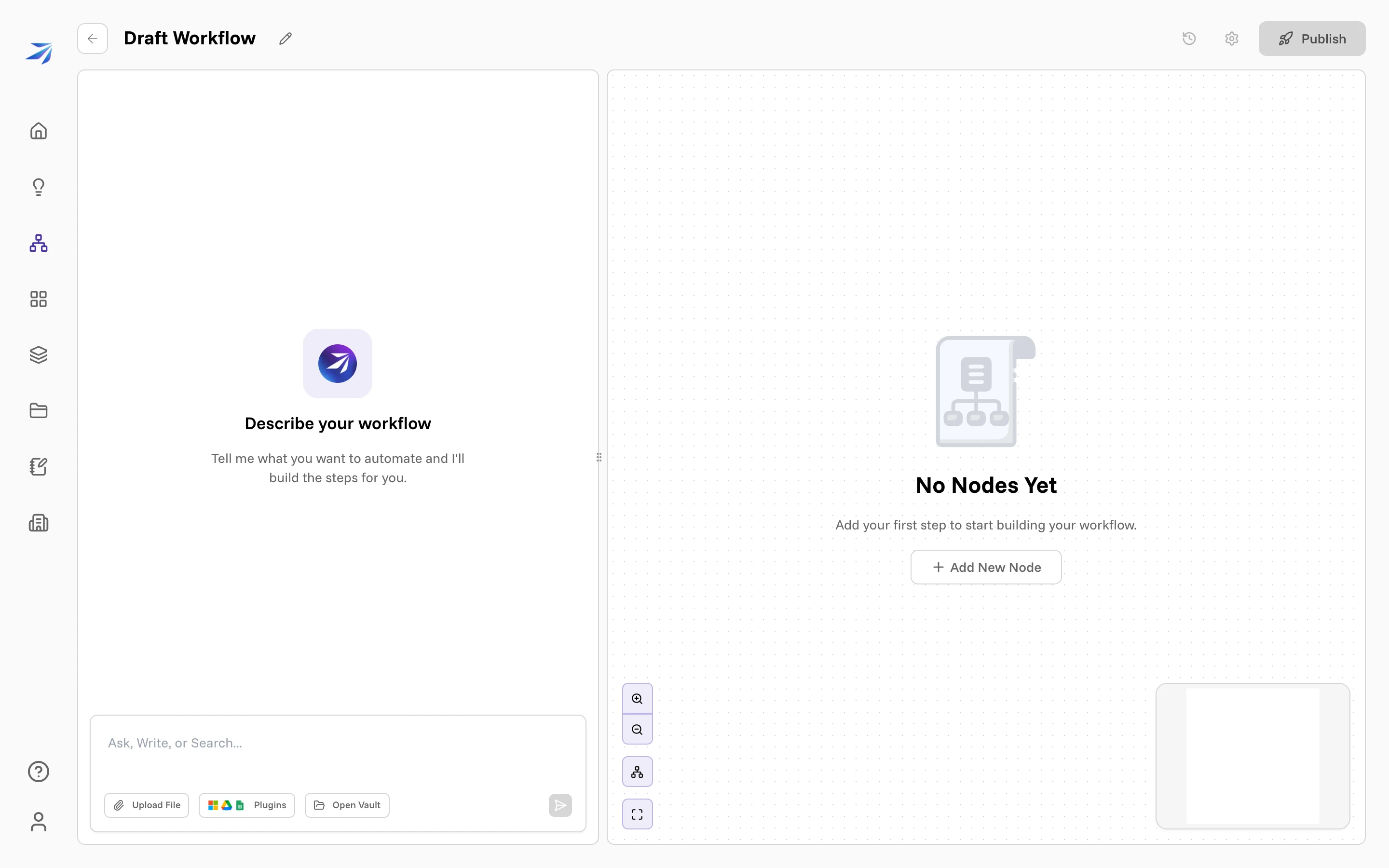
The workflow arrives named Draft Workflow. Click the pencil next to the
name, type Supplier Price Watch, and press Enter.
Add the first step
Click Add New Node. A node named New Human Task appears on the canvas, and its step editor opens on the left.
Every new node starts as a Human Input task — a step that waits for a person. Our first step should run on its own, so change it: click the selector under Human / Plugin (optional) to open Change Node Type.
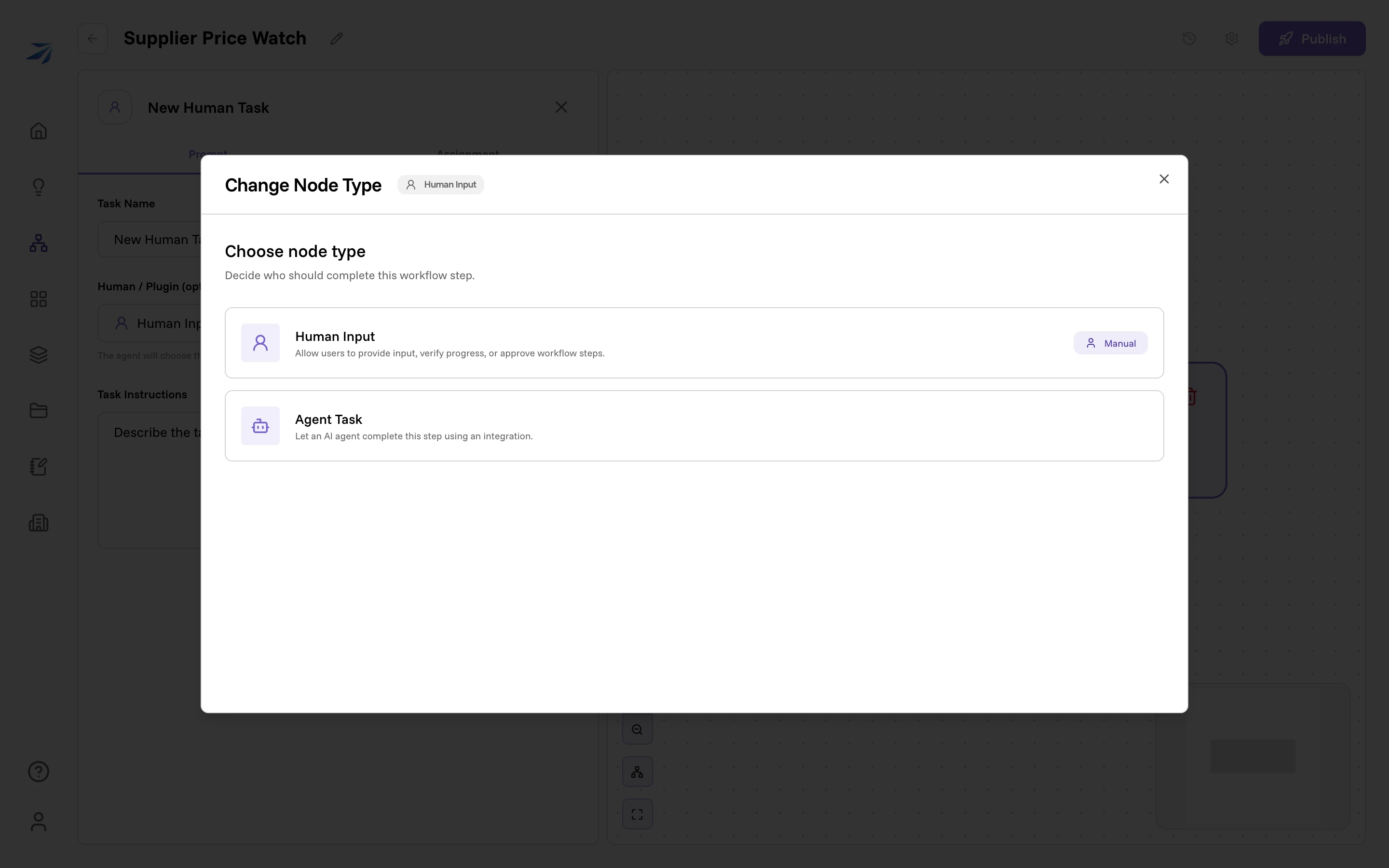
The two node types are the whole vocabulary of a workflow:
- Human Input — "Allow users to provide input, verify progress, or approve workflow steps."
- Agent Task — "Let an AI agent complete this step using an integration."
Pick Agent Task. The dialog then asks which integration the agent should use, in two groups: Connected first — what your organization has actually set up — then Available, the rest of the catalog, which is why the list runs so long. Choose the first entry, No integration — "Let the agent complete this task without an integration." The agent keeps its standard abilities either way, including reading files from the Vault.
Tell the step what to do
Back in the step editor, two fields do the real work. Set Task Name to
Check supplier price changes, then write the Task Instructions:
Search the Vault for the latest wholesale price list and the supplier contact list. Review the price list and flag up to five items or categories where pricing looks worth a second look from procurement (large margins, round-number jumps, or anything inconsistent between suppliers). Keep the findings short: one bullet per item.
Instructions work like a prompt to Corint: say what to look at, what to produce, and how long it should be.
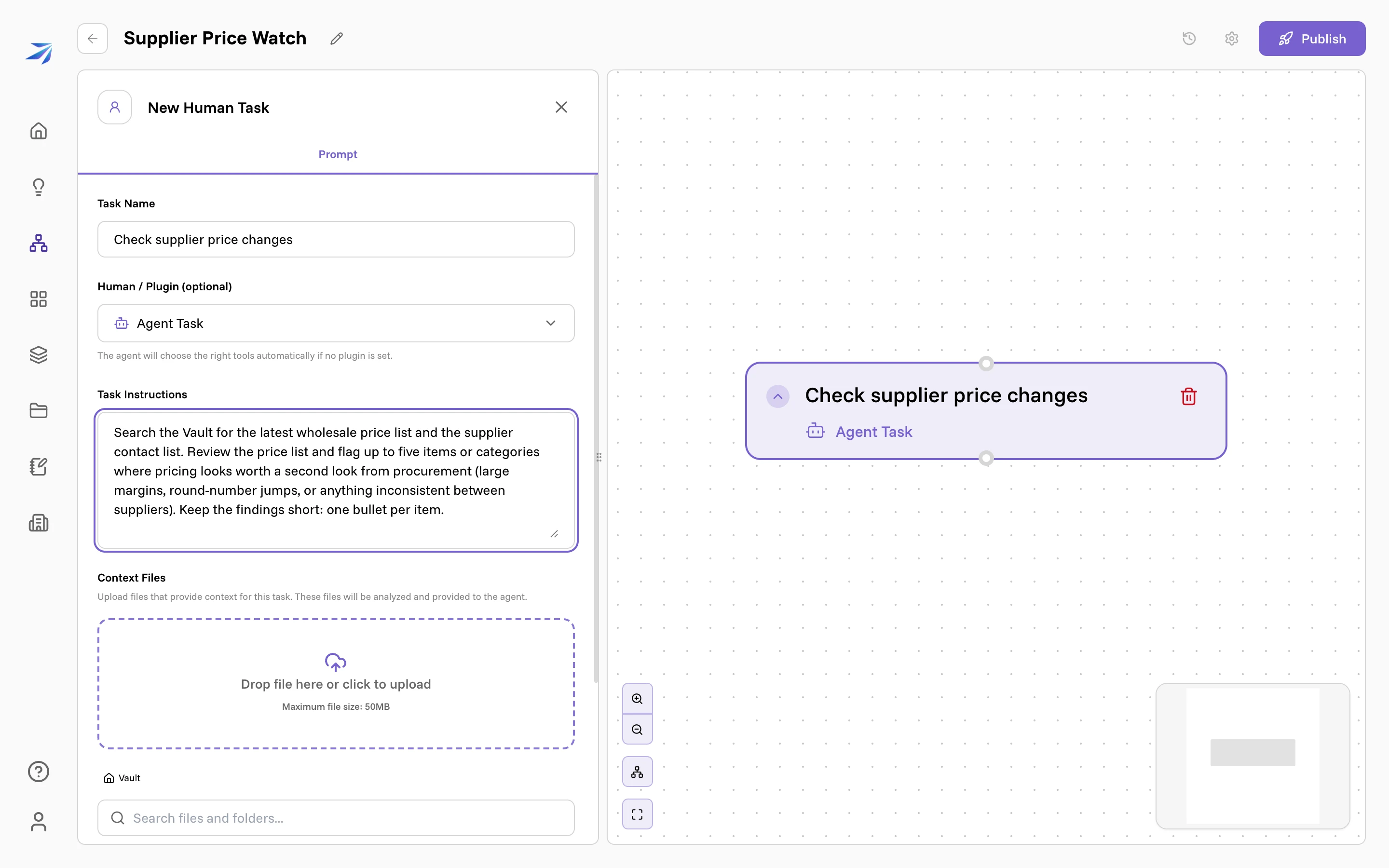
Below the instructions, Context Files lets you upload a file just for this step — "These files will be analyzed and provided to the agent." — and the Vault browser underneath attaches files your organization already keeps. Our instructions tell the agent to search the Vault itself, so both stay empty.
Further down, Executor Assignment decides whose connected integrations this step runs with: Workflow Owner (Default), Assign Myself, or Assign Team Member. Our step uses no integration, so leave it on the default. When a step does need one, the executor has to have connected it, and a step you assign to yourself shows an Approval Required notice until you press Approve.
Add the second step
Click the node on the canvas and a + appears under its bottom edge. Click it and a menu asks "What do you want to do next?":
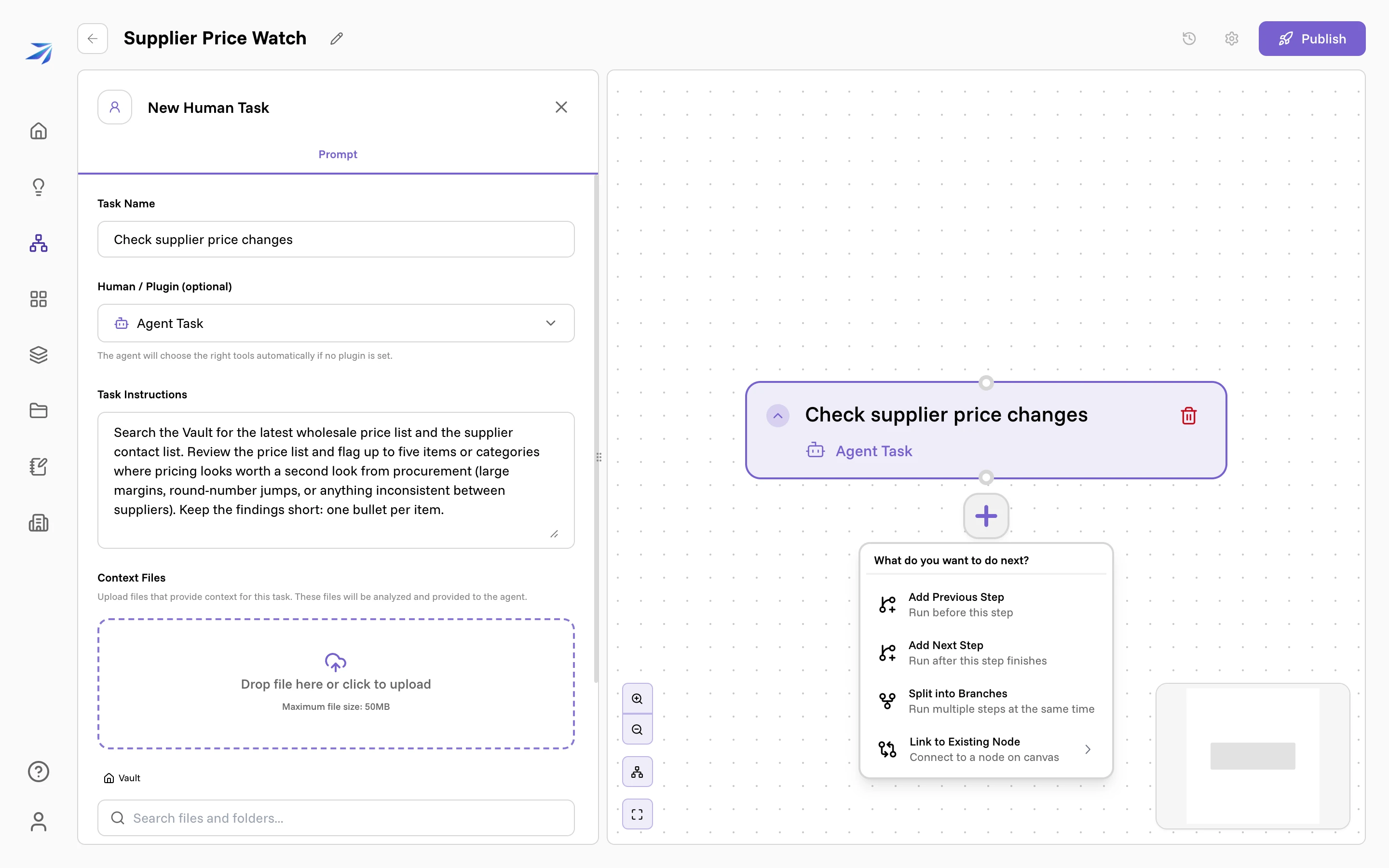
- Add Previous Step — run before this step
- Add Next Step — run after this step finishes
- Split into Branches — run multiple steps at the same time
- Link to Existing Node — connect to a node already on the canvas
Choose Add Next Step. A second New Human Task node appears, already
connected below the first. Set it up the same way — click it, switch its type
to Agent Task, choose No integration — then name it
Draft internal note and give it these instructions:
Using the findings from the previous step, draft a short internal note (under 150 words) addressed to the procurement team. Summarize what was reviewed, list the flagged items, and end with one clear recommended next step. Plain text, businesslike tone.
"The findings from the previous step" is all the wiring this needs: each step receives the output of the one before it.
Publish and run
So far this is a draft — it exists only in the builder. Click Publish in the top right. The builder gives way to the run panel: Execute Workflow, with a Run Workflow → Live Execution → Results strip across the top and a Run History button beside it.
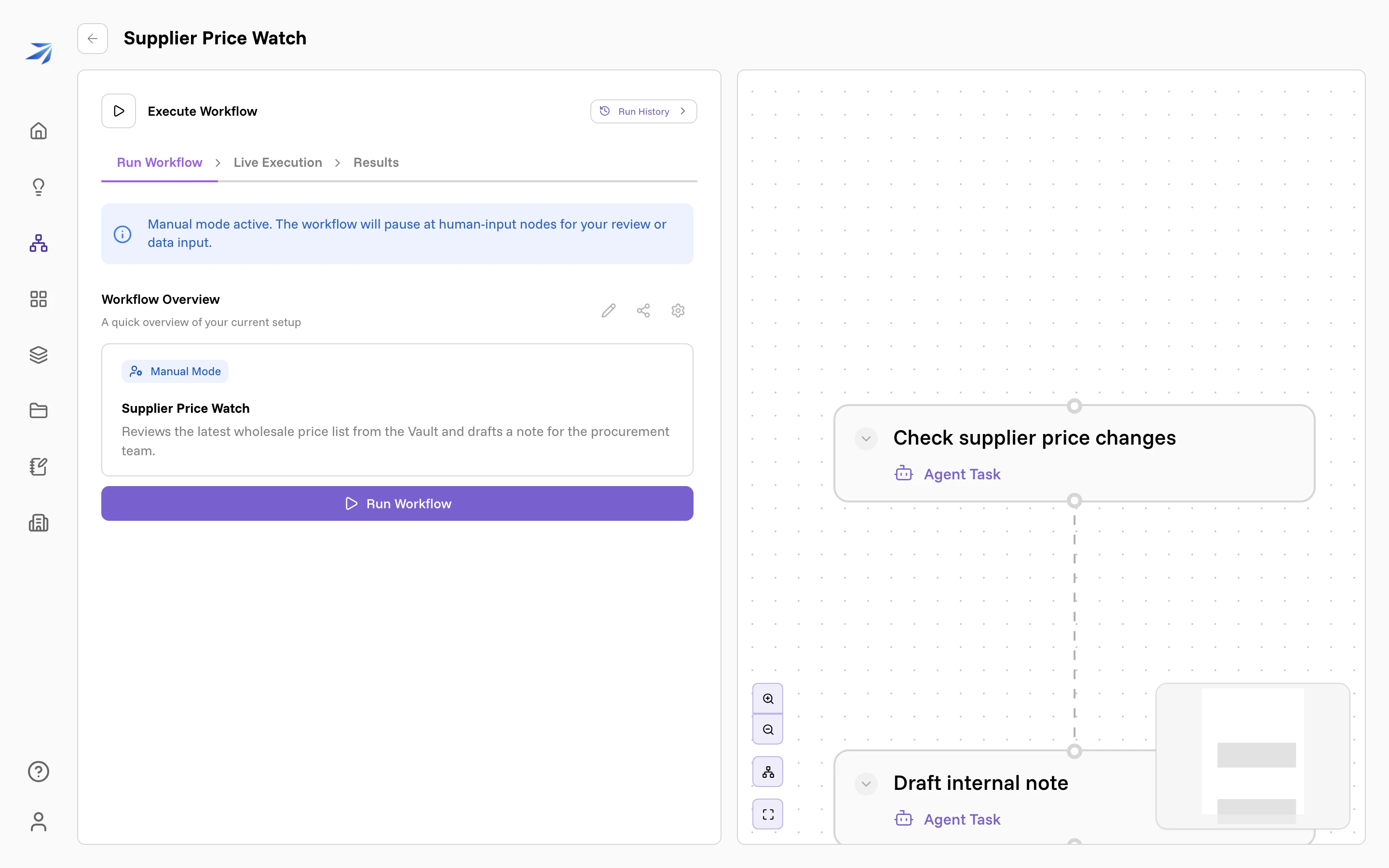
The blue banner notes "Manual mode active. The workflow will pause at human-input nodes for your review or data input." Manual mode means the workflow runs when someone starts it; ours has no Human Input steps, so once started it runs straight through.
Click Run Workflow.
Watch it work
The panel switches to Live Execution. The Execution Log lists each step with its state, and Agent Activity streams what the agent is doing as it does it — the Vault searches, the files it opens, its reasoning between tool calls. On the canvas, the step being worked shows Running and the one waiting its turn shows Pending. A Cancel Workflow button sits below the log.
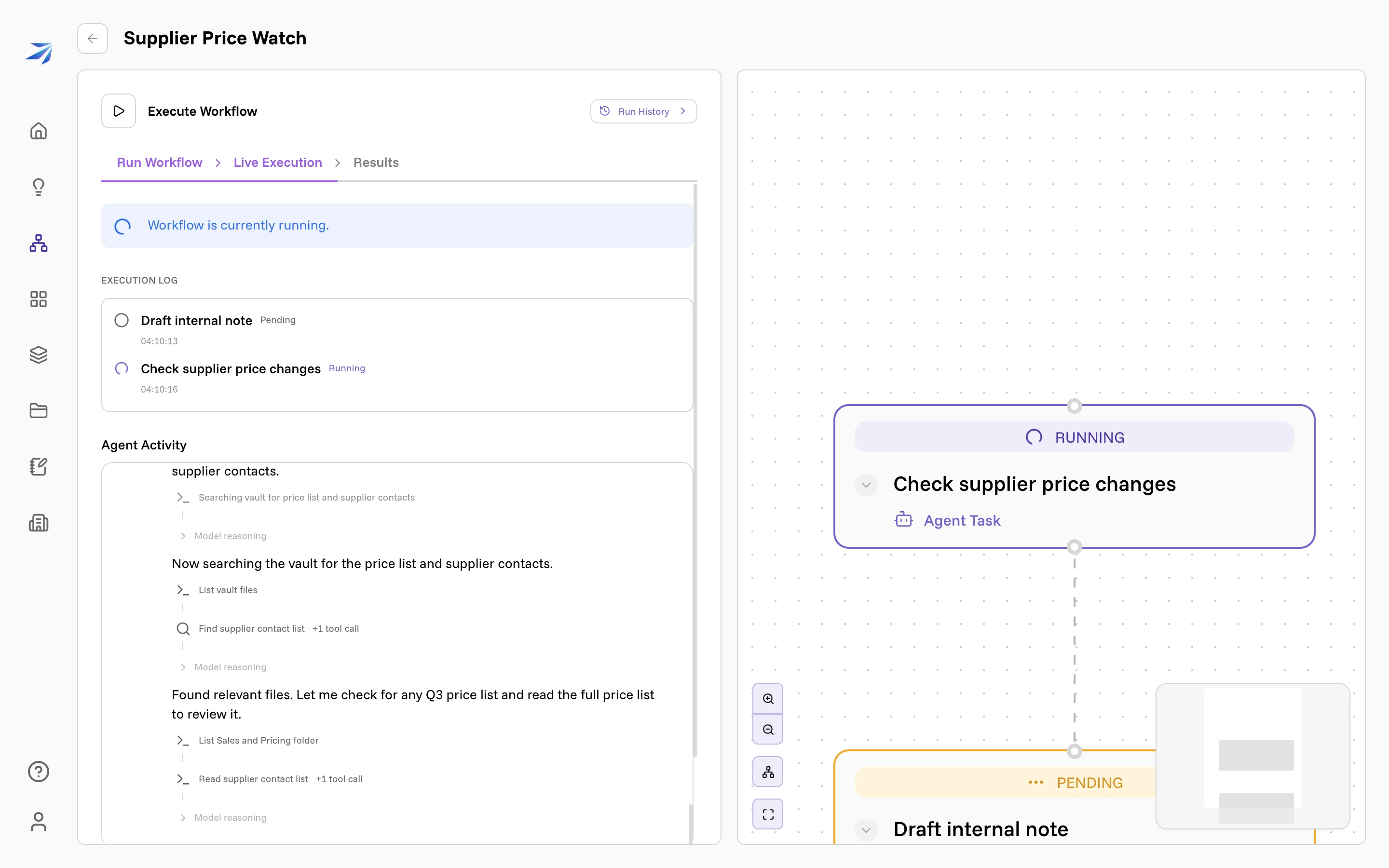
Two agent steps like these take a minute or two. You don't need to keep the page open — the run continues on its own.
Read the results
When the run finishes, the panel moves to Results, with three buttons: View Chat Log (the full conversation behind the run), Run Again, and View Output Details. Click View Output Details to open the Workflow Output Summary.
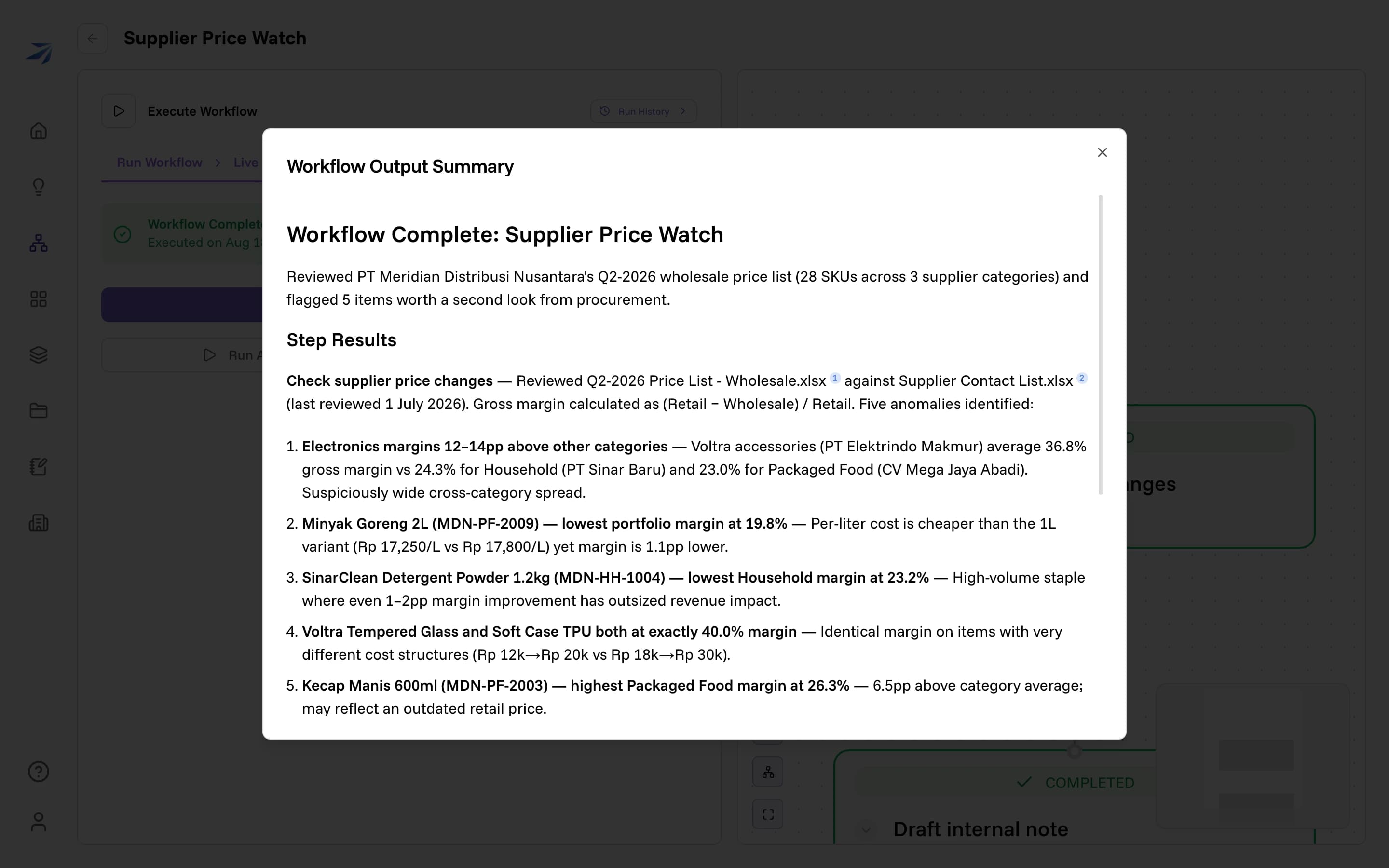
Meridian Distribution appears here under its legal name, PT Meridian Distribusi Nusantara — that is what its own price list says, and the agent quotes what it read.
The summary shows what the run concluded, then Step Results for each step, with footnotes linking every claim to the exact files the agent read — listed under Sources. Files Produced collects anything the run created; this one saved the drafted note as a text file you can open and send.
Every past run is kept: the Run History button opens a list of runs with status filters (All Runs, Completed, Failed, Cancelled, Running, Paused, Pending) and a View Details link on each.
Where to go next
Your workflow runs when you press the button, and every step is an agent. The next two pages remove both limits: