Organization integrations
Enterprise systems connected once by an admin, then available to everyone in the company.
Most integrations connect per person: you sign in to your own account and the connection is yours. Enterprise systems do not work that way. An ERP, a procurement suite, or a cloud tenancy authenticates as one service account with one set of credentials, and nobody expects forty employees to each hold a copy. So Futurity connects those once, for the whole organization.
The systems that connect this way are the SAP and Oracle families in the catalog — SAP S/4HANA Cloud, SAP Ariba, SAP Analytics Cloud, SAP Commerce Cloud, SAP SuccessFactors, Oracle Fusion Cloud Applications, and Oracle Cloud Infrastructure, along with Bitwarden / Vaultwarden, which authenticates with one vault credential. You never have to guess which route a service takes: open its card and the button tells you.
Configuring one
Organization connections are set up in the same place as everything else — Corint → Integrations, not the Org section. Find the system, click its card, and an admin sees a credentials form instead of a Connect button:
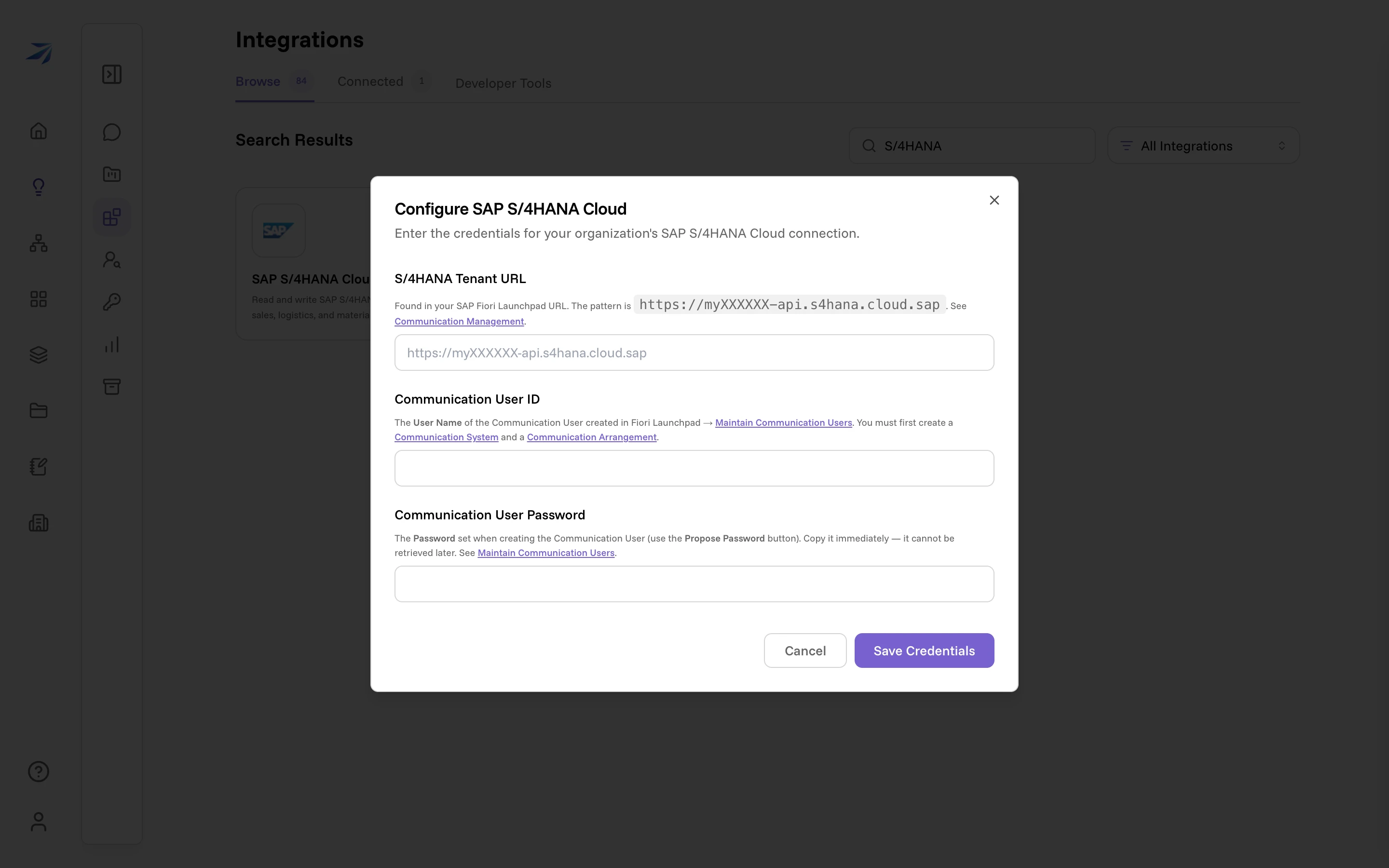
The fields are the ones that system actually needs, and each carries the note that tells you where to find the value — for S/4HANA, the tenant URL out of the Fiori Launchpad and a communication user created in Communication Management. Oracle Fusion asks for a host and either a username and password or an IDCS client; Oracle Cloud Infrastructure asks for a tenancy OCID, a user OCID, a key fingerprint, a private key, and a region. Press Save Credentials and the connection belongs to the organization.
Credentials are encrypted when they are saved and are never shown back in the app — not to members, and not to the admin who entered them. Changing them means disconnecting and configuring again.
A plain external MCP server
You can also register an MCP server that uses a shared API key or OAuth client credentials. In Corint → Integrations → Developer Tools, choose Add Organization MCP. Enter a name, the full MCP endpoint, and its authentication method. Use HTTPS endpoints; localhost HTTP endpoints are supported for local development. For OAuth client credentials, enter the full token endpoint too.
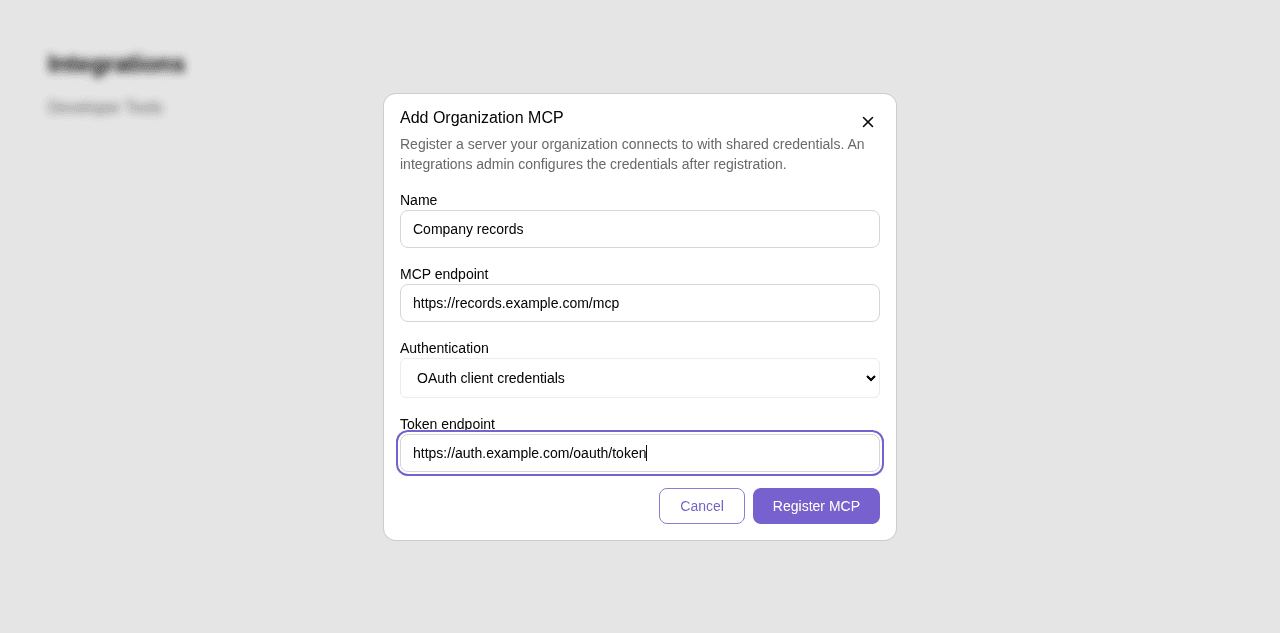
Registration requires plugin-developer access (manage:developerApps or a
platform plugin-developer grant). Then open the new server from Browse and
an admin with manage:integrations can configure it:
- API key asks for the key. The server must accept it as a Bearer token.
- OAuth client credentials asks for the API base URL, client ID, and client
secret. Futurity exchanges those credentials at the registered token endpoint
and reuses the resulting access token until it needs renewing. The token
endpoint must accept the client credentials as form fields and return a numeric
expires_invalue. The API base URL is required by the credential form; the full token endpoint determines where the exchange is sent.
The connection then works for the organization's members under the same permissions as other organization integrations. Each organization configures its own credentials; registering a server does not share credentials between organizations. The server registration appears in the shared integration catalog, so other organizations can see its name and configure their own connection. No signed plugin manifest or marketplace registration is needed.
What members see
Someone without the permission to configure integrations opens the same card and gets told who can:
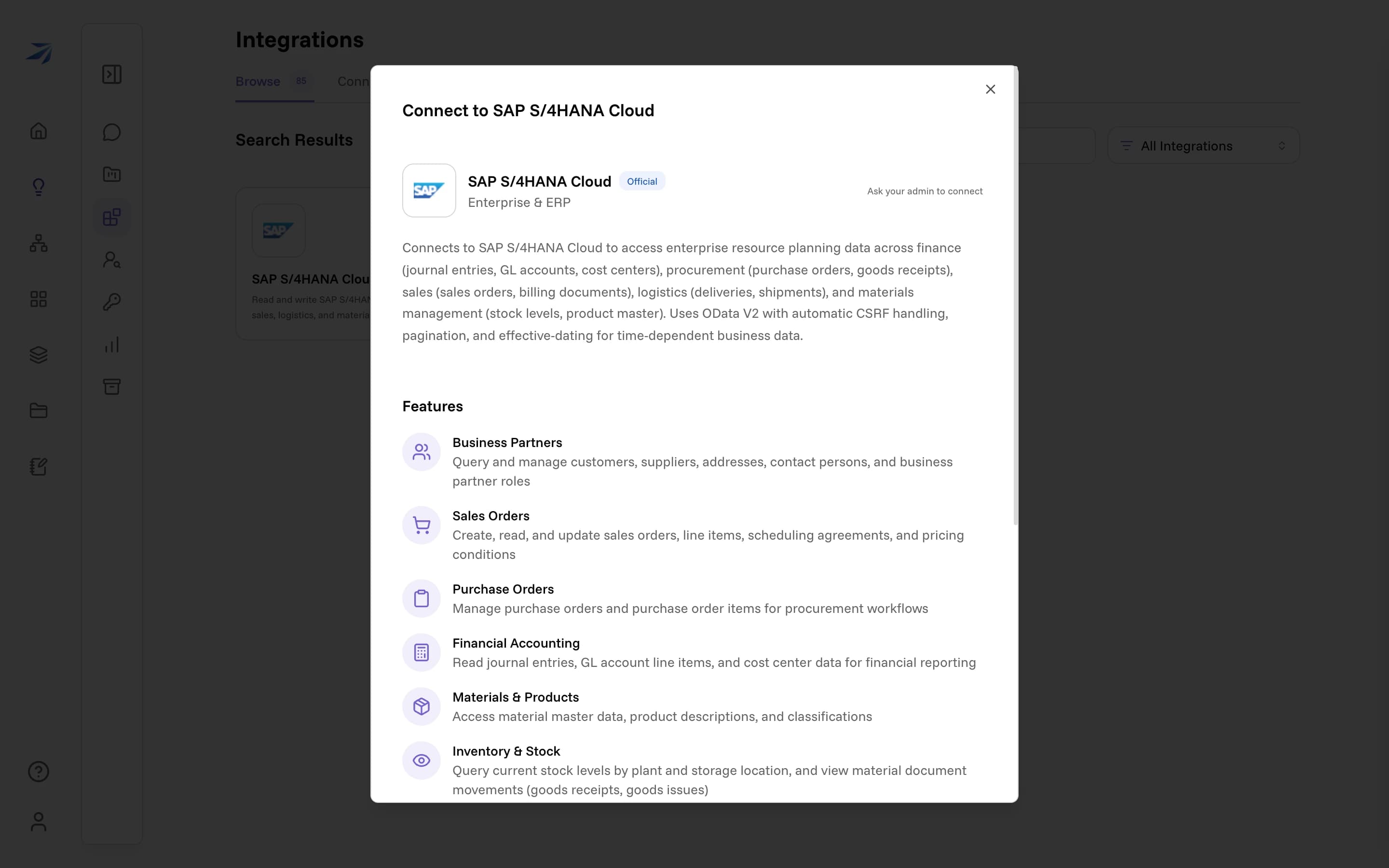
Once an admin has configured it, the system shows up under the Connected
tab for every member of the organization, and
Corint can use it in their chats and in workflow steps they run — without
anyone else entering a credential. They are all working through the one service
account, so everyone who uses it can reach everything that account can reach.
Members without manage:integrations see Connected in the card and its
details, with no Disconnect action. The details panel is titled
About the integration. They can still disconnect their own per-person
integrations.
Your own OAuth app
Per-person integrations normally sign in through an OAuth app Futurity maintains. Some services have no such app — a plugin your own developers registered, for one — and some companies would rather their people never authorize an app they did not create.
An admin holding manage:integrations can register the organization's own
OAuth client for the integrations that need one — the plugins your developers
registered, which have no app in the catalog behind them. Open the integration
from Browse: where a member sees Ask your admin, an admin sees
Register OAuth app.
Catalog integrations already have an app, so they connect without this. If you want your own client on one of those, write to us.
The dialog shows the redirect address to register with the provider, then asks for the client ID and client secret the provider issued you. Scopes are optional — leave them empty to request whatever the integration asks for, and narrow them when your app holds fewer permissions than that.
From then on your members press Connect as they would for any per-person integration, land on the provider's own consent screen for your app, and each keep their own access. Nobody sees anything a second person's account cannot already reach.
Replacing or removing the app
Both live behind the same dialog, reachable from the integration's panel once an app is registered. Either one disconnects every member who connected through the old client — a token issued by a client you have replaced cannot be renewed, so they will each press Connect once more.
The two permissions
Both live in the role editor at Org → Roles. Pick a role in the left panel, open its Permissions tab, and both sit under the Integrations group:
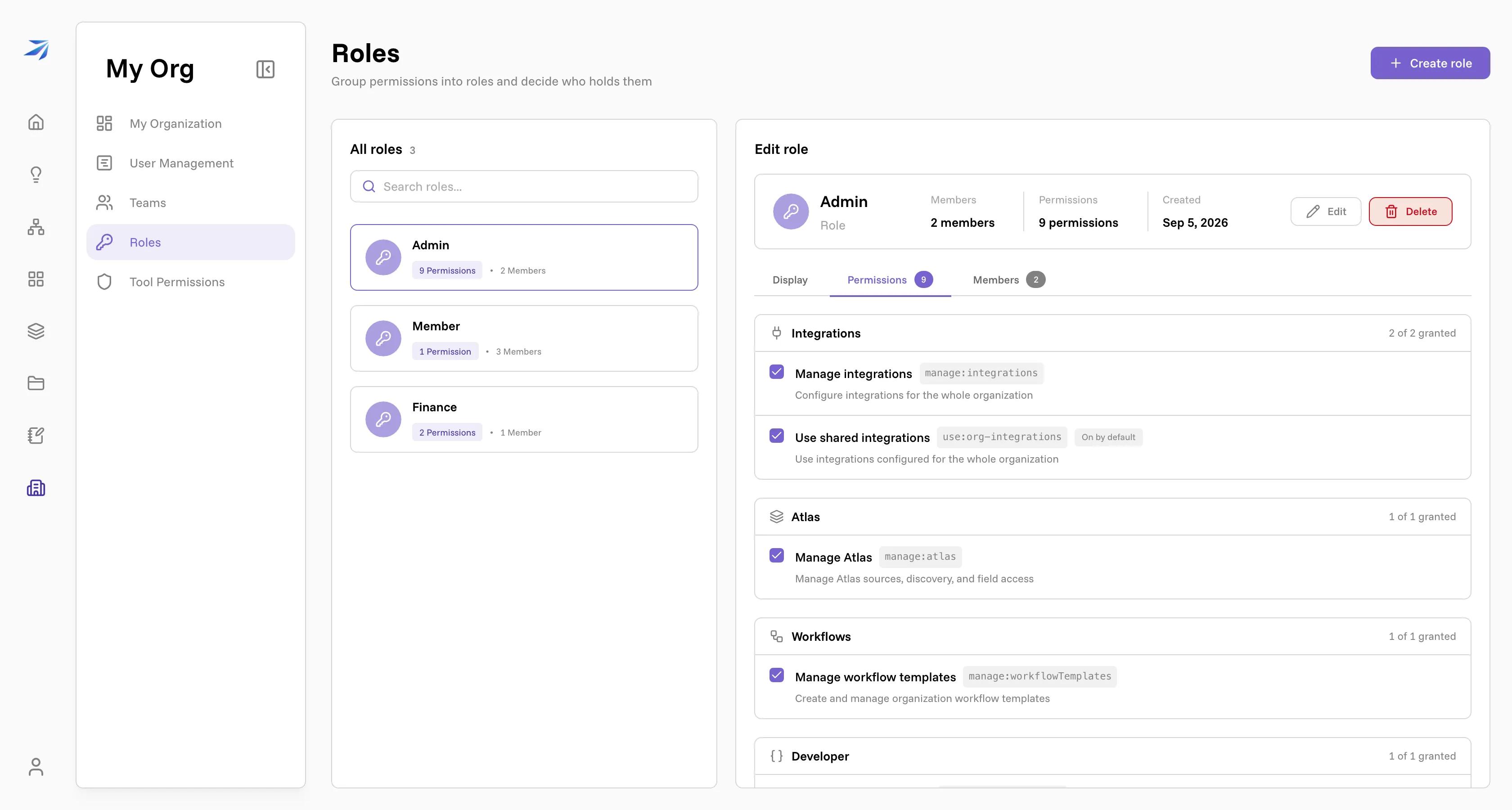
manage:integrationsdecides who may configure an organization connection or remove one, and who may register the organization's own OAuth app. Without it, opening an unconfigured integration shows "Ask your admin to connect"; a configured card reads Connected.use:org-integrationsgoverns using one. It is open to every member of the organization by default, which is why a connection an admin sets up on Monday morning works for the whole team that afternoon.
Roles and permissions covers the role editor itself and what the other permissions unlock.
Removing one
An admin opens the card from the Connected tab and presses Disconnect. The stored credentials are deleted and the system's tools stop appearing — for everybody, not just the person who removed it. Chats that used it keep their history; they simply cannot reach the system again until it is reconnected.