Teams
Group people once, then share files, workflows, dashboards, and wiki pages with the whole group.
A team is a named group of people you can share things with in one move. Build one called Supply Chain, and from then on the quarterly forecast folder, the reorder workflow, and the logistics dashboard each go to the whole group with a single pick — including the person you add to the team next month.
In the Vault, a folder's Share dialog carries a Share with team… dropdown listing every team in your organization, each with its color:
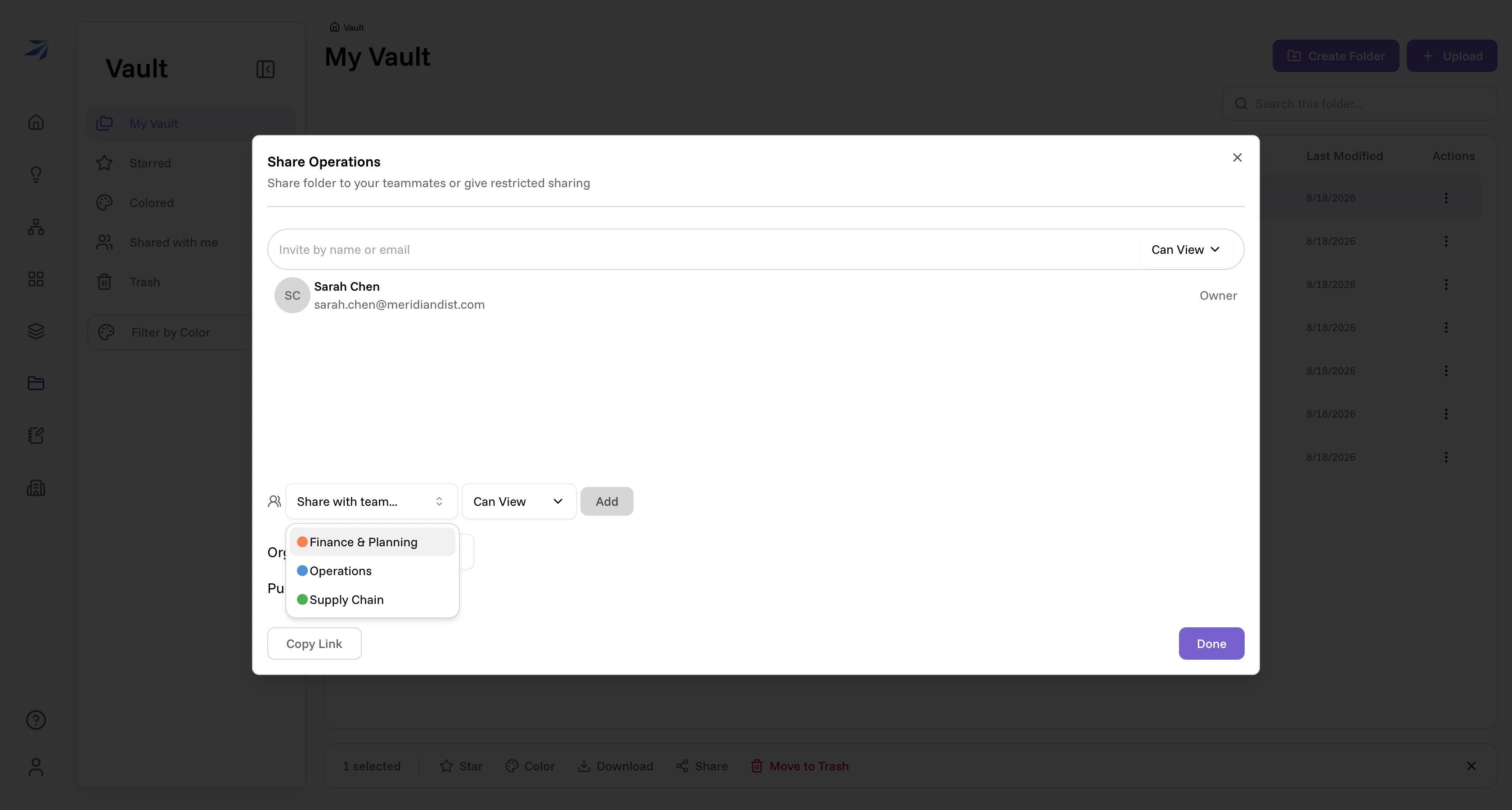
It's the same dialog on workflows, dashboards, and Argos spaces and pages, so the team option is there too. Access follows membership: add someone to the team and they can reach everything the team has been given, remove them and they can't.
Create a team
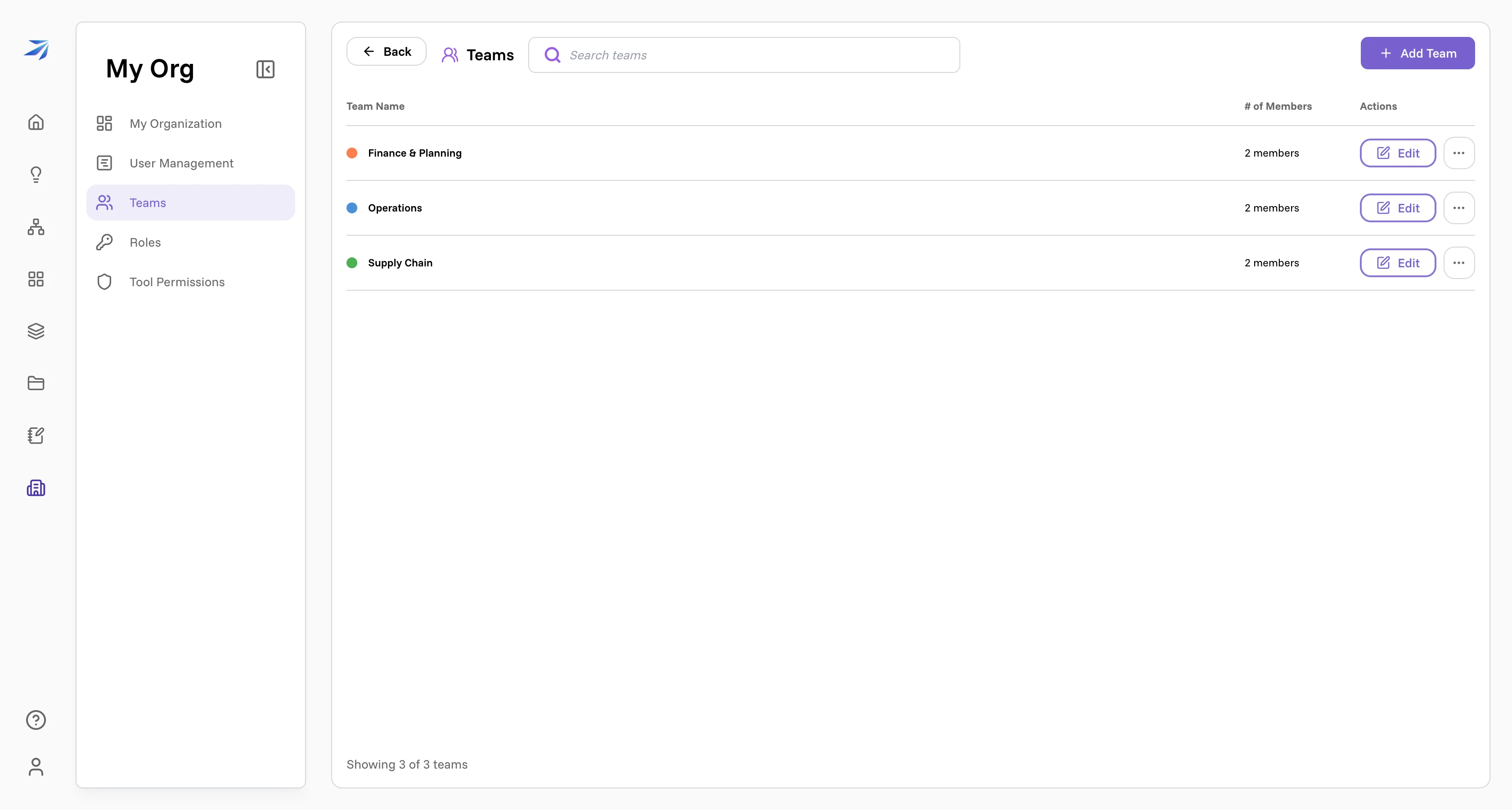
Org → Teams lists what you have, with a member count and an Edit button on each row.
New Team asks for two things — a name and a color.
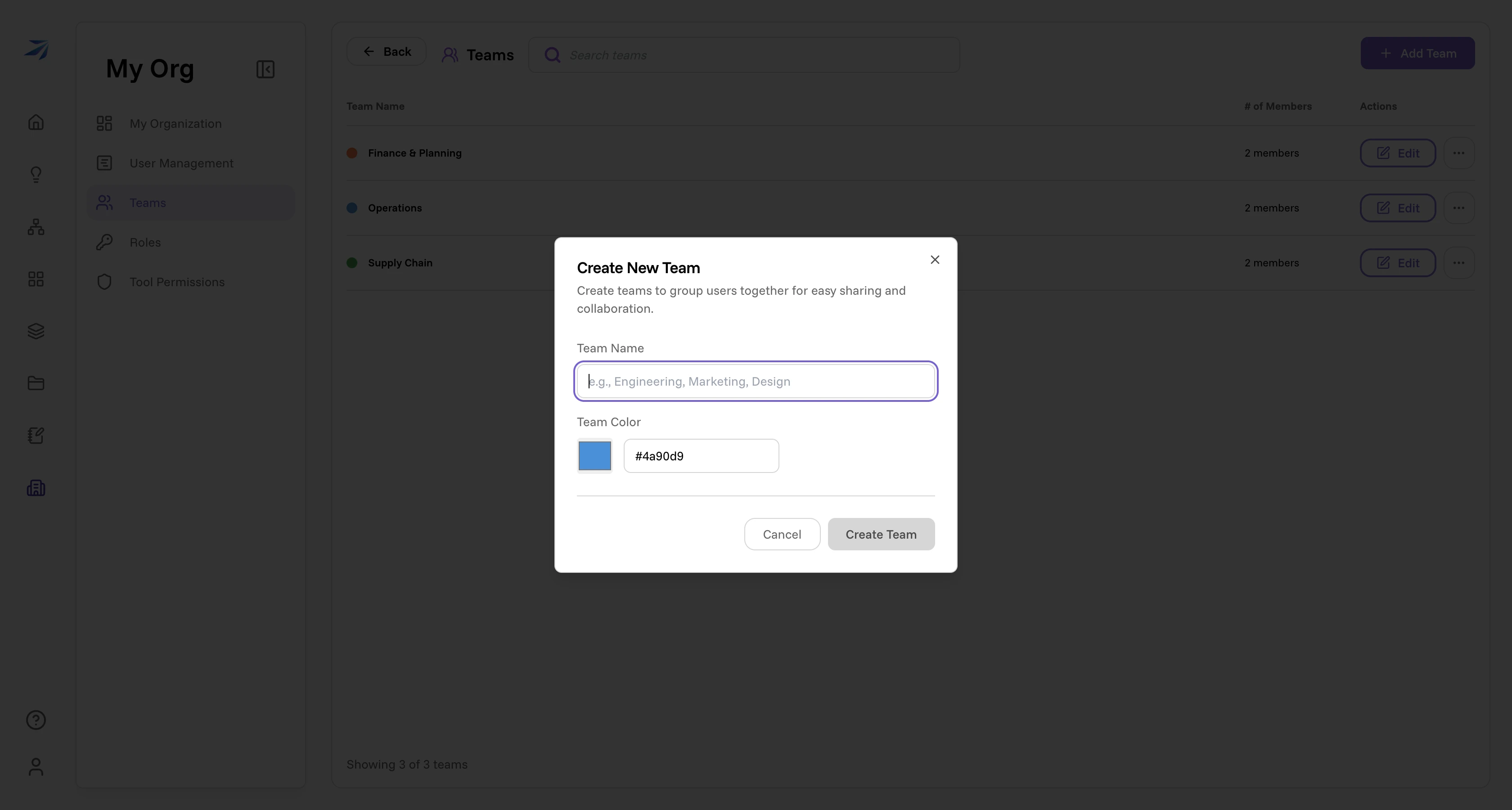
The color is what you'll be picking out of the share dropdown later, so give teams that get confused with each other visibly different colors. It also becomes the team's initial until you give it a picture.
Give a team a picture
Edit on a team opens Team profile on the left. Under Profile image, click the preview to pick an image from your Vault — the picker accepts JPEG, PNG, GIF, and WebP. Hover the preview and use the × to take the picture off again. Like every other field here, the change is staged until you save.
The team keeps its own copy of the picture, resized to 256×256. That matters in two directions: the file you picked stays private, and everyone in the organization sees the team's picture without gaining any access to your Vault; and once it's saved, deleting the original file — or leaving the organization — doesn't blank the team.
A team with no picture falls back to its initial on its team color, which is what the share dropdown and the Teams list show.
Add and remove members
Edit on a team opens Members on the right, listing everyone in the organization. Click a person to add them; click a current member to take them out.
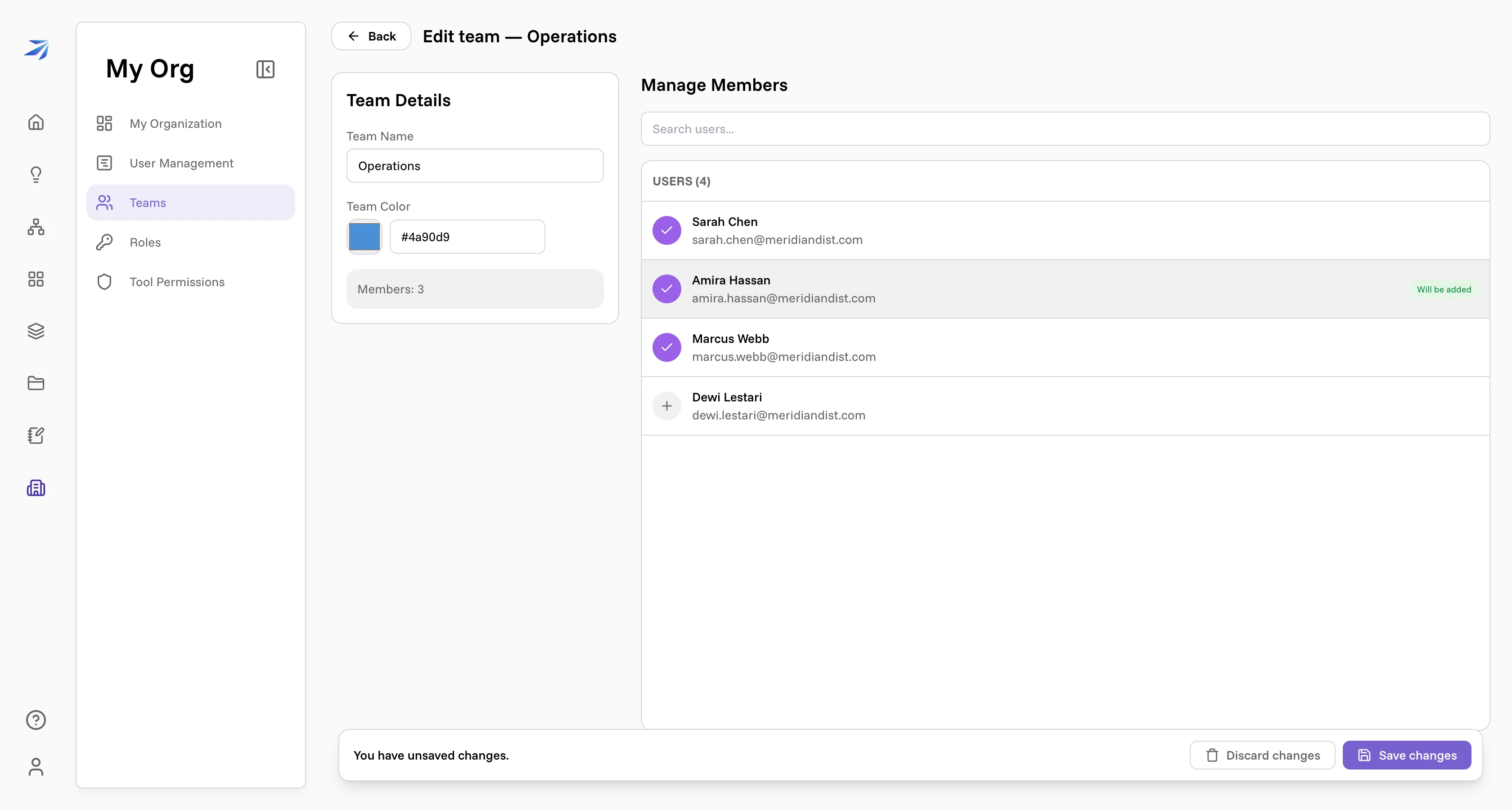
Changes are staged, not immediate. The row you touched is tagged Will be added, and a banner appears at the bottom: You have unsaved changes, with Discard changes and Save changes. Nothing reaches the team (and nobody gains access to anything shared with it) until you save.
Renaming, recoloring, and changing the picture work the same way, from the Team profile panel on the left.
Delete a team
The … menu on a team row deletes it, but only once it's empty. Try it with people still assigned and you get told exactly that:
Cannot delete "Operations" because 2 members are still assigned. Remove them first.
The shares that pointed at the team go with it, so anything reachable only through the team stops being reachable at all — reshare it elsewhere before you delete.
Teams, departments, and roles
Three groupings, three jobs, and it's worth keeping them straight:
- A team is an audience for sharing. It decides who can see a folder or a dashboard, and it is a subject in Atlas → Set Permissions: grant it the fields of a restricted entity and every member reads them. See Who can see what.
- A department is a field on a person's record, used to filter the employee list. See Users and departments.
- A role is a bundle of administrative permissions. See Roles and permissions.
Managing teams needs the manage:users permission — the same one that shows
you User Management.