Users and departments
Edit a person's record, block an account you no longer trust, and sort people into departments.
User Management is where you act on individual people: correct a job title, park an account when someone leaves, or file the roster into departments so a long list becomes searchable.
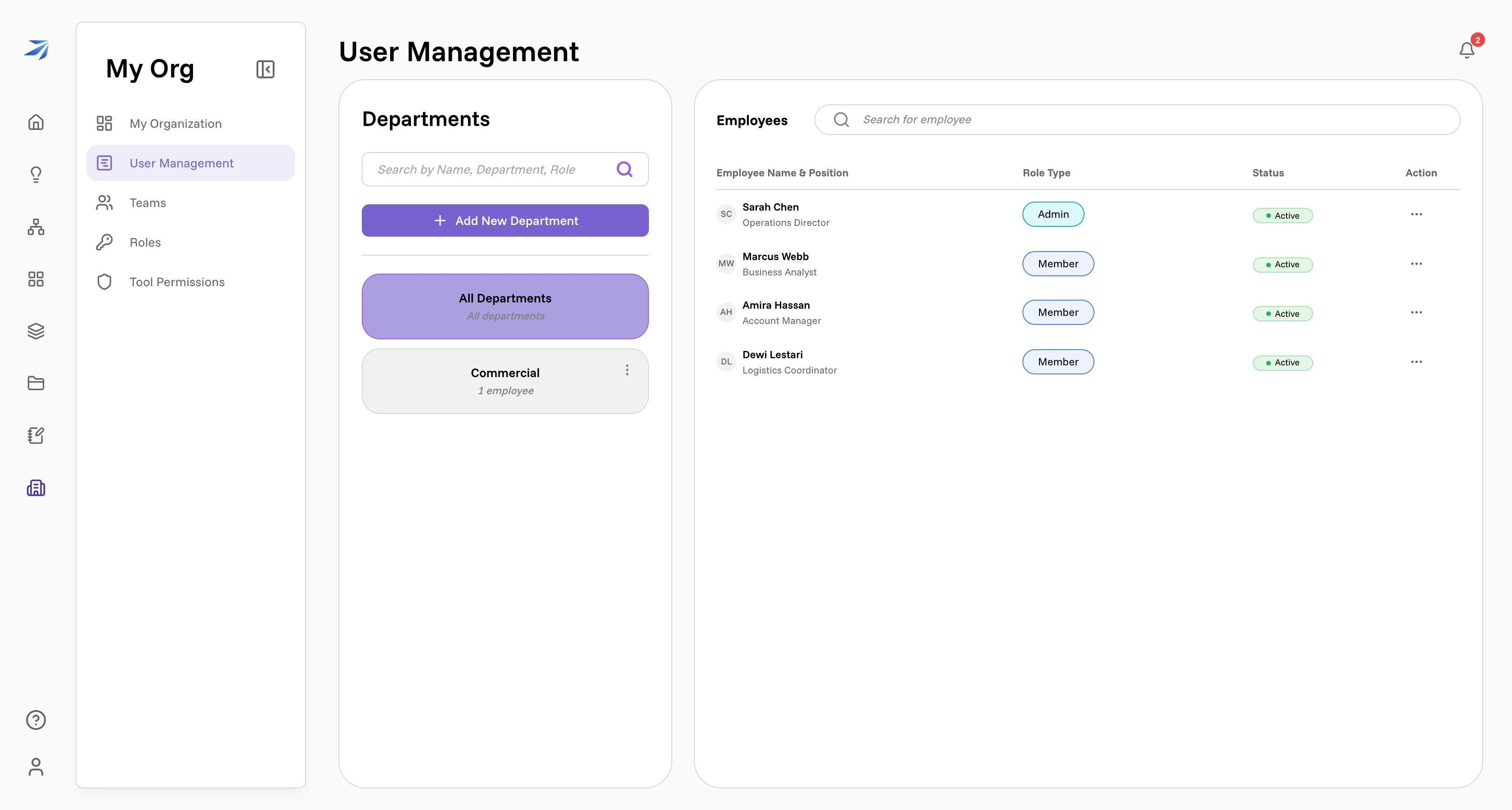
The Role Type column is the quick answer to "who can administer things around here" — in this organization, one Admin and three Members. Changing that column happens in the role editor, not here; see Roles and permissions.
Edit someone's record
Click a row, or use the … menu at the end of it and choose Edit. A panel slides in with two tabs.
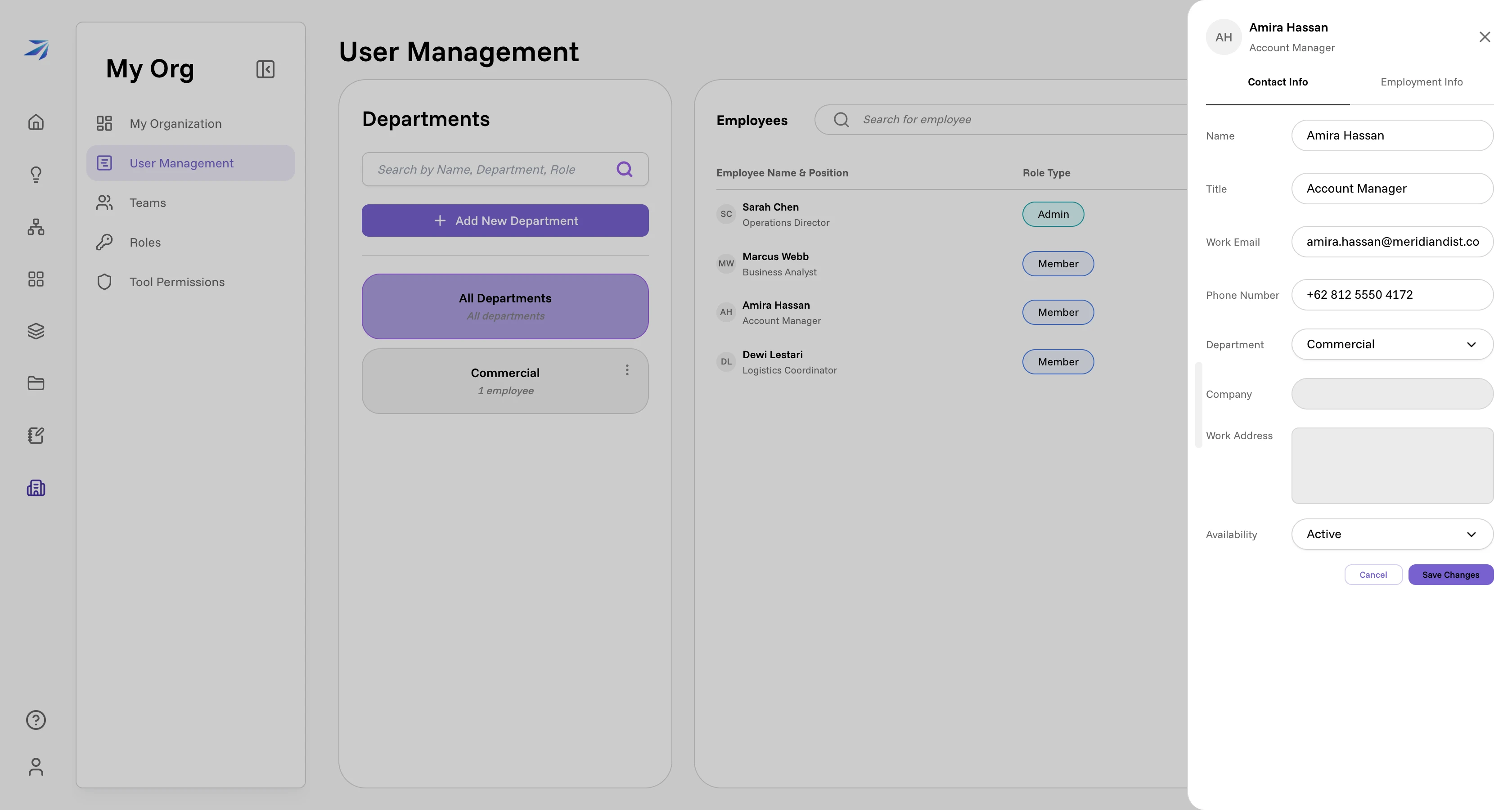
Contact Info holds name, title, work email, phone number, department, and availability. Employment Info holds title, employment type, department, start date, and availability again. Company, work address, employment type, and start date show greyed out: they're displayed here, not edited here. Press Save Changes when you're done, or Cancel to drop back to a read-only view of the same record.
This panel is also the only place a person's department gets set, which matters once you've created a few.
Suspend an account
The same … menu carries Suspend. It asks first, and the wording is exact about what happens:
Marcus Webb will be blocked from logging in. Existing sessions and tokens will be revoked.
You can add an optional reason, which is kept with the suspension. The person's Status then reads Suspended instead of Active, and hovering it shows the reason you gave.
Unsuspend is the same menu item on a suspended account, and it is equally
blunt: the person can log in again, but their old sessions and tokens are not
restored — they sign in fresh. You cannot suspend your own account, and
suspension needs the manage:userSensitive permission rather than plain
manage:users.
Suspending is the reversible answer for a departure, a lost laptop, or an invite link that reached the wrong person. It leaves the account, its chats, and its files intact.
Departments
Departments are empty in every new organization, which is why the
Department column starts out as N/A for everybody. Press Add New
Department to make the first one.
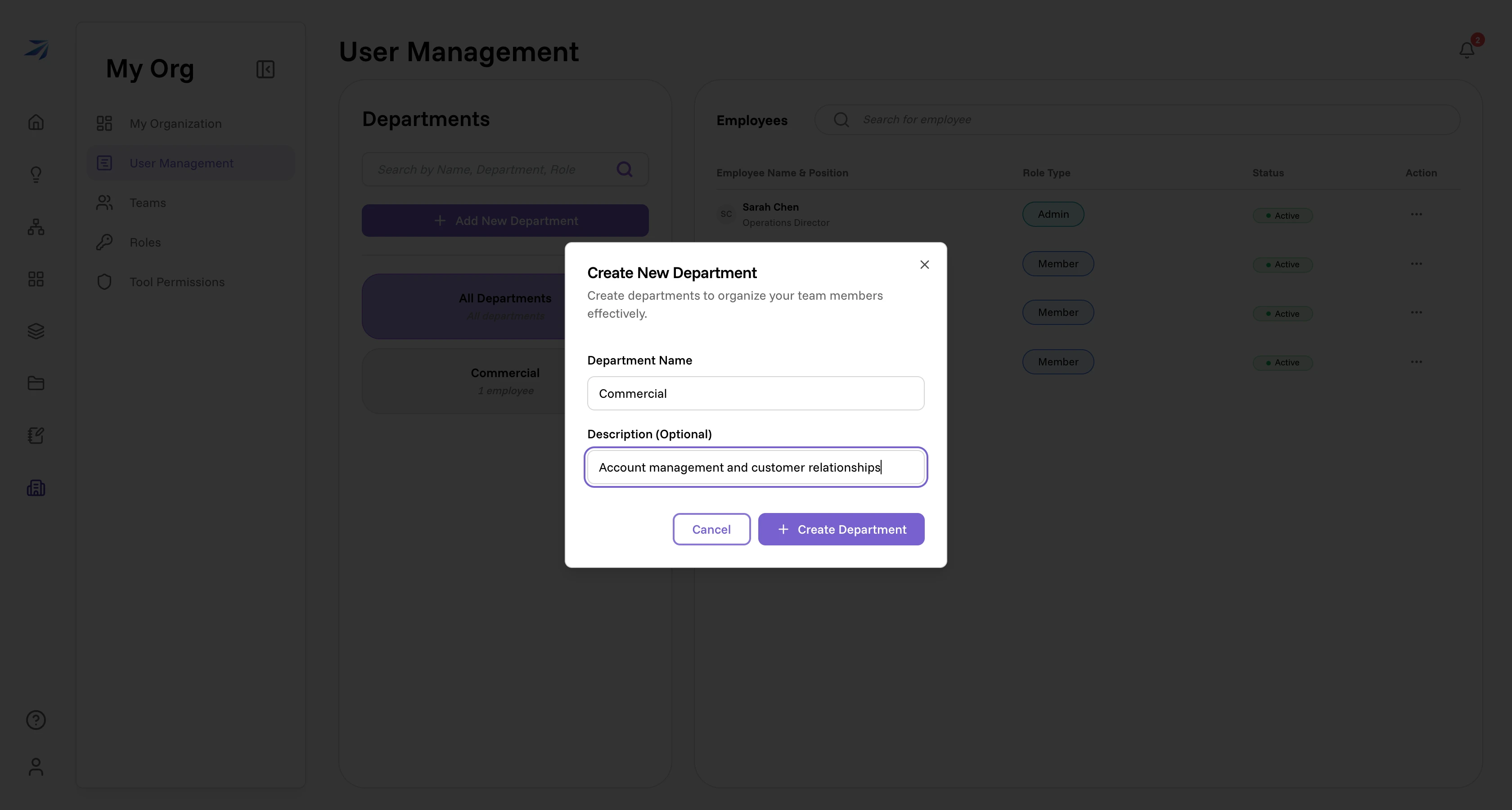
A department needs a name; the description is optional and surfaces again only when you edit the department, so write it for whoever inherits this page. Once one exists:
- Assign people to it from the Department dropdown in each employee's panel. The department card counts them as you go — "1 employee".
- Click a department card to filter the employee list down to its members. All Departments brings everyone back.
- Use the ⋮ on a card to Rename or Delete it.
Departments are not teams
They look similar and do entirely different jobs.
A department is a field on a person's record. It describes where they sit in the company, and its practical use is filtering this roster. Nothing else in Futurity reads it.
A team is an audience you can share with. Share a folder, a workflow, or a dashboard with the Supply Chain team and every member of that team gets it — including whoever you add tomorrow. That's Teams.
Most organizations end up with both, and they don't have to match.