Sharing a dashboard
Give named people, a team, your organization, or anyone with the link the right level of access — and take it back.
A dashboard you built is yours alone until you say otherwise. The lock beside its name and the word Private underneath say exactly that: nobody else in your organization can open it, even with the URL.
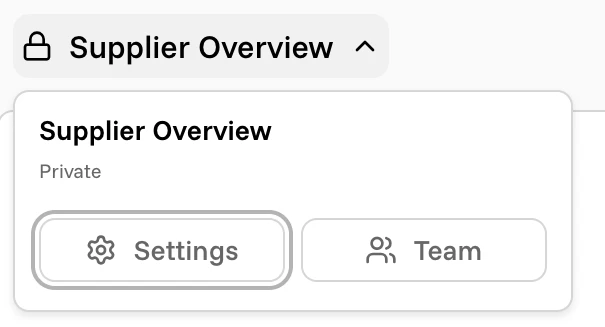
Click the dashboard name to open that popover, then Team. The same dialog opens from Settings → Share dashboard…, and from the menu on the row in the Dashboards list, which also holds Open, Duplicate, Rename, and Delete.
The share dialog
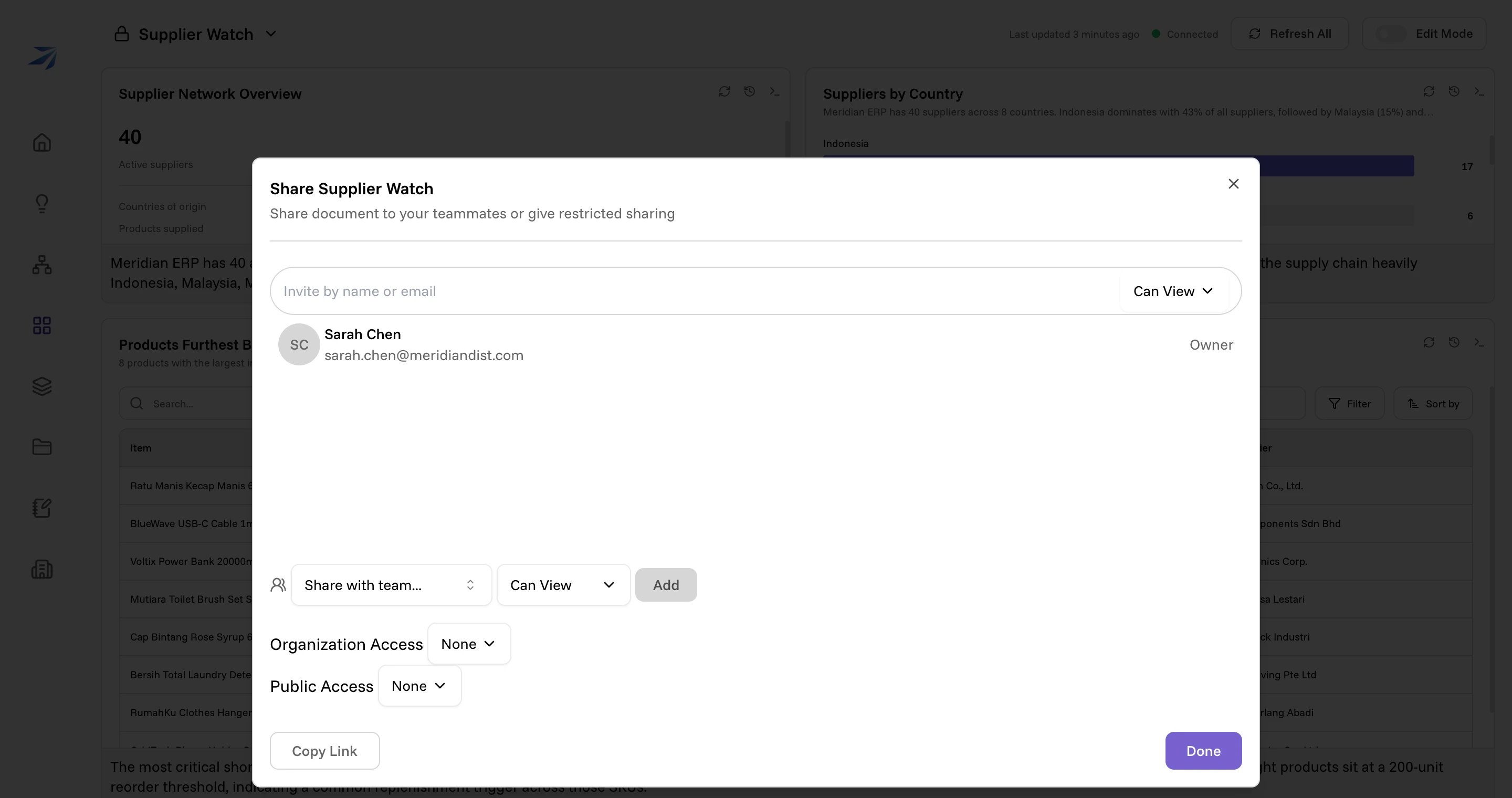
Everything about who can see this dashboard lives in one dialog, in three widening rings.
Named people. Type a name or email into Invite by name or email and pick from your organization's members. Set their level on the right, then repeat for anyone else. You appear at the top as Owner — a level nobody else can be given, and one you keep.
A team. The Share with team… selector shares with everyone in one of your organization's teams at once. Choose the team, set the level, click Add.
Everyone. Organization Access covers every member of your organization. Public Access covers anyone holding the link.
Changes are staged until you press Done. Copy Link puts the dashboard's URL on your clipboard — it is the ordinary address of the page, not a separate secret token, so it only works for people the settings above have let in.
Access levels
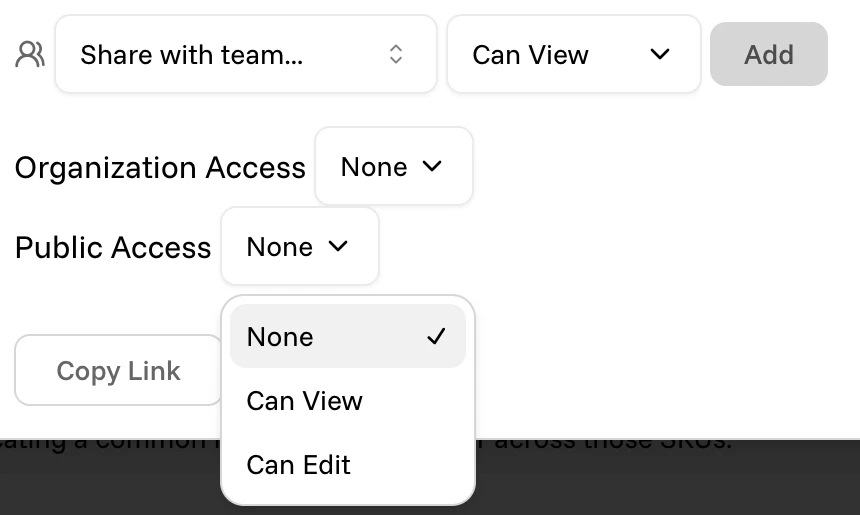
Named people, teams, and Organization Access take all three levels; Public Access stops at Can View:
- None — no access at all. This is where Organization Access and Public Access start.
- Can View — open the dashboard, read the widgets, refresh them, and look at the agent log behind any figure.
- Can Edit — everything above, plus Edit Mode: adding widgets, rewriting prompts, rearranging the grid, and using the builder chat. Edit access always goes to named people, a team, or the organization — never to whoever holds a link.
Refreshing counts as viewing, not editing. A viewer pressing Refresh All re-runs the questions against current data.
What a viewer sees
Someone with Can View gets the dashboard and nothing else.
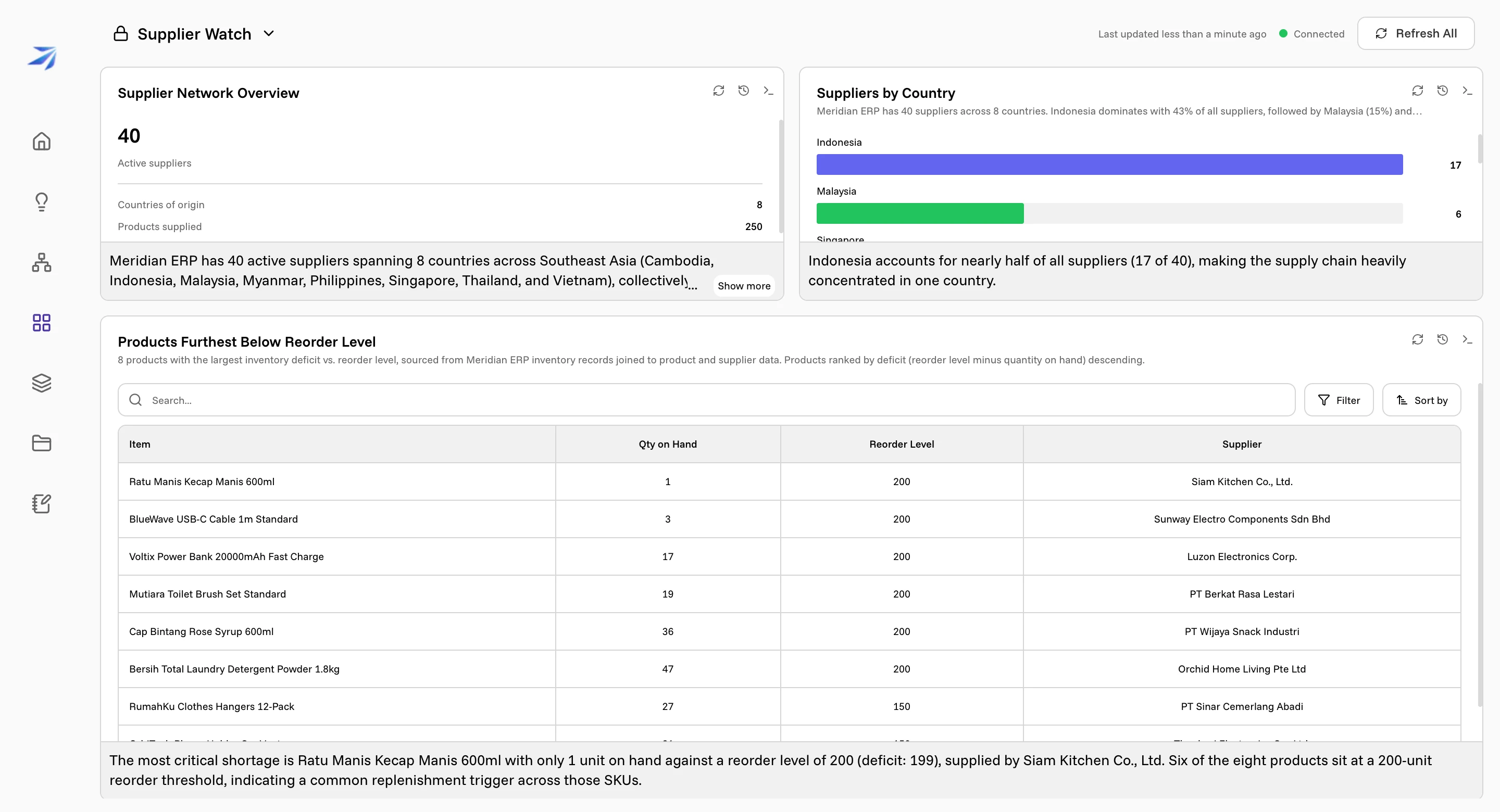
The Edit Mode toggle is simply absent from their header. Refresh All stays, as do the per-widget refresh, run history, and agent log icons.
In their Dashboards list the page carries a blue Shared chip beside its name, so they can tell at a glance which pages are their own and which arrived from a colleague.
Public links, honestly
Public Access → Can View means anyone with the link, not anyone on the internet. Someone who opens the URL while signed out lands on the Futurity sign-in page; the dashboard appears once they are signed in.
The link is also the only way in. A publicly shared dashboard does not turn up in anyone else's search results or shared-with-me listings — nothing is announced, nothing is listed. The same goes for Corint: it won't find publicly shared things on its own, and can open one only when you give it the link.
Set it back to None and access ends immediately — a signed-in person with no other share sees Access denied the next time they open that link. A dashboard that was deleted instead shows Dashboard not found. Nothing is cached and there is no separate link to revoke.
Public links are view-only
Public Access offers Can View and nothing higher, and the server enforces the same rule: a request to attach edit access to a public link is refused outright. A link that was made editable before this rule now grants view.
Who can share in the first place
The owner can, and so can anyone the owner has given Can Edit by name. For everyone else the controls in the dialog are disabled. Whether someone can create dashboards at all is a separate question, decided by their role — see Roles and permissions.