Querying Atlas
Four ways to ask your connected data a question — the Atlas chat, the query console, a normal Corint chat, and the sandbox CLI.
Once entities are imported, the same graph answers from four places. They suit different questions: a sentence you want answered, a table you want to see, a question that arrives mid-conversation, or a script you want to run.
Ask Atlas
The Chat tab sits beside Entities in the workspace panel — "Ask about your entities and how they connect — or ask it to rename, describe, and link them." Type a question the way you'd ask a colleague.
Asking "Which warehouse has the most low-stock items?" against Meridian's ERP produces this:
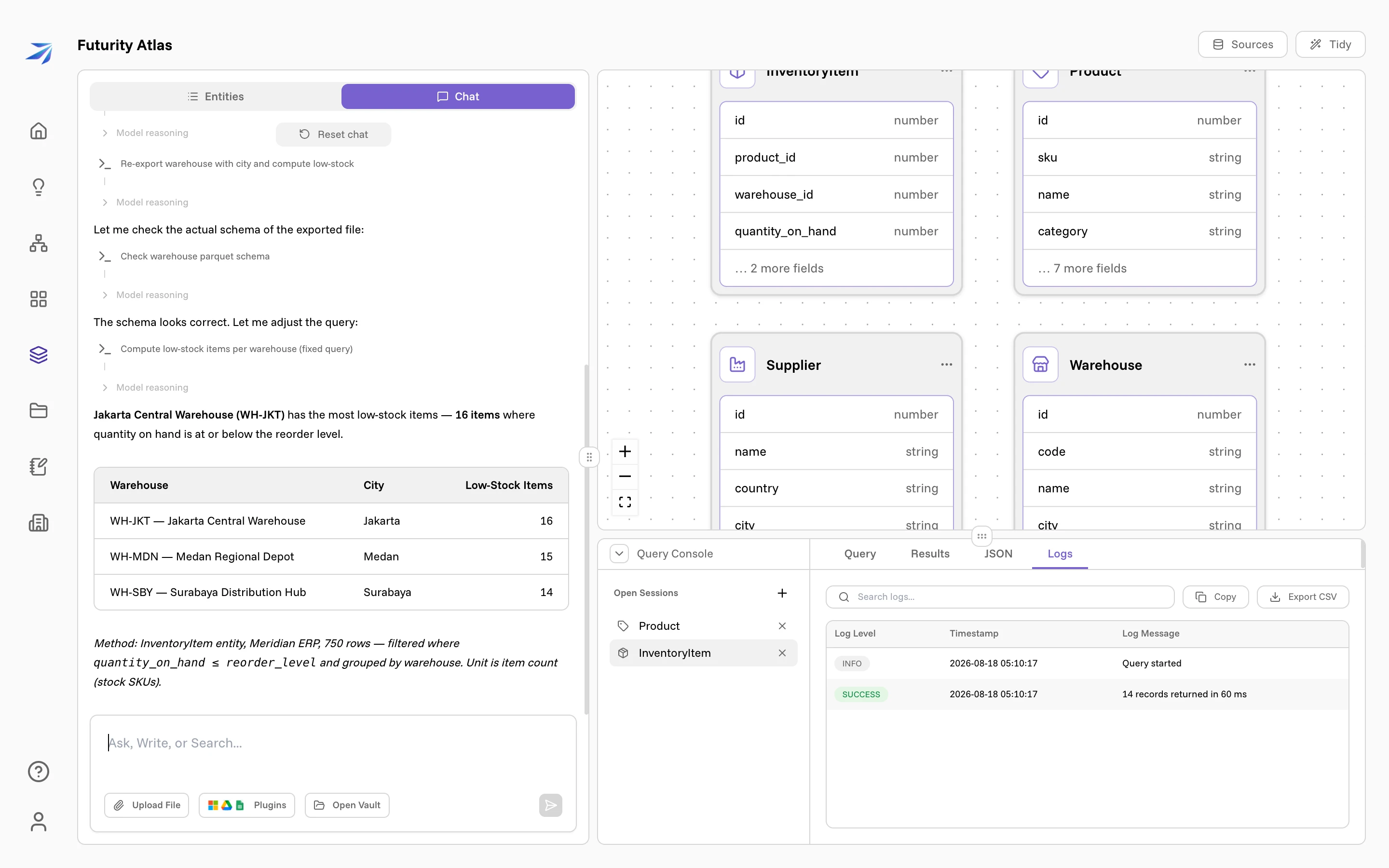
Three things are worth noticing in that answer.
It shows its work. Each step in the transcript is a real command against your data — finding the entity, describing it, aggregating, computing. You can expand any of them.
It says how it got there. The italic line under the table names the entity,
the source, the row count it worked over, the filter it applied
(quantity_on_hand ≤ reorder_level), and the unit the numbers are in. When a
question is ambiguous, that line is where the choice it made gets stated.
It works around limits out loud. Partway through this run, Atlas reported that its aggregation engine can't compare one field against another, then exported both tables and computed the comparison locally instead. You see the refusal and the route around it, rather than a number with no history.
The same chat curates the graph: ask it to rename an entity, rewrite a description, regroup, or add a relationship, and it does. Deleting an entity or removing a link asks you to confirm first.
The query console
Under the canvas sits the Query Console — a query builder for when you want rows rather than a summary.
Open a session with + in the Open Sessions rail, or click any entity in the left panel and its session opens for you. Each session is one entity, and several can be open at once.
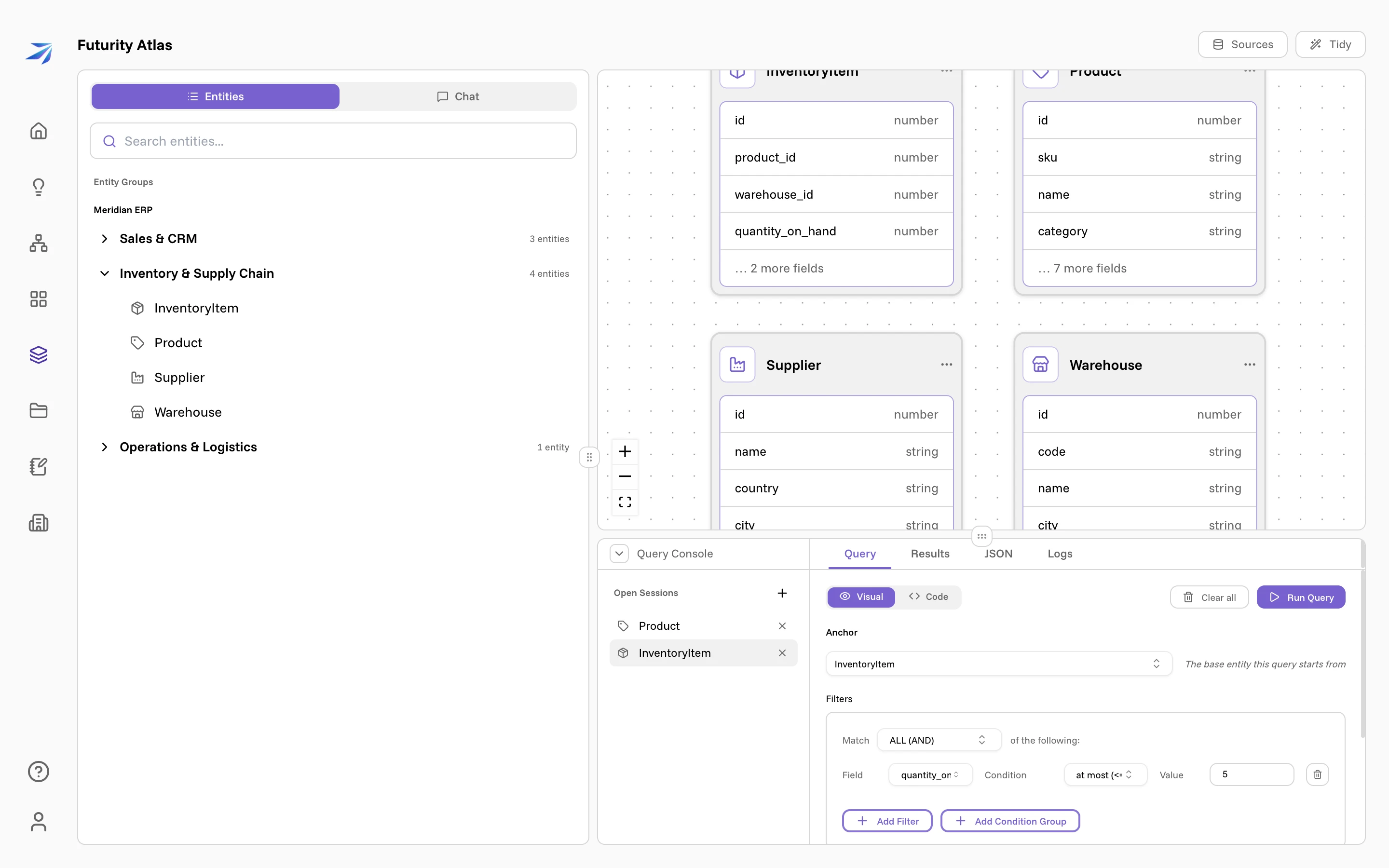
A query is built from four parts:
- Anchor — the entity the query starts from.
- Filters — rows of field, condition, and value. Match switches the group between ALL (AND) and ANY (OR), and Add Condition Group nests a group inside it. The conditions offered depend on the field's type: a number gets at most, at least and one of; a text field gets contains and starts with.
- Sort — one or more fields, ascending or descending.
- Limit — 10, 100, 1,000 or 10,000 rows. The console is for looking at rows, so it always has a ceiling.
Visual and Code are the same query in two forms. Switch to Code to read or edit it as JSON, and Copy Query to take it with you.
Click Run Query and the console moves to Results.
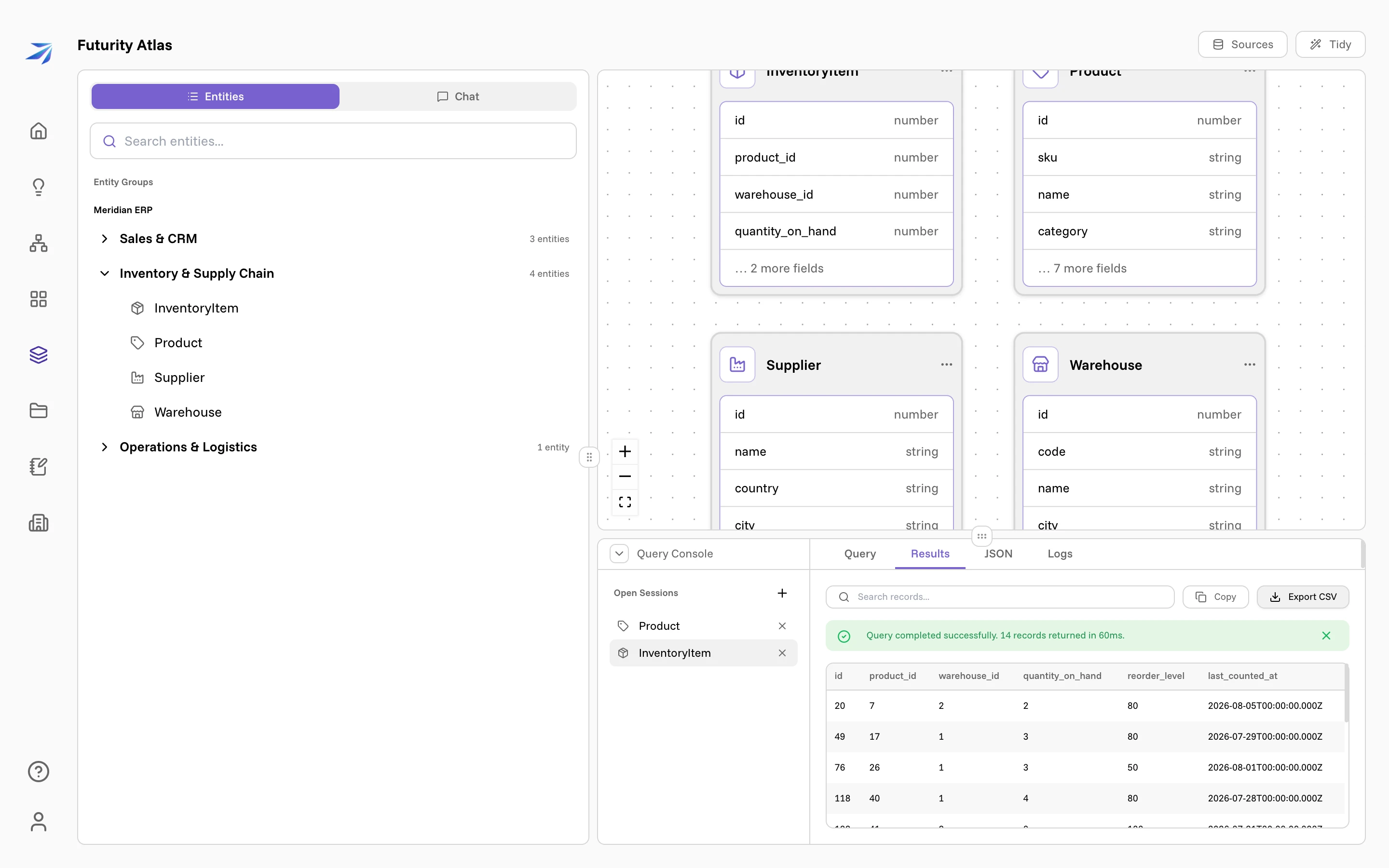
Results is the table, with how many records came back and how long it took, a search box that filters what's on screen, Copy, and Export CSV.
JSON is the same result as raw JSON, for pasting somewhere else. Very large results preview the first 500 records on screen; Copy and Export still give you everything.
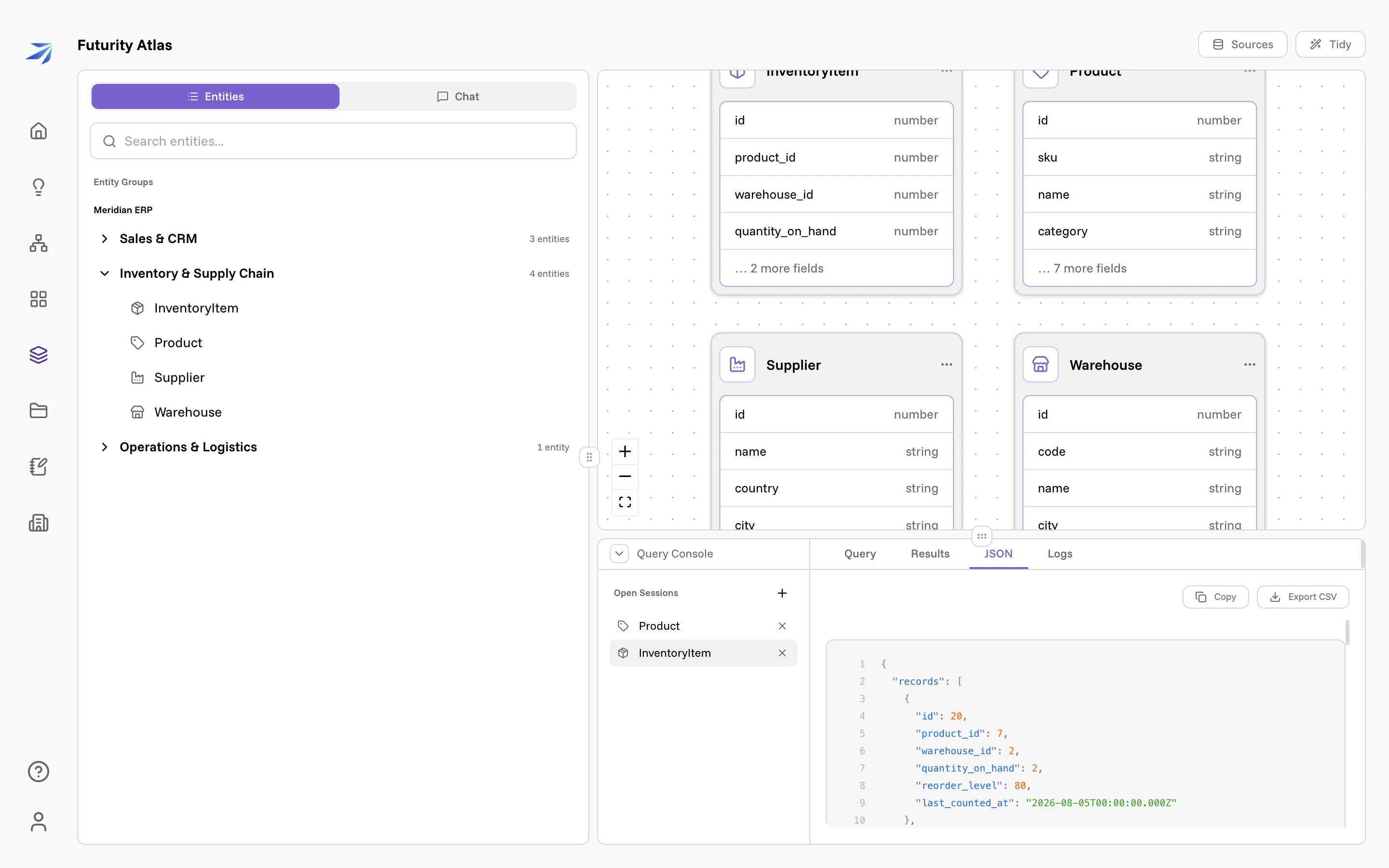
Logs keeps the run history for the session — when each query started, how many records it returned, and the exact diagnostic when one is rejected. A rejected query lands here with the field and the reason, which is usually enough to fix it in one edit.
Asking Corint
You don't have to be in Atlas to use it. Corint can reach the same graph from any chat, alongside your files, the web, and everything else it can do.
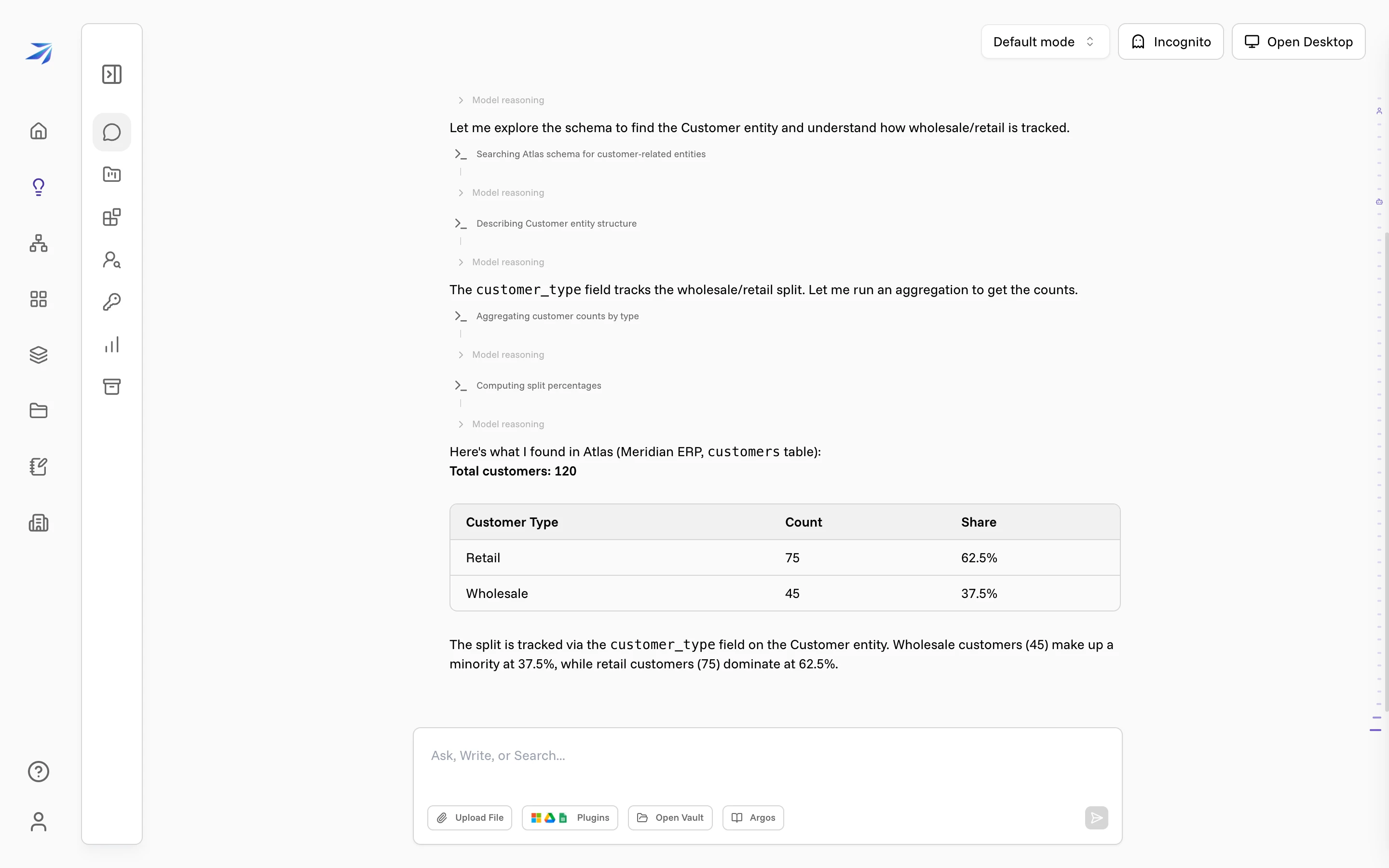
Corint chooses its own tools, so be specific about where the answer should come from. "Use Atlas to answer…", or naming the system — "in Meridian ERP" — points it at your connected data. A bare question about customers may otherwise be answered from a dashboard, or turned down because the assistant didn't realize your own data was in reach.
The answer arrives the same way it does in the Atlas chat: the steps it ran, the entity and source it used, and the numbers.
The atlas command line
For people who'd rather work in a terminal, Atlas is also a command in the
Desktop sandbox: atlas schema,
atlas describe, atlas query, atlas agg, atlas count and
atlas export. It's the same read-only surface with the same guarantees, and
it's what Corint itself drives under the hood.
Atlas for power users covers the commands, their options, and what to do with an export once you have it.