The Vault in the Desktop
Your Vault as a live folder on a real Linux machine, browsable and scriptable from any chat.
The Vault has a second life outside the file manager. Every Corint
conversation can open a Desktop — a real
Linux machine attached to the chat — and on that machine your Vault is
mounted as a folder called vault in the home directory. Same files, same
folders, live in both directions.
This is the page for the moment you want to do something to your files that a file manager can't: run a script across every CSV, convert a batch of documents, or just hand Corint a working copy of your real folder tree.
Browsing it: the Files tab
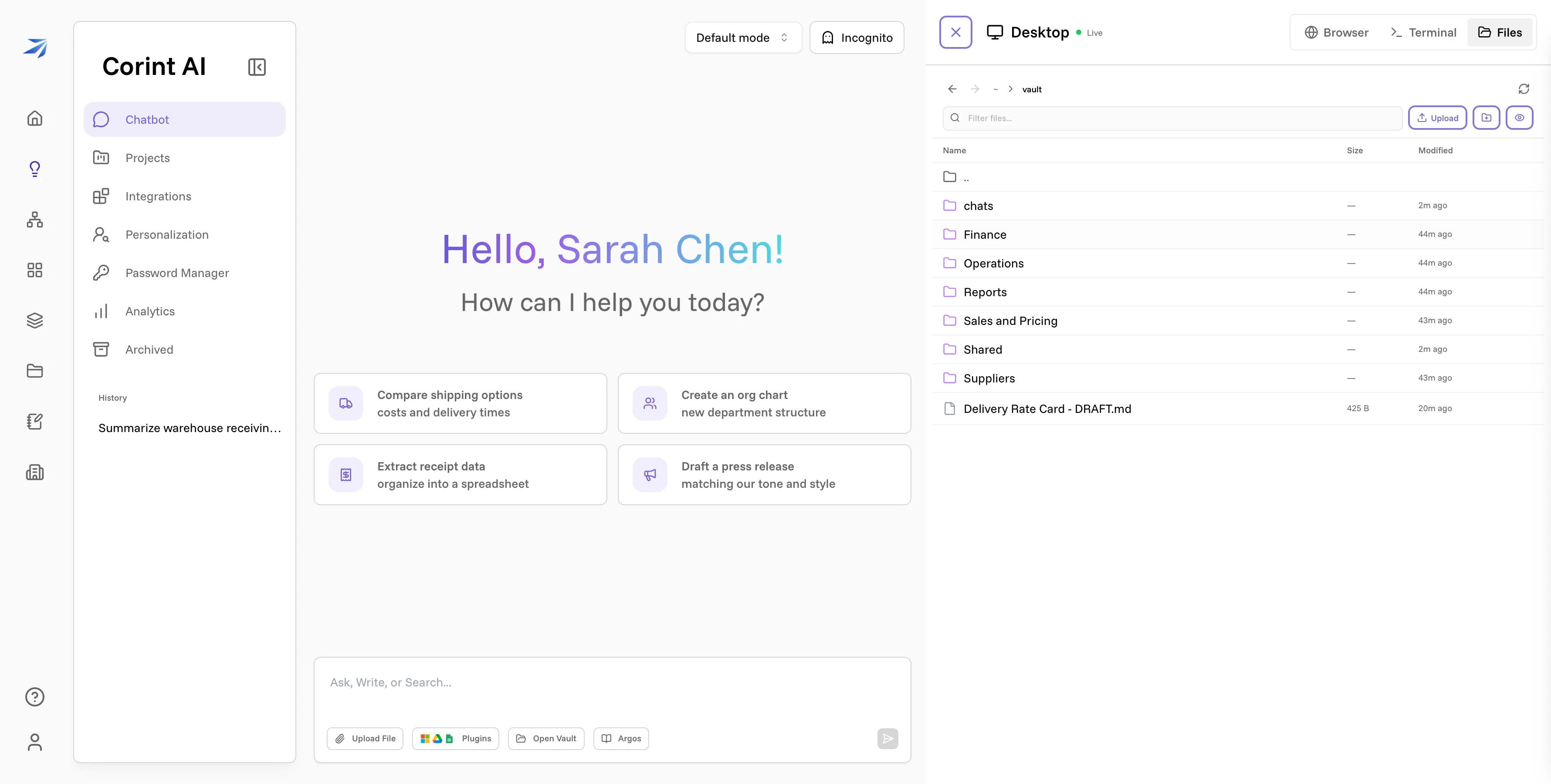
Open any chat, click Open Desktop, and pick the Files tab. You're
looking at the sandbox machine's home directory; open vault and your Vault
folders are all there — plus a Shared folder holding what others have
shared with you.
Working in it: the Terminal
Switch to the Terminal tab for a shell on the same machine. One thing to know first: while the agent holds the machine, your keystrokes don't reach it — click Take Control and a "You're in control" badge confirms the keyboard is yours.
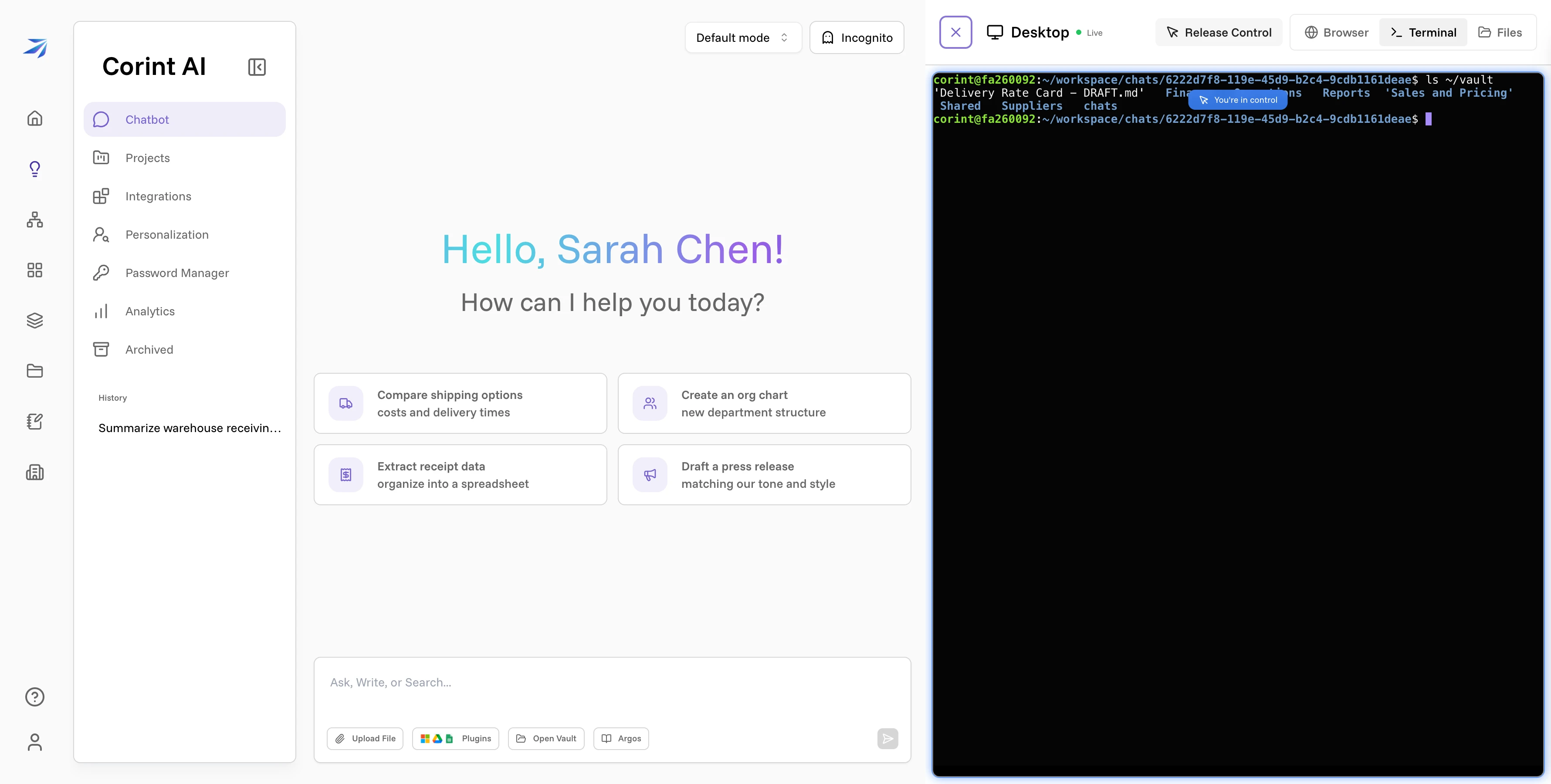
The mount is an ordinary directory, so ordinary tools work. Write a file there and it lands in your real Vault:
echo 'hello from the Desktop' > ~/vault/desktop-note.txtBack in the Vault's web view, the file is simply there, processed and previewable like any upload:
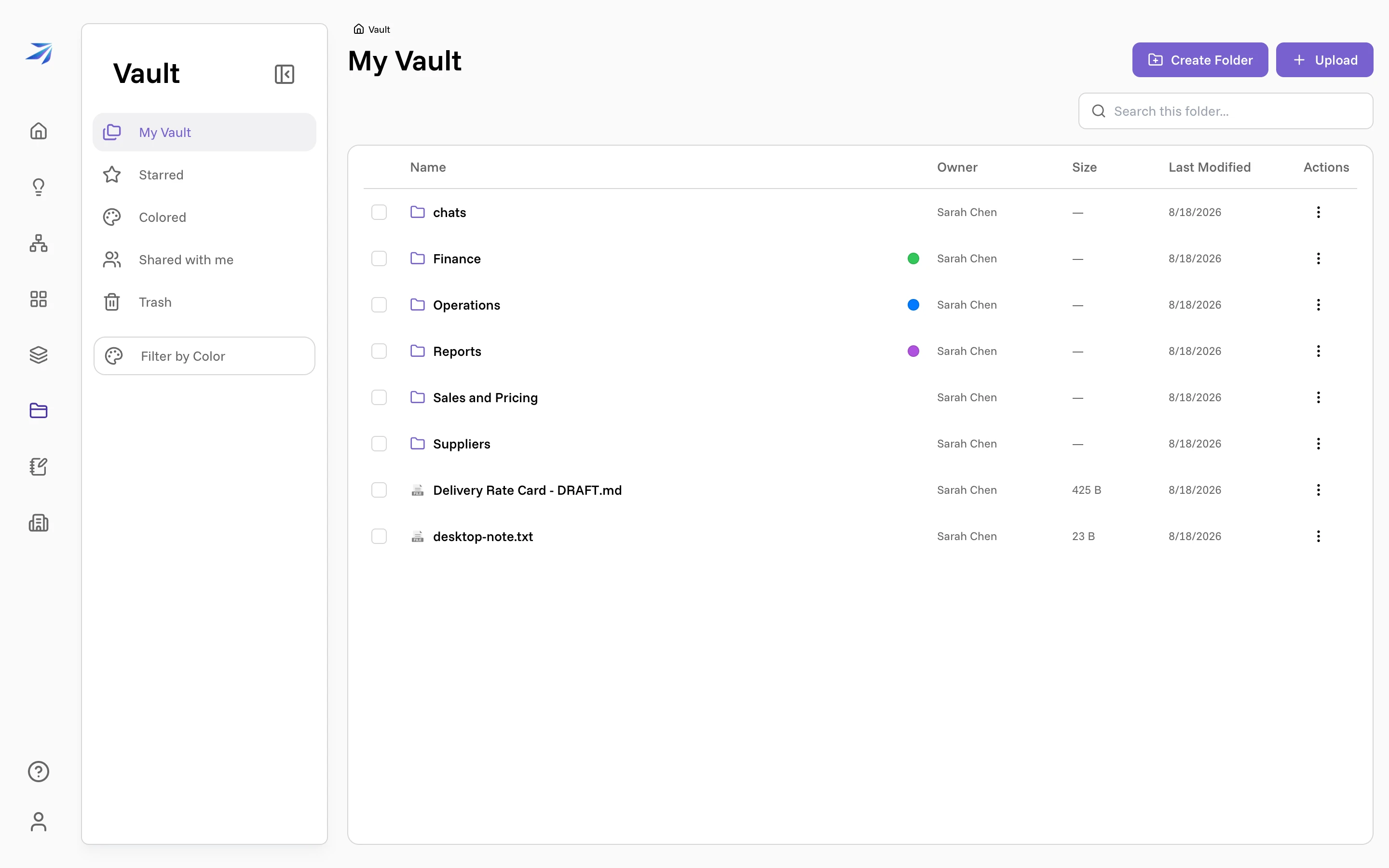
Because Corint works on this same machine, anything under ~/vault is in
reach of the agent when you ask it to work with your files.
What's underneath, and what isn't
The mount speaks WebDAV to Futurity's API, authenticated with short-lived credentials that are minted for your sandbox session automatically. You never set this up, and there is no WebDAV password to manage.
The flip side of that design: the Vault does not currently offer a WebDAV mount for your own laptop — there's no server address and account password to type into Finder or Explorer. The Desktop is the supported way to use your Vault as a file system. If your goal is moving files between your computer and the Vault, upload and download from the web app; if your goal is computing on them, the Desktop's terminal is already in the right place.