Search and preview
Finding files by name, reading them without downloading, and editing Office documents in the browser.
You know the file exists. The question is whether you can get to its contents in the next ten seconds. The Vault gives you two tools for that: a search box that narrows the folder you're looking at, and previews that open almost anything without a download.
Searching a folder
Every Vault view has a Search this folder... box in the top right. Type, and the list narrows to files and folders whose names match — it filters the folder you're currently in, so "inventory" inside Operations finds the two inventory counts and hides everything else.
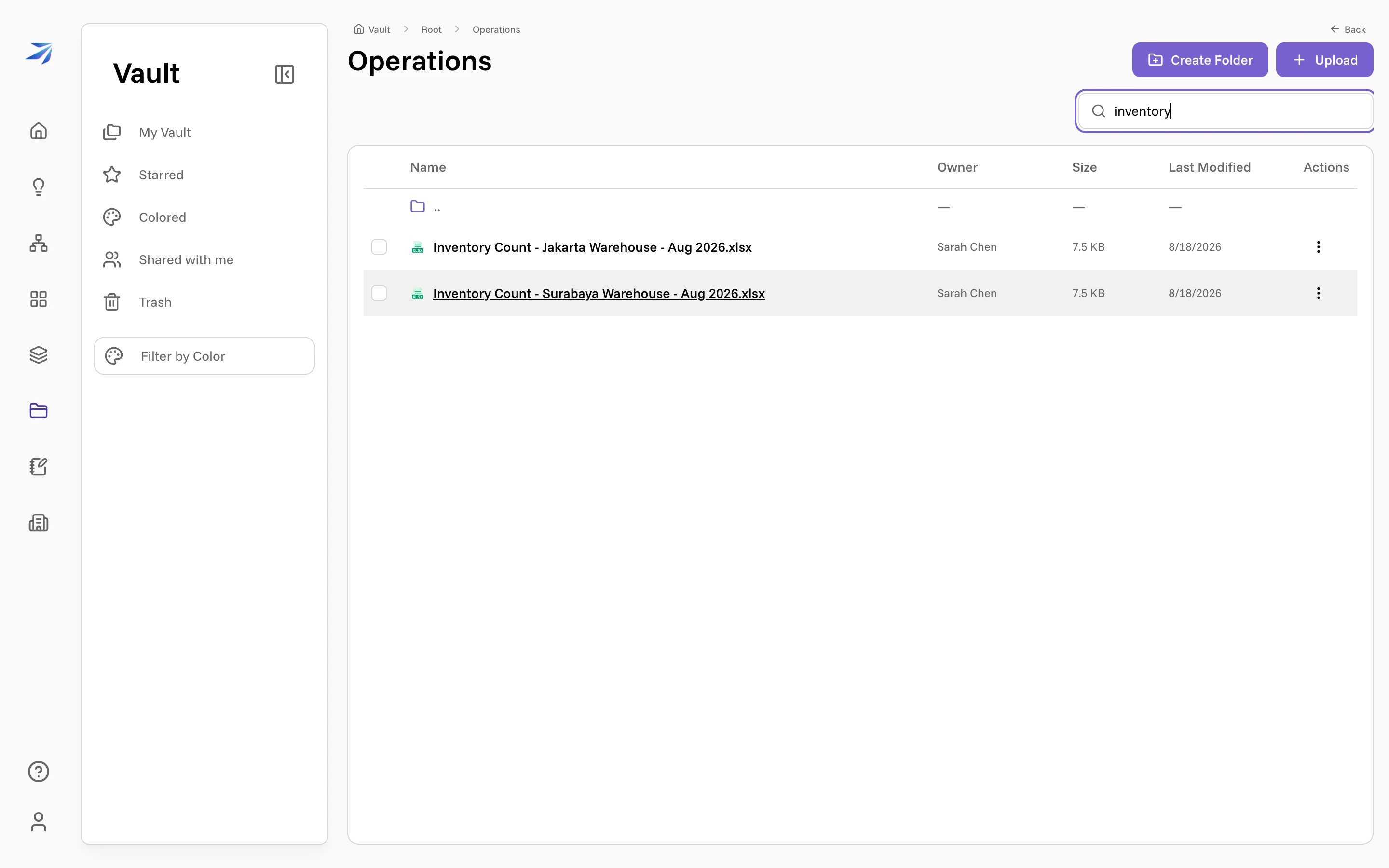
That's a name filter, and it's deliberately fast and literal. When you need to find files by what's inside them — "the agreement with the NET 45 payment terms" — ask Corint instead — it reads the document contents, not just the names.
Previewing files
Double-click a file and it opens in a preview overlay — no download, no switching apps. The overlay's top corner has Download and Share buttons, and the right-click menu's Open in new tab gives the same view its own browser tab, handy for keeping a reference document open while you work.
What you see depends on the file:
- Markdown renders as a formatted document, tables included.
- Text and code display with syntax highlighting.
- PDFs open in a page-by-page viewer with zoom.
- HTML renders as the page it describes, with a switch to read the source instead.
- Zip archives list what is inside them, names and sizes, before you extract anything.
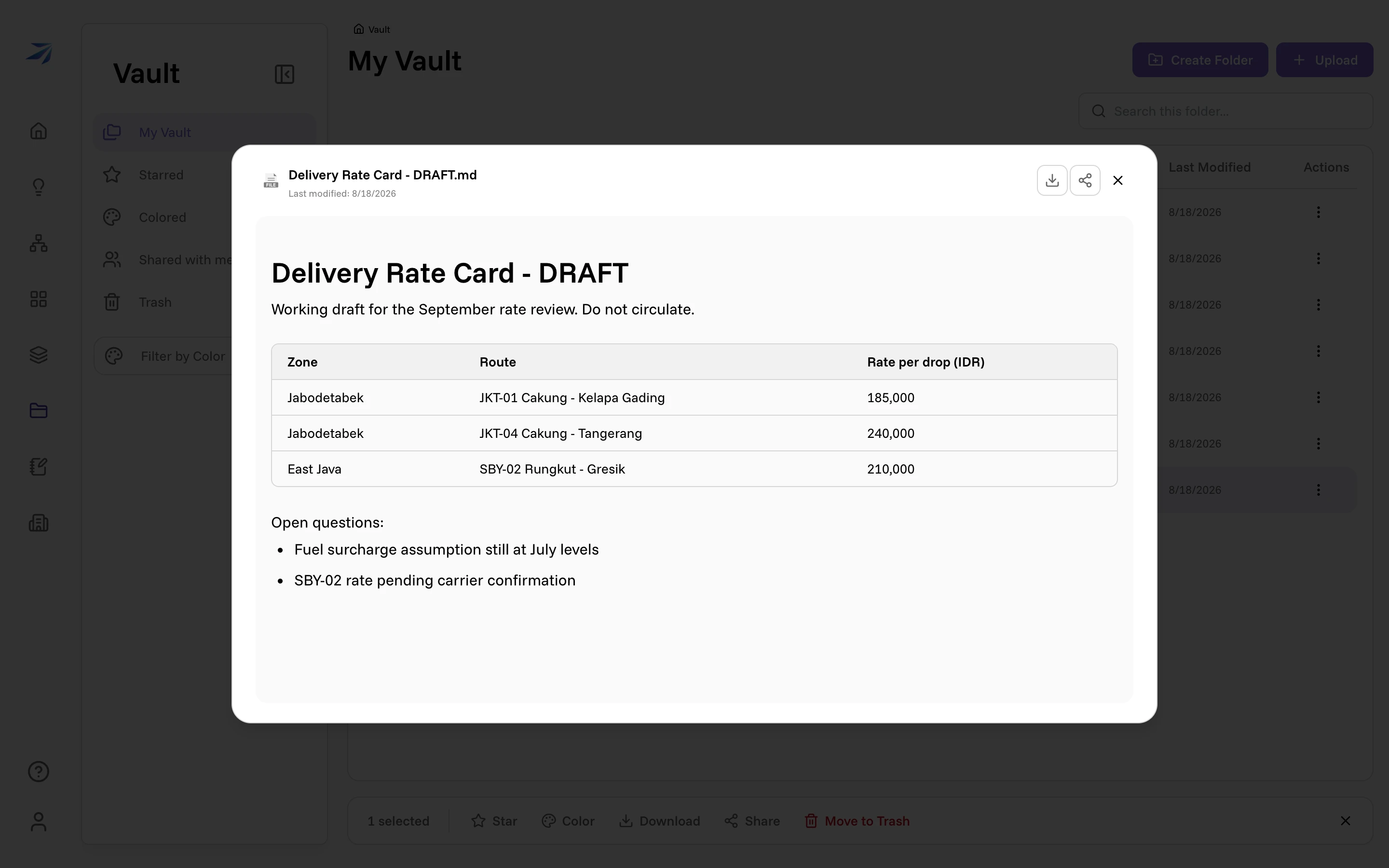
Office files open in a real editor
Word, Excel, and PowerPoint files (.docx, .xlsx, .pptx, and their older cousins) don't get a flat preview — they open in an embedded office editor, read-only at first:
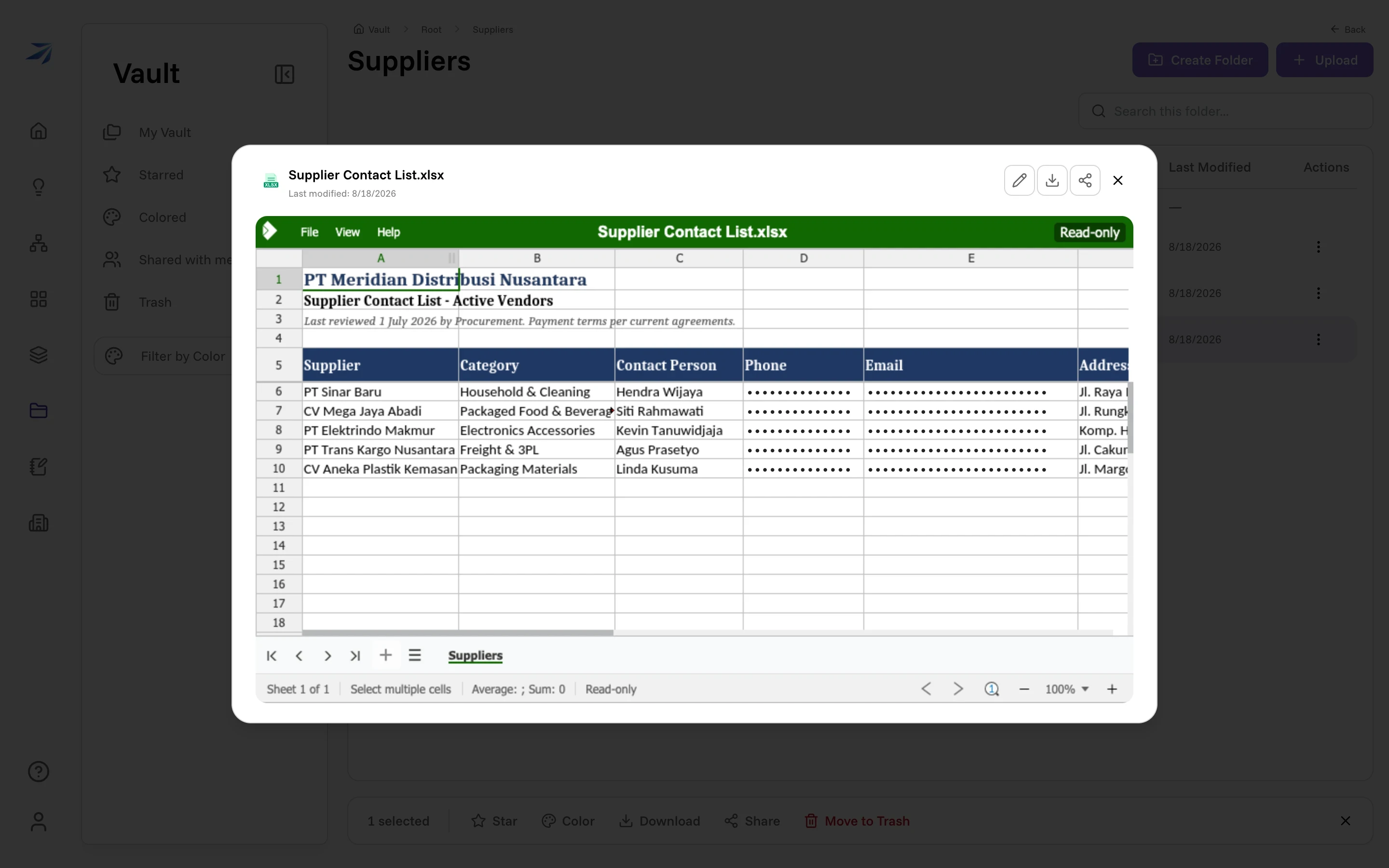
Click the pencil icon in the overlay's corner and the document opens for real editing — full ribbon, formulas, formatting — right in the browser. Changes save back to the Vault, so the copy your teammates see is always the one you just edited.