Builder chat and recommendations
Describe the dashboard you want and let it build itself, then let it tell you what the numbers mean.
Two parts of a dashboard talk back. The builder chat takes a description and turns it into widgets and layout. Recommended Actions reads the finished dashboard and tells you what it thinks you should do about it. Neither replaces writing widgets by hand — both save you from the fiddly parts.
Describe your dashboard
Turn on Edit Mode and a chat panel opens down the left side of the page, headed Describe your dashboard — "Tell me what you want to visualize and I'll build the widgets for you."
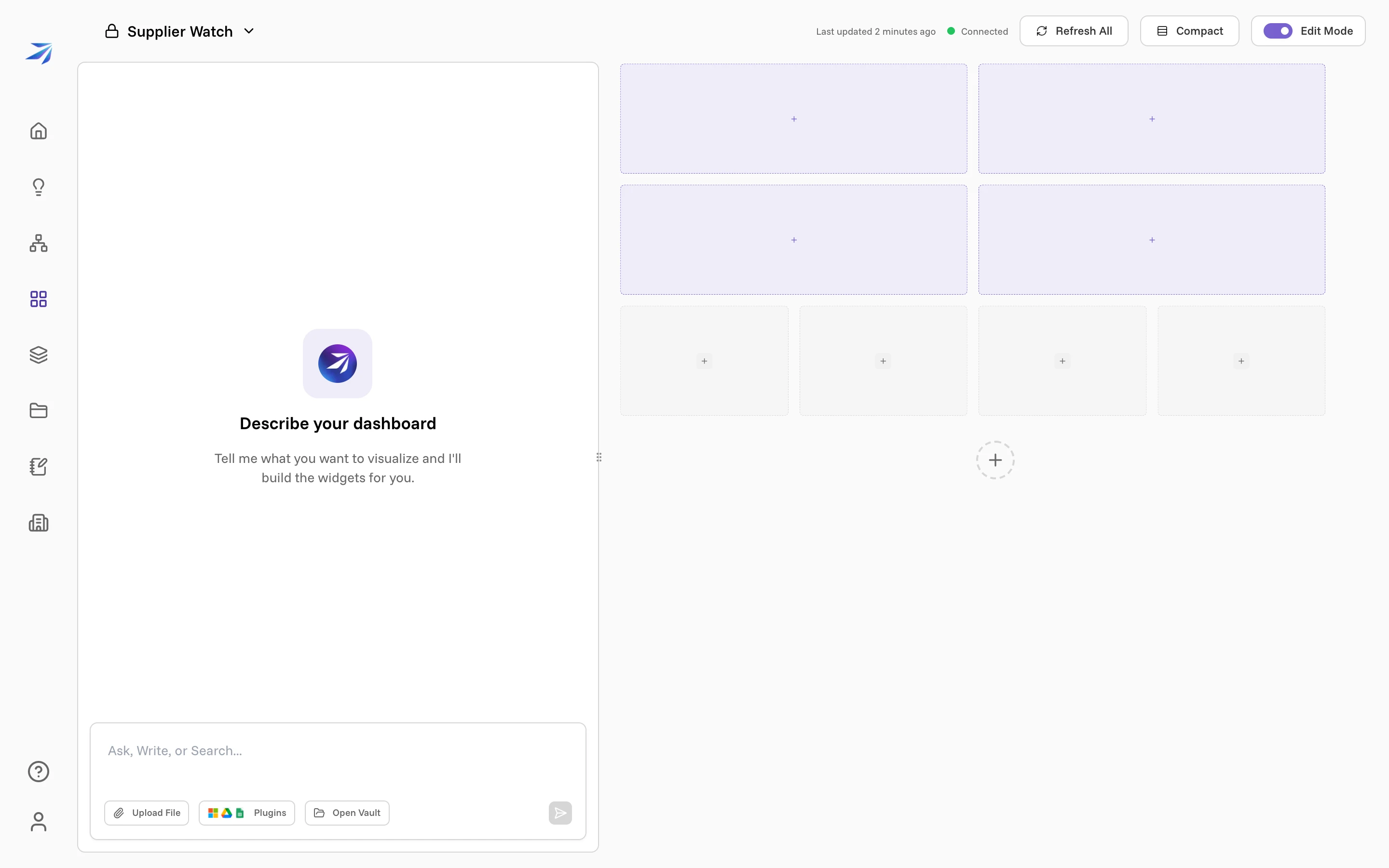
Type what you want in the composer at the bottom. The builder can read the dashboard as it currently stands, add widgets, move and resize what is already there, restructure the layout wholesale, and refresh everything once it has finished. Its steps appear in the chat as it works, so you can see which decision produced which widget.
Ask for a donut chart showing how our suppliers split across payment terms and
it checks the grid first. If nothing fits, it says so rather than dropping the
widget somewhere unhelpful:
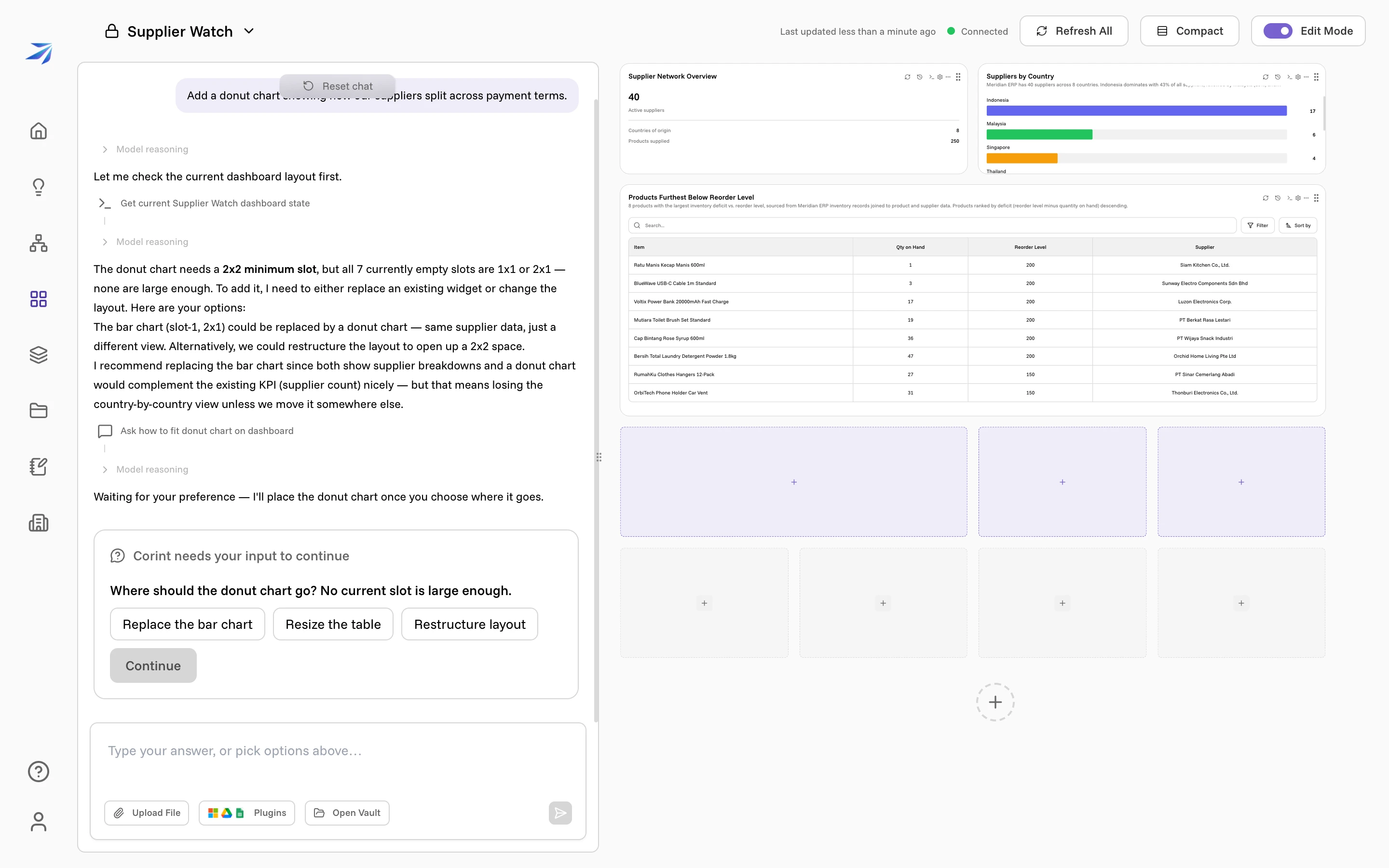
Corint needs your input to continue — Where should the donut chart go? No current slot is large enough. Underneath are the options it can see: Replace the bar chart, Resize the table, Restructure layout. Pick one and press Continue, or ignore the buttons and type your own answer in the composer, which now reads Type your answer, or pick options above…
Choose Restructure layout and it plans the new grid, explains the plan in the chat, applies it, and refreshes every widget with live data — then reports exactly what changed and where each widget went.
Reset chat, at the top of the panel, clears the conversation. It does not undo anything the builder already built; widgets it created stay, and you delete or edit them the usual way.
Two things worth knowing. The builder works on the dashboard you have open, so it can rearrange widgets you made by hand — read its plan before pressing Continue if the layout matters to you. And a restructure re-runs the widgets, so an answer can come back phrased differently than before, even from the same prompt.
Recommended Actions
Every other widget answers a question you asked. Recommended Actions answers one you did not: given everything else on this page, what should someone do?
Add it like any other widget — + in an empty slot, then Recommended
Actions in the type list — and give it a brief instead of a question, such as
Supply risks and cost-saving opportunities in our supplier base and inventory.
A dashboard can hold one of these, and it wants space: three or four columns
wide and two rows deep.
Until the rest of the dashboard has run, it sits empty: No recommendations yet — Recommendations are generated when widgets refresh and find actionable insights. Once the other widgets have data, it fills.
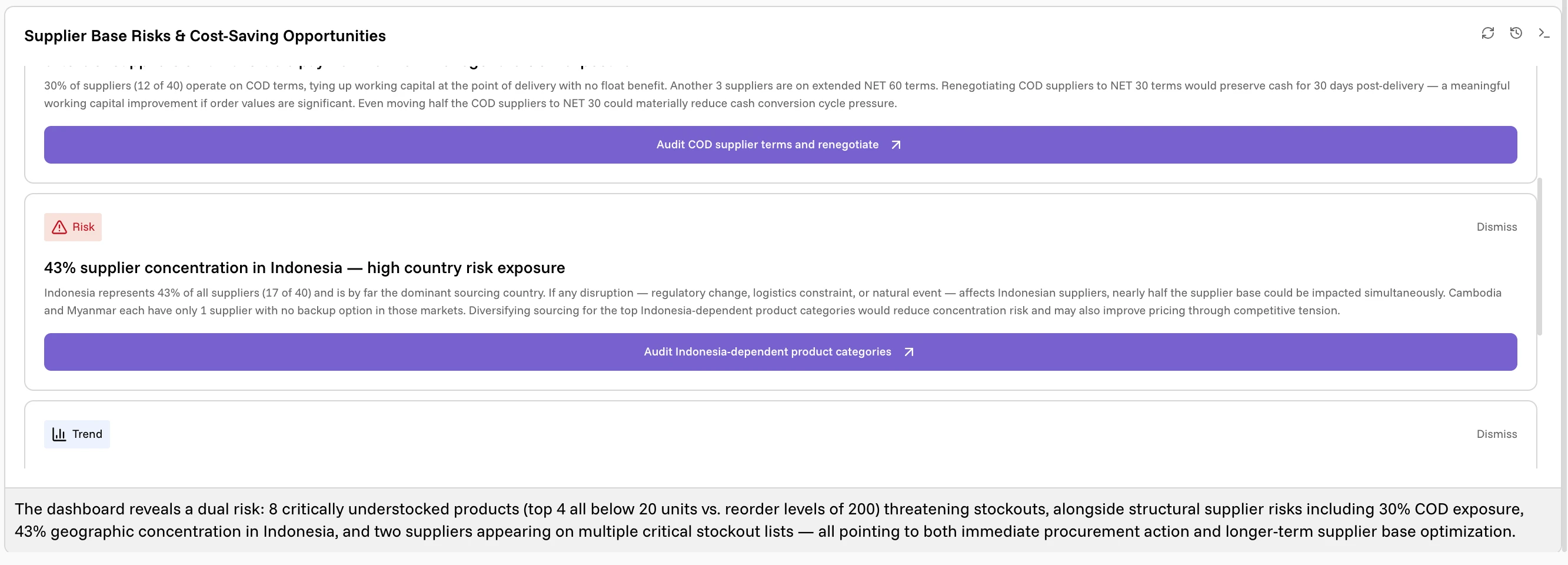
Each card carries a category chip — Risk, Trend, Opportunity, whatever fits — a one-line finding, the reasoning behind it, and a button naming the action. Dismiss, top right of the card, removes one you do not want to see again.
The findings are drawn from the widgets on the page, so they cite real figures: Indonesia represents 43% of all suppliers (17 of 40) and is by far the dominant sourcing country… Cambodia and Myanmar each have only 1 supplier with no backup option in those markets.
The action opens a chat
Clicking the button starts a Corint conversation that already knows the finding, the numbers behind it, and what the widget was looking at, and opens it in a panel beside the dashboard.
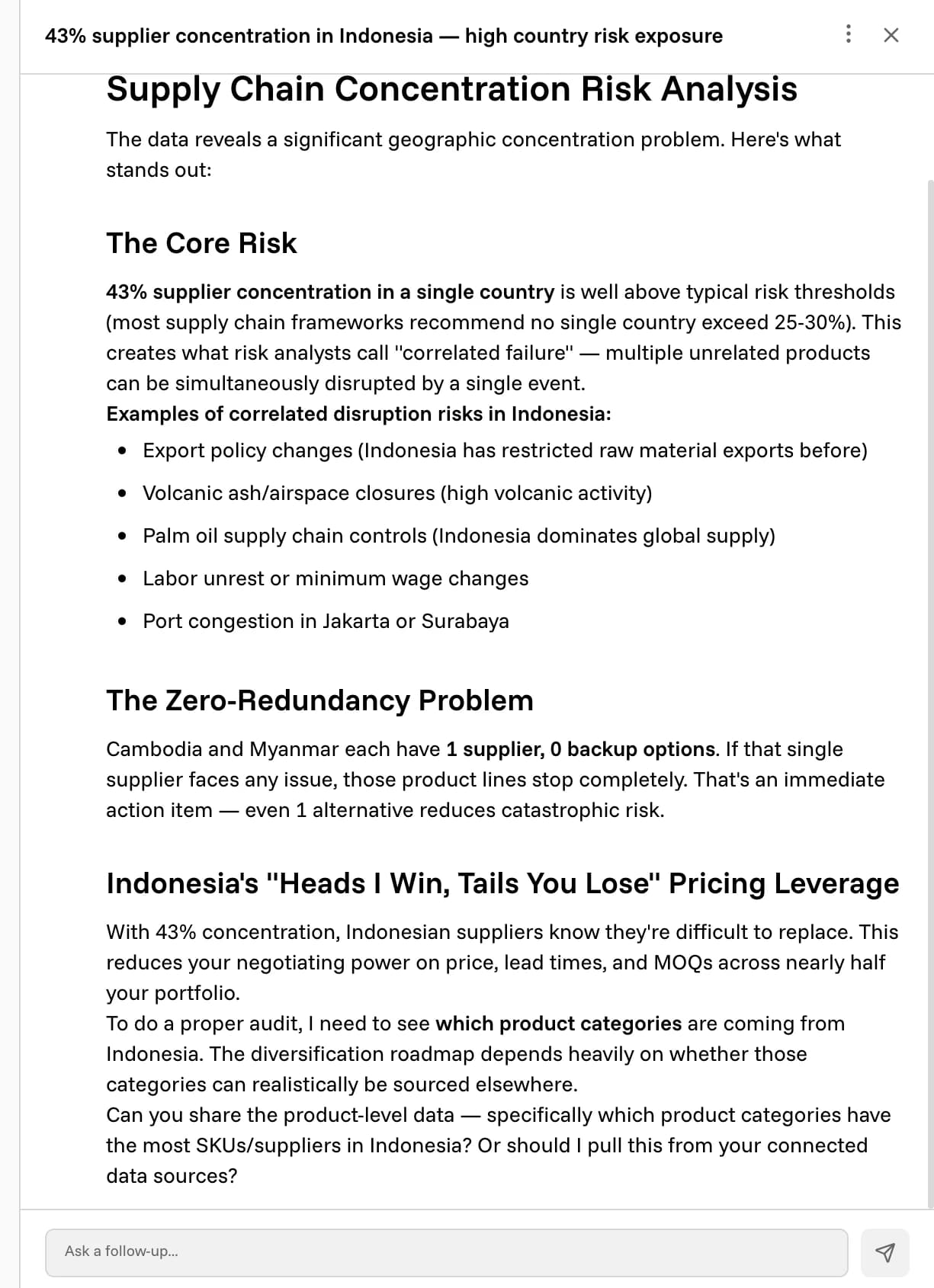
The panel is titled with the recommendation, and the composer at the bottom reads Ask a follow-up… — Corint can go further into the data, draft the email, or build the document, exactly as it would in any other chat.
Once you have acted on a card, its button changes to Continue Chat and reopens the same conversation.