Connecting an integration
Connect a service to Corint end to end — read what it asks for, sign in, use it in a chat, and disconnect it again.
Connecting takes about two minutes and you only do it once. This page walks a real one: GitHub, which lets Corint pull issues and pull requests out of your repositories. Every other per-person integration in the catalog (Gmail, Slack, Notion, HubSpot, Google Drive) follows the same three moves, so pick whichever service you actually use and read along. If the service you need isn't in the catalog at all, you can build the integration yourself — see Your first integration!.
Before you start
You need your own account on the service you are connecting. The screenshots come from Meridian Distribution, a fictional distributor we use throughout these docs.
Find it in the catalog
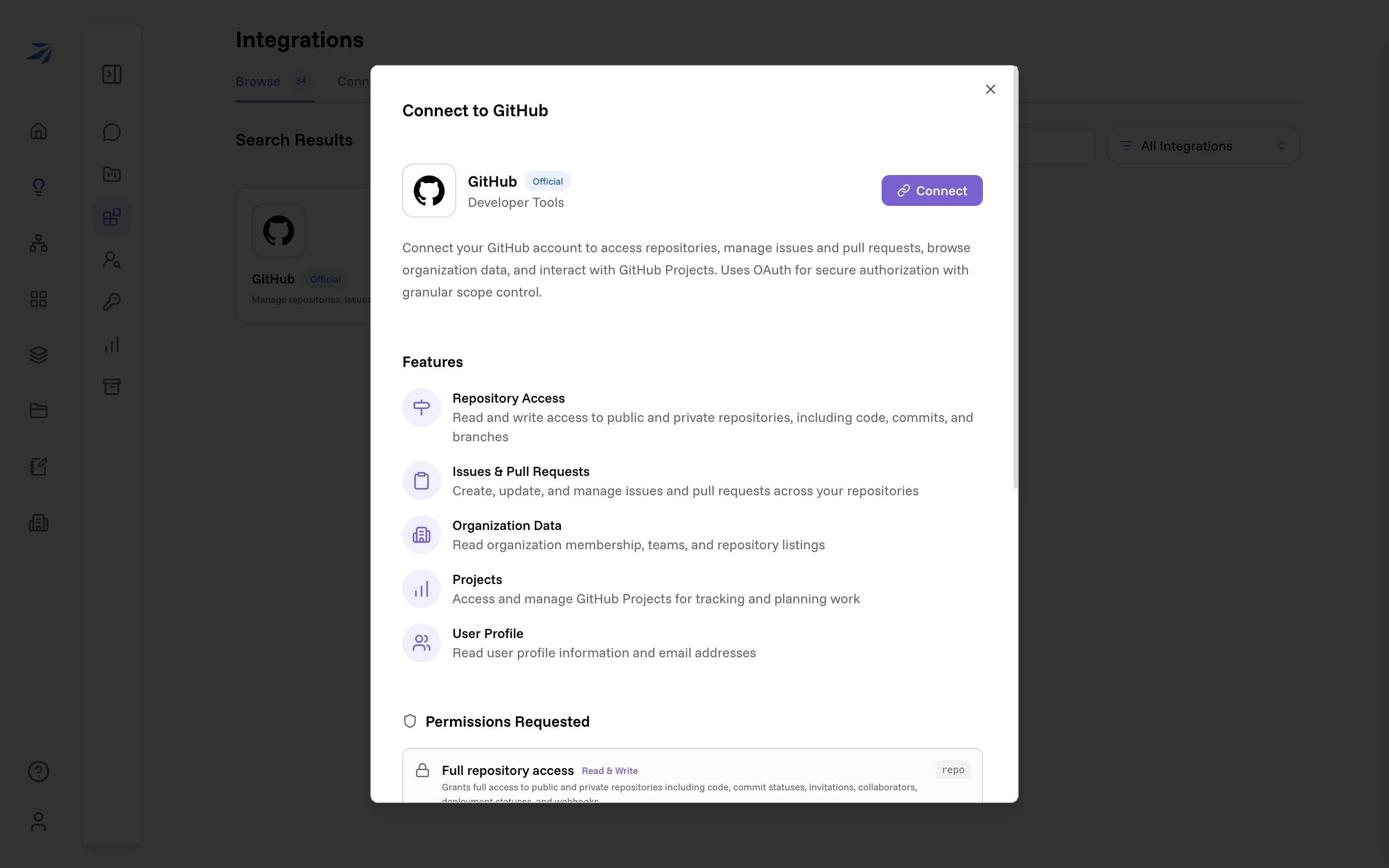
Click Integrations in the Corint sidebar and type the name into Search Integrations. Click the card to open it in full.
Read what it will be able to do
Features is the plain-language version: repositories, issues and pull requests, organization data, projects, user profile. Permissions Requested is the precise version — the scopes the service will actually grant, each labelled Read or Read & Write, with a link to the service's own documentation for that scope.
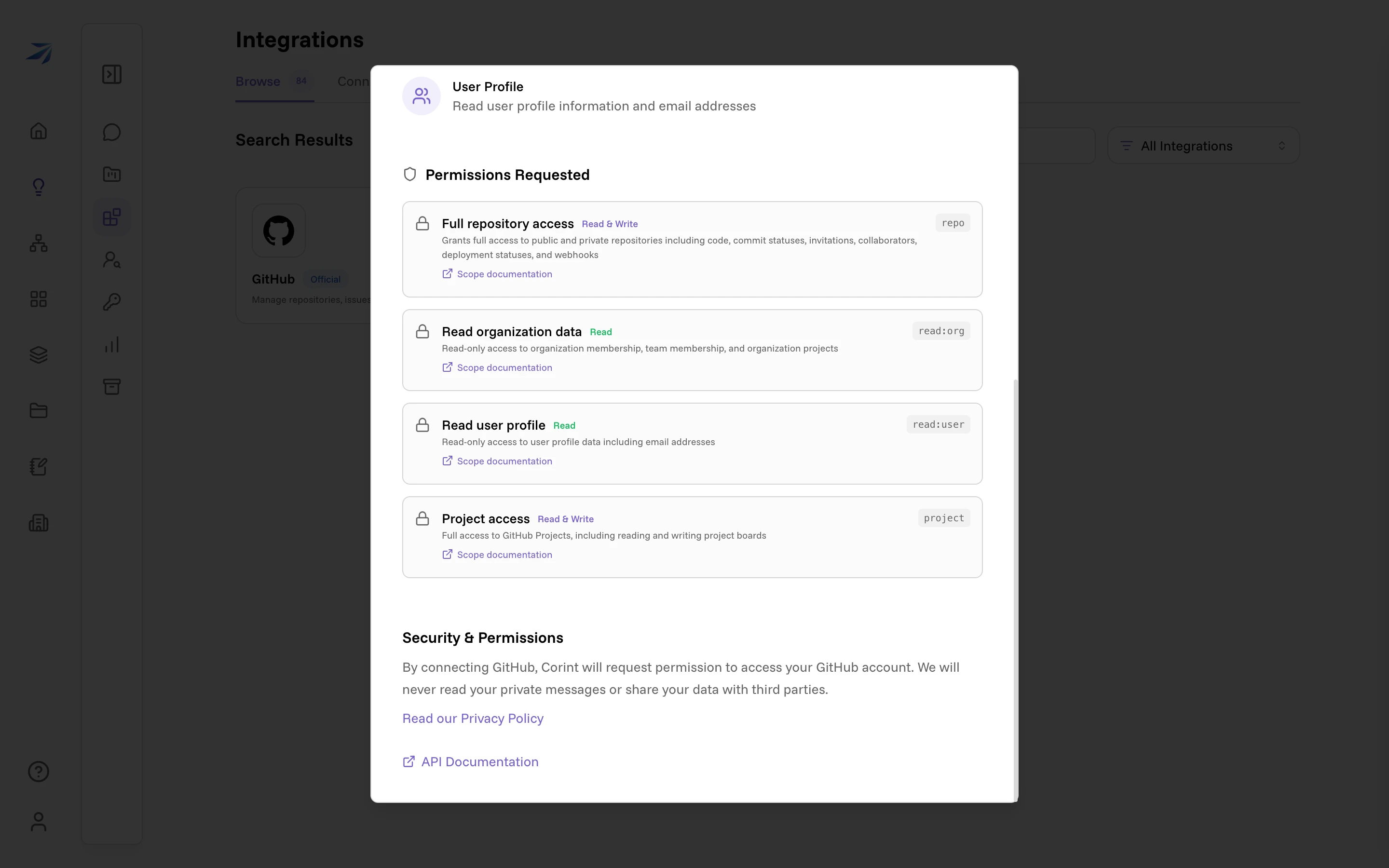
This is the part worth slowing down for. GitHub's repo scope is read and
write across every repository your account can reach, so the connection can act
on private code, not just look at it.
Connect and sign in
Press Connect. A window opens on the service's own site — for GitHub, its sign-in page, naming the application it is about to authorize:
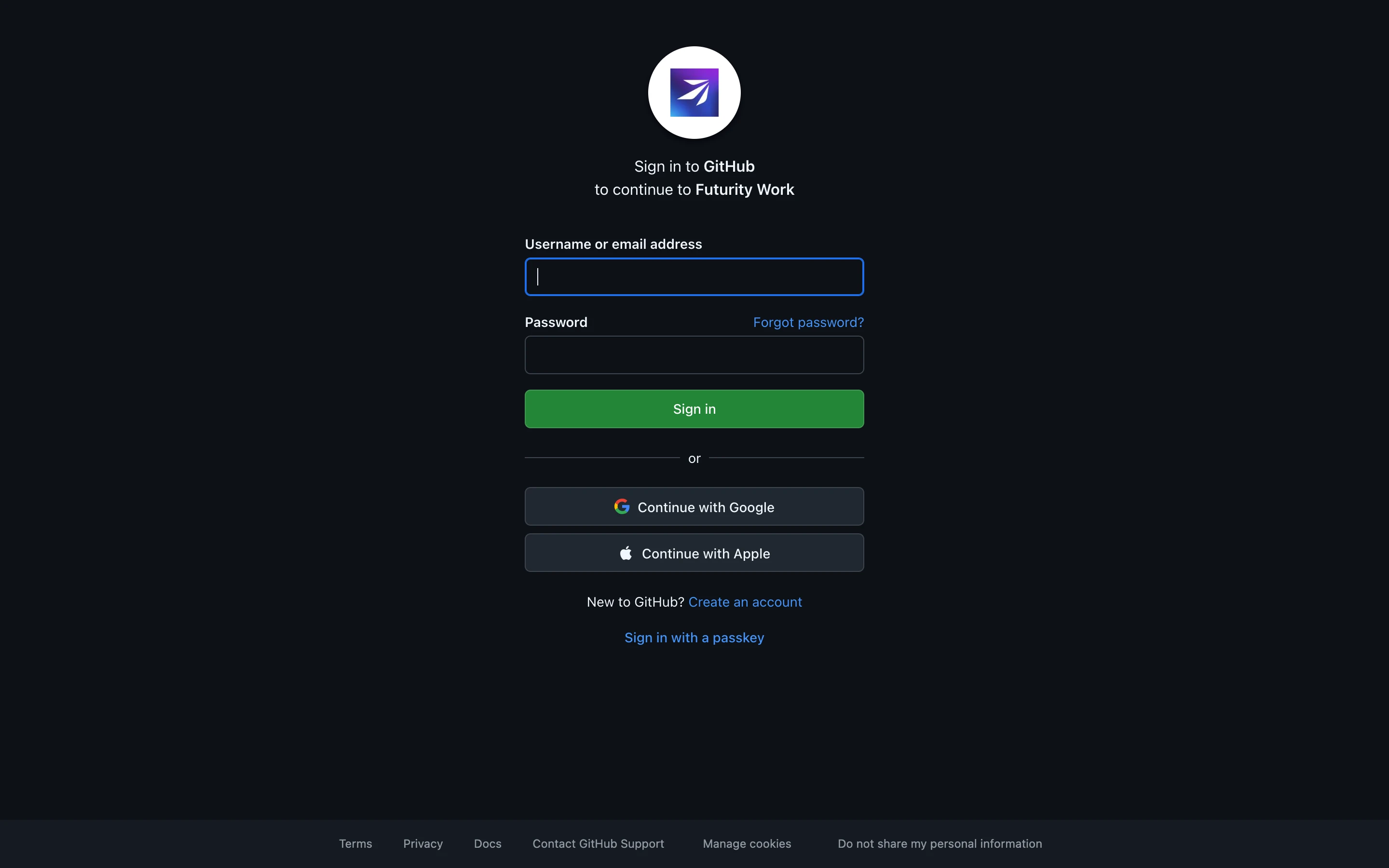
From here the flow belongs to the service. Sign in, review the access it lists, and approve. The window closes itself, a toast confirms the connection, and the integration moves to the Connected tab. Cancel instead and nothing is saved — the card stays exactly as it was.
The connection is yours, not the company's: it authenticates as your account and reaches what your account can reach. A teammate who wants the same integration connects their own.
Integrations that need no account
Some cards open on an Enable button rather than Connect. Those are the public data sources — Wikipedia, SEC EDGAR, weather, maps, government statistics. Press Enable and it is connected: no sign-in, no key to paste, nothing to fill in.
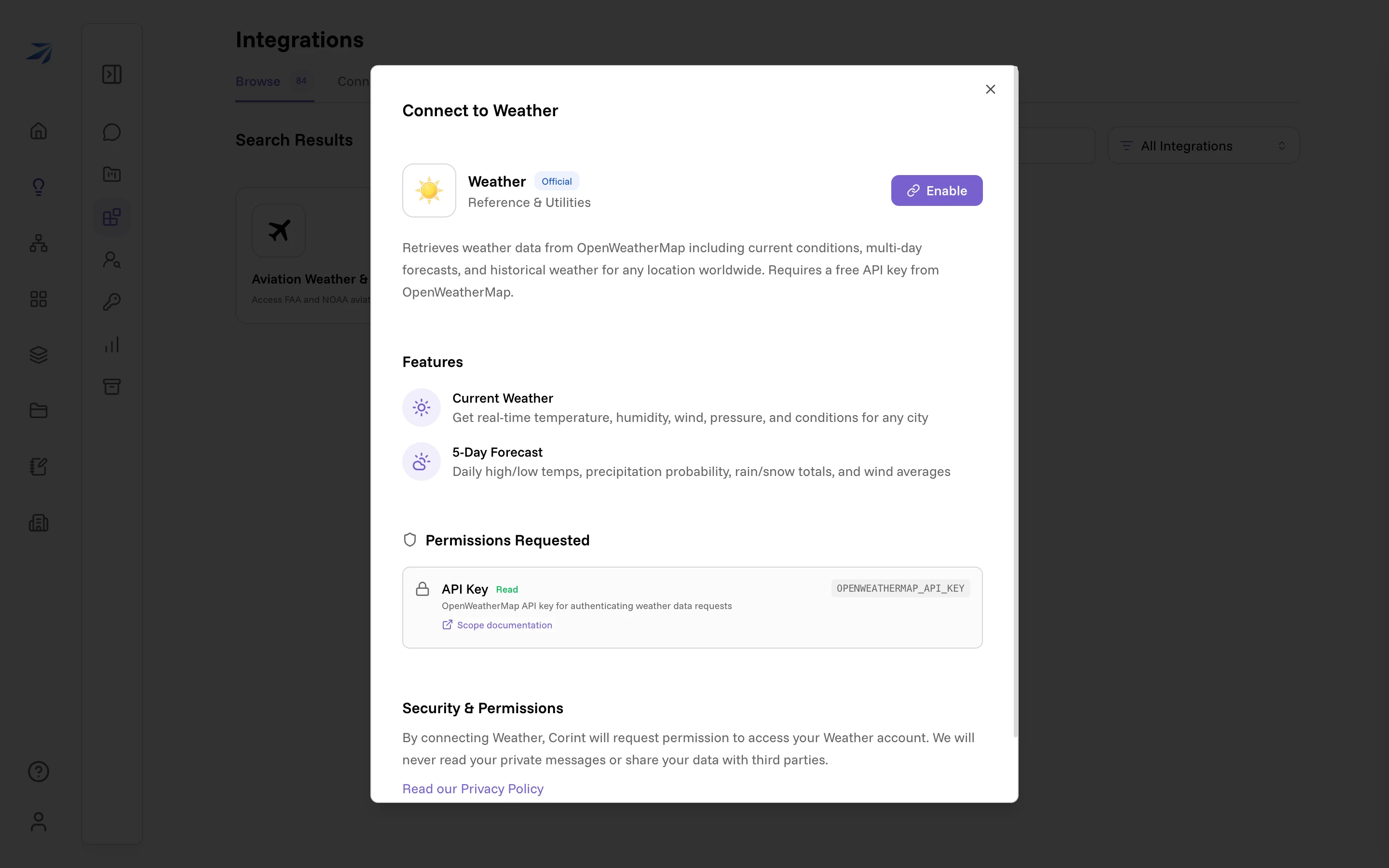
The panel still names a credential — "Requires a free API key from
OpenWeatherMap", and an OPENWEATHERMAP_API_KEY under Permissions
Requested. That key belongs to the platform and is already in place; the
listing tells you what the integration uses, not what you have to supply.
Weather is a good one to try if you want the whole loop in front of you right now, and the rest of this page follows it.
Where connections live
The Connected tab lists everything you have connected, with the count
beside the tab name. Connections you can manage carry Disconnect where an
unconnected card carries Connect. Organization connections show Connected
when you do not have the manage:integrations permission.
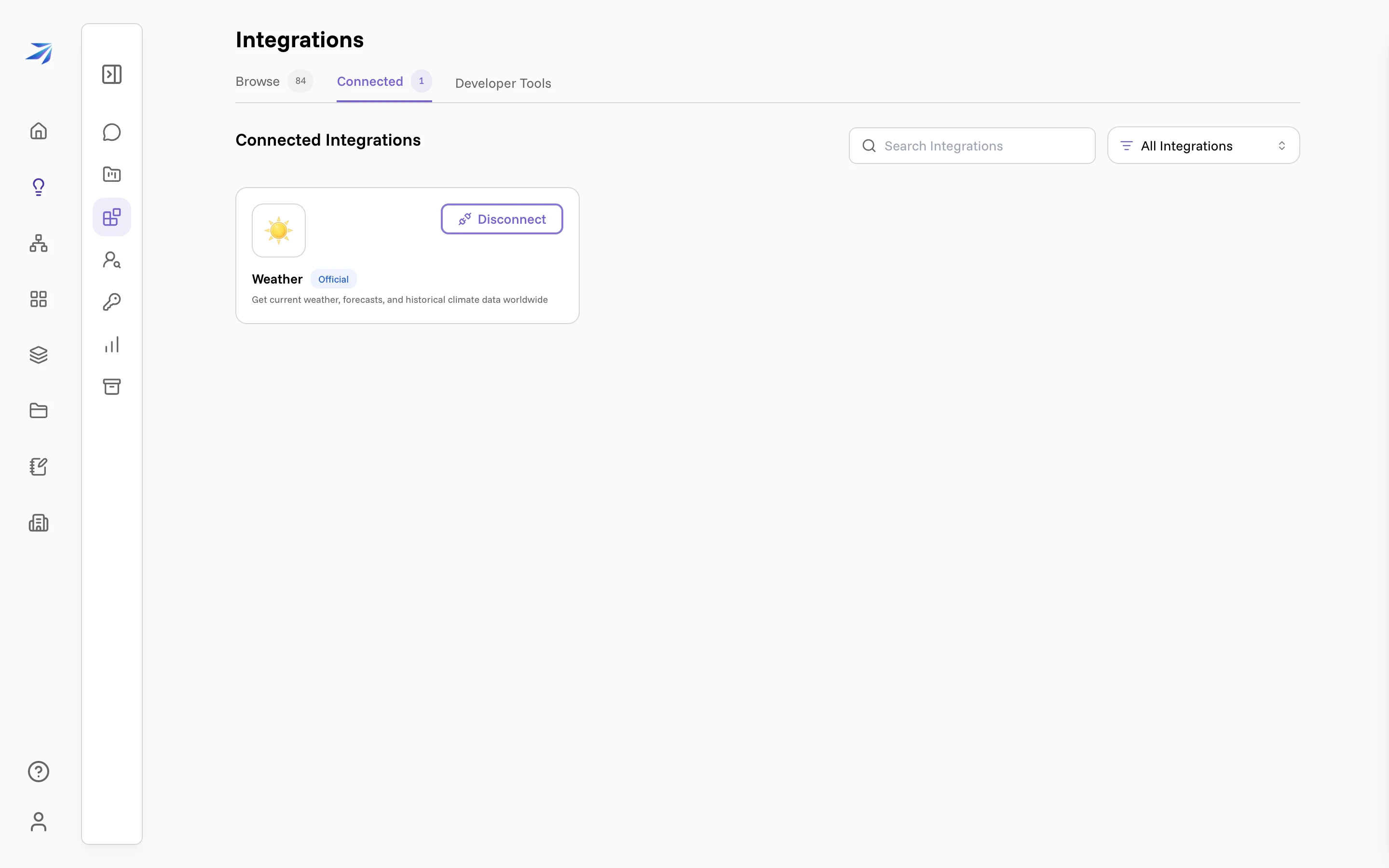
Organization-wide connections appear here too, configured by an admin rather than by you. Organization integrations covers those.
Using it
Nothing else to switch on. Ask for what you want, and Corint loads the integration when the request needs it:
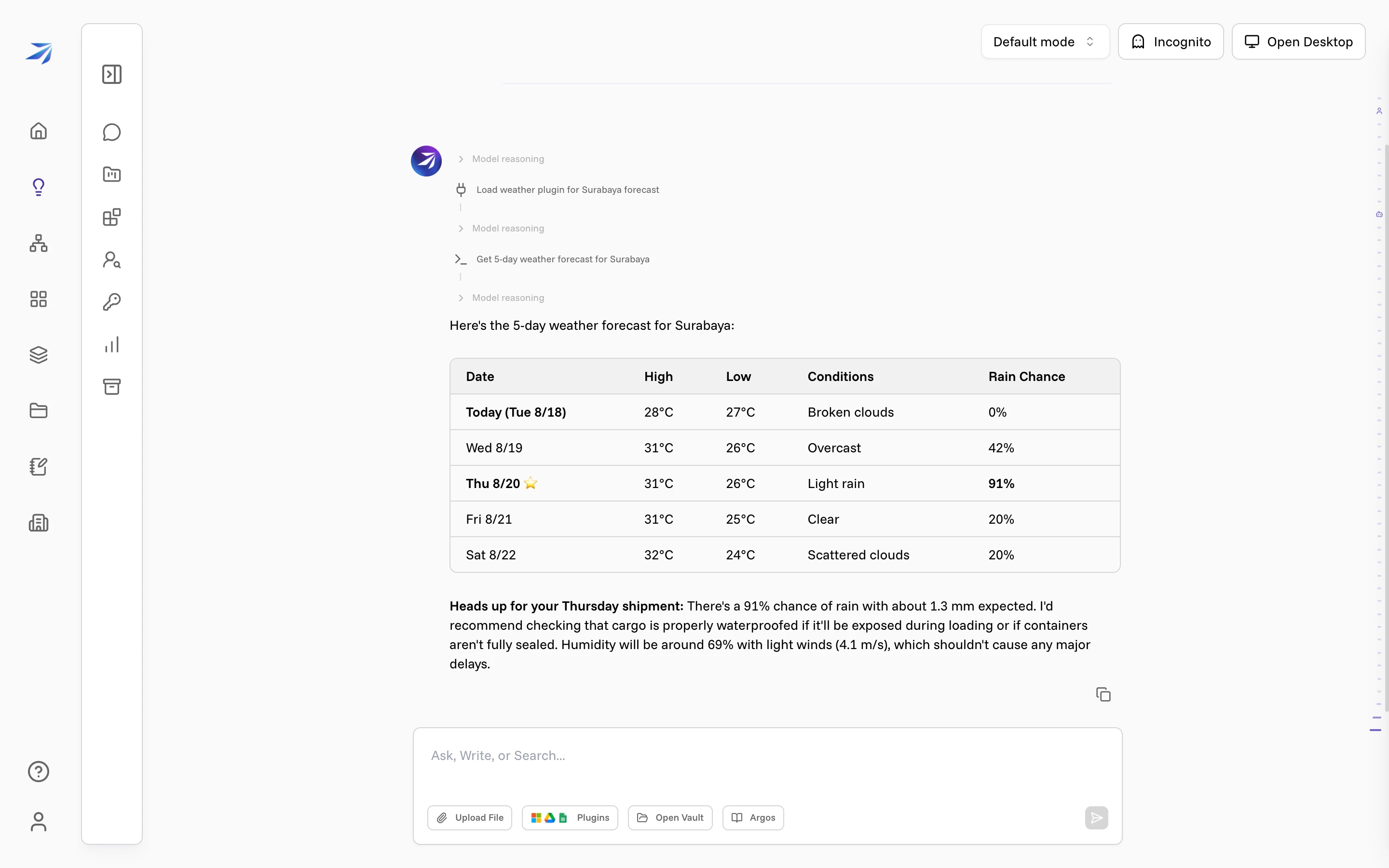
The step line Load weather plugin for Surabaya forecast is the connection being used. Before running a tool from a connected integration, Corint can stop and ask, offering Allow once, Allow for chat, Always allow, or Deny. Tool permissions explains when it asks and how to change that.
Changing or removing a connection
Open the card again from the Connected tab. The panel is now headed Manage Weather rather than Connect to Weather, and the button in the corner is Disconnect.
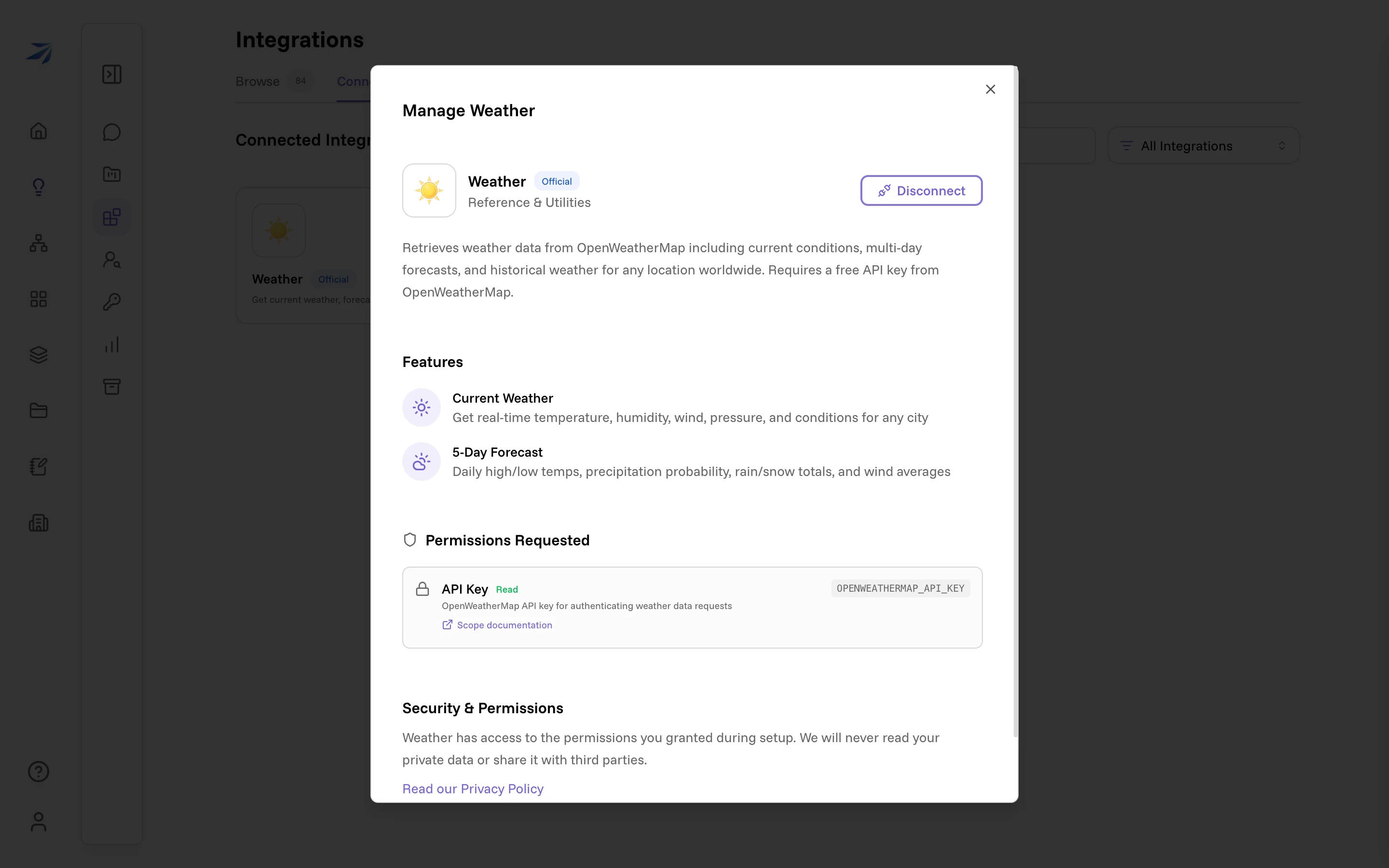
Disconnecting removes the stored credentials and the tools stop appearing in your chats and workflow steps. It changes nothing on the service's side, and nothing in your organization — only your own connection goes. Reconnecting later is the same three moves again.
Where to go next
Organization integrations
Enterprise systems connected once, for everyone in the company
Tool permissions
Decide what Corint may do with a connection before it does it
Build your own
Wrap a service the catalog doesn't cover as your own plugin
Your first workflow!
Put a connected integration to work on a schedule