Collaborating in Argos
Sharing spaces and commenting on pages.
Sharing is what turns an Argos space from your own notes into something the team relies on.
Sharing a space
A new space starts private — only you can see it, even inside your own organization. To open it up, click Share on the space.
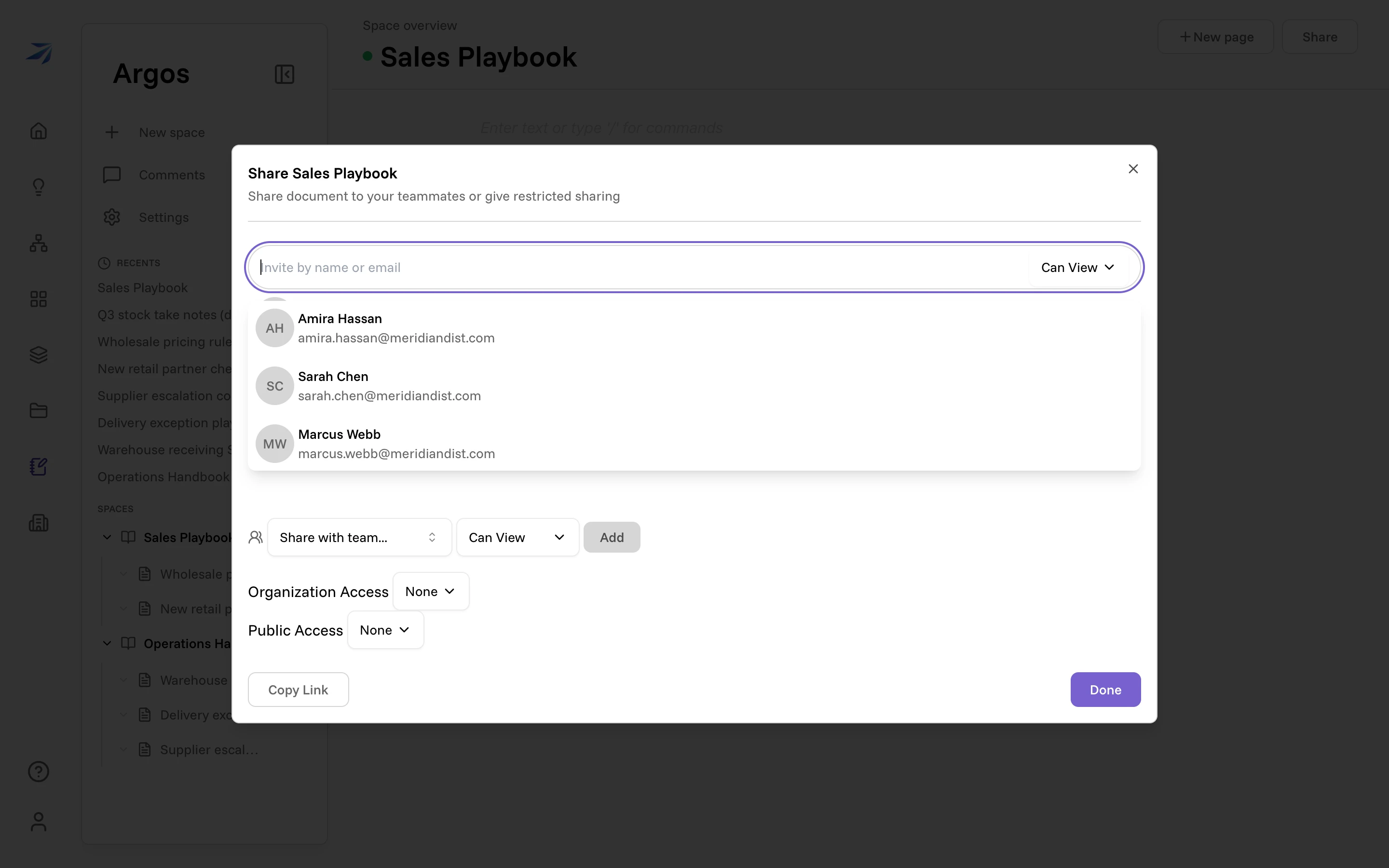
The dialog offers four levels, from narrow to broad:
- Invite by name or email — share with specific people, each as Can View or Can Edit.
- Share with team — grant a whole team access at once.
- Organization Access — one setting that covers everyone in your organization. For a handbook the whole company should read, this is usually the right tool.
- Public Access — anyone holding the link, Can View only. Nothing higher is offered, and the server refuses an edit grant on a public link outright.
Copy Link gives you the space's URL to paste into a chat or an email.
Pages inherit their space's access by default — the Inherit access switch in every page header. Turn it off on a page that needs its own, narrower audience, and share that page directly instead.
Editing together
Page content is saved through the live editor and synchronized through the server, so separate tabs and devices converge on the same document. If the connection is interrupted or a burst of updates exceeds the collaboration limits, the editor reconnects and resynchronizes with the shared page.
Comments
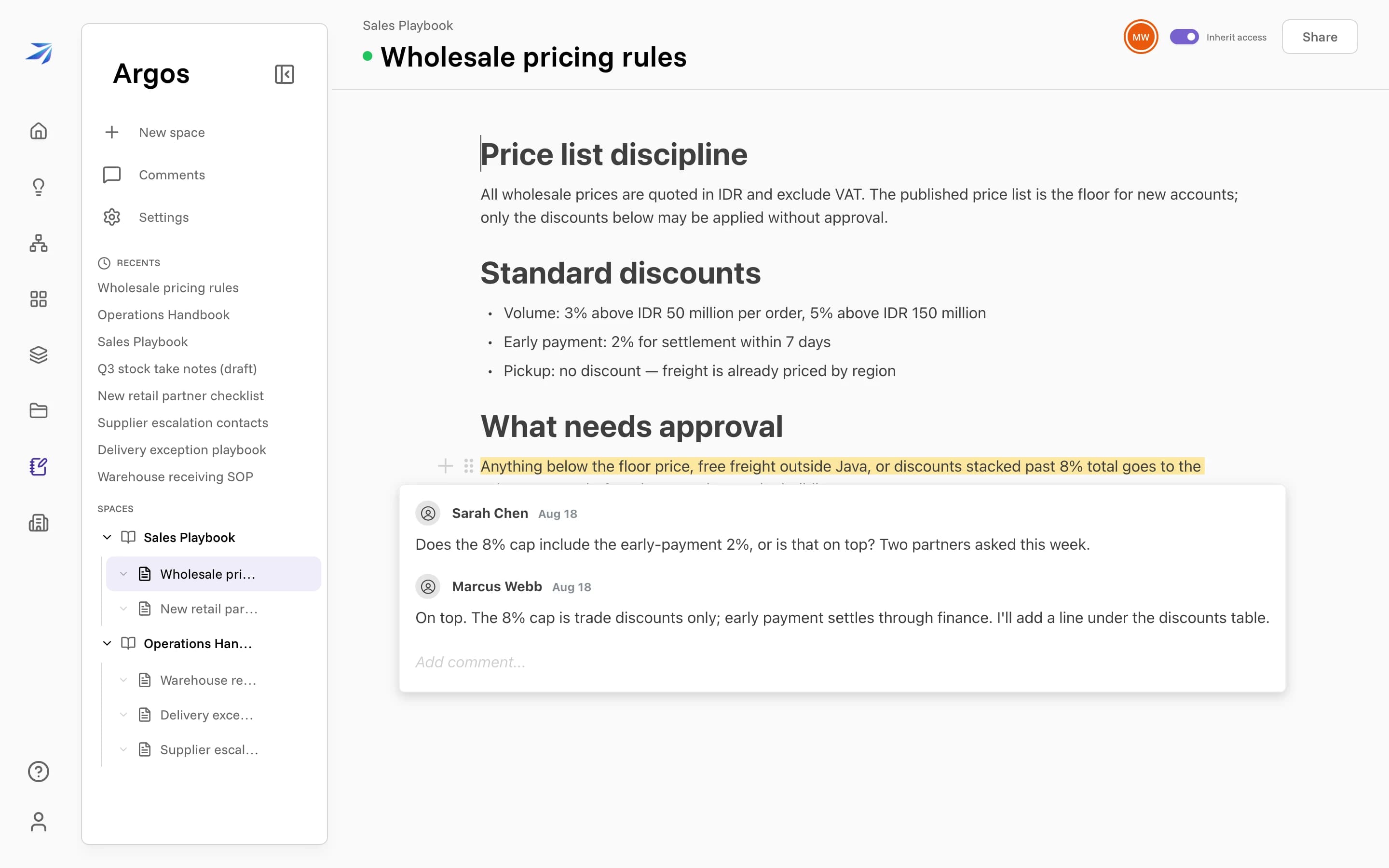
To comment on something specific, select the text and click Add comment in the toolbar that appears. The selection stays highlighted on the page, and the thread anchors to it — anyone with access can click the highlight to read or reply.
The Comments inbox
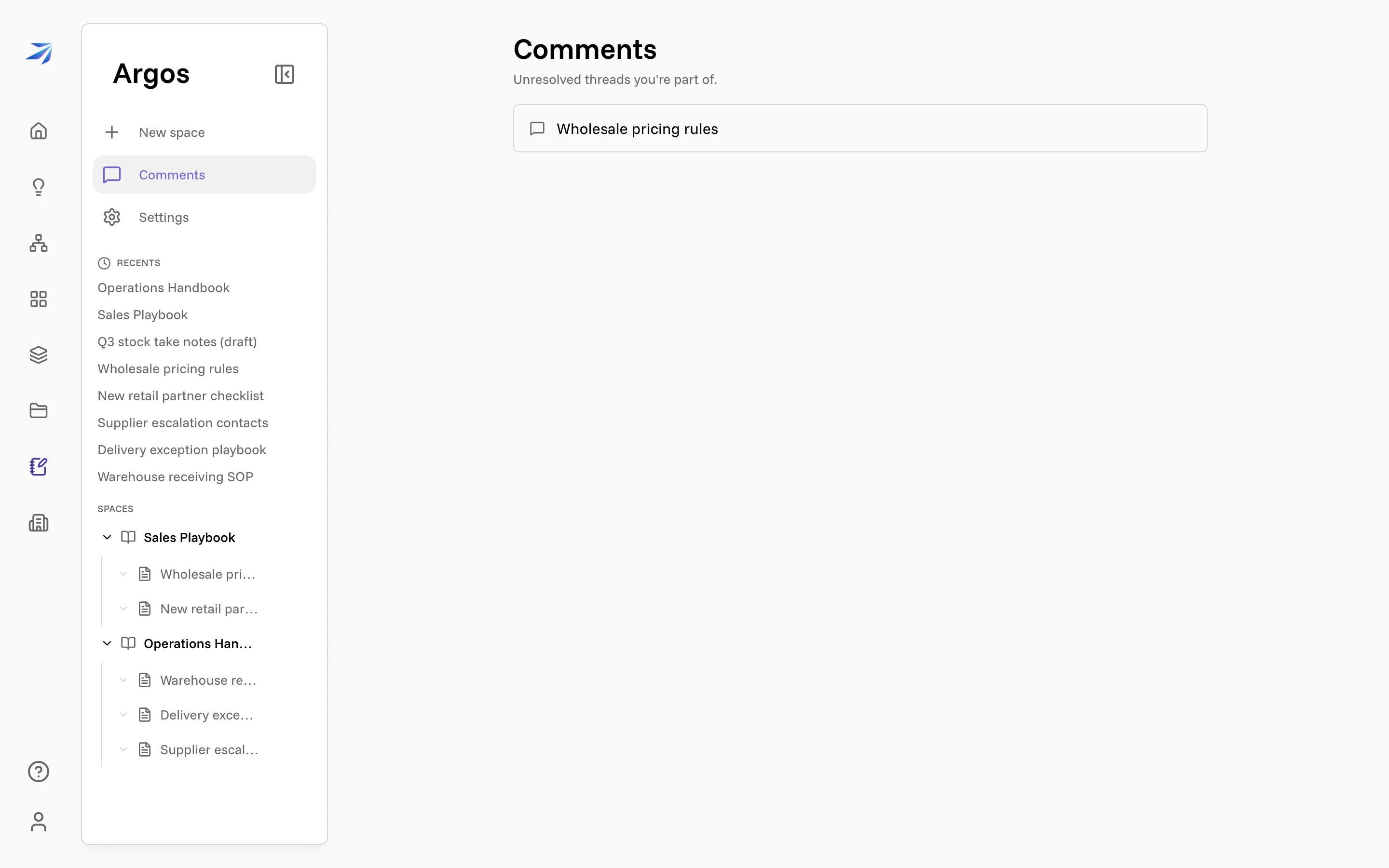
Comments in the Argos sidebar collects every unresolved thread you're part of, across all spaces. Click an entry to jump to the page it lives on. When the inbox is empty, nothing is waiting on you.
Managing pages
The … menu on any page in the sidebar handles the housekeeping: Rename, Duplicate, Move to…, Copy link, Share, and Delete. The same menu can mark a page Set as default, which makes it the page Argos opens to — see the Landing settings in Argos with Corint.
Trash and recovery
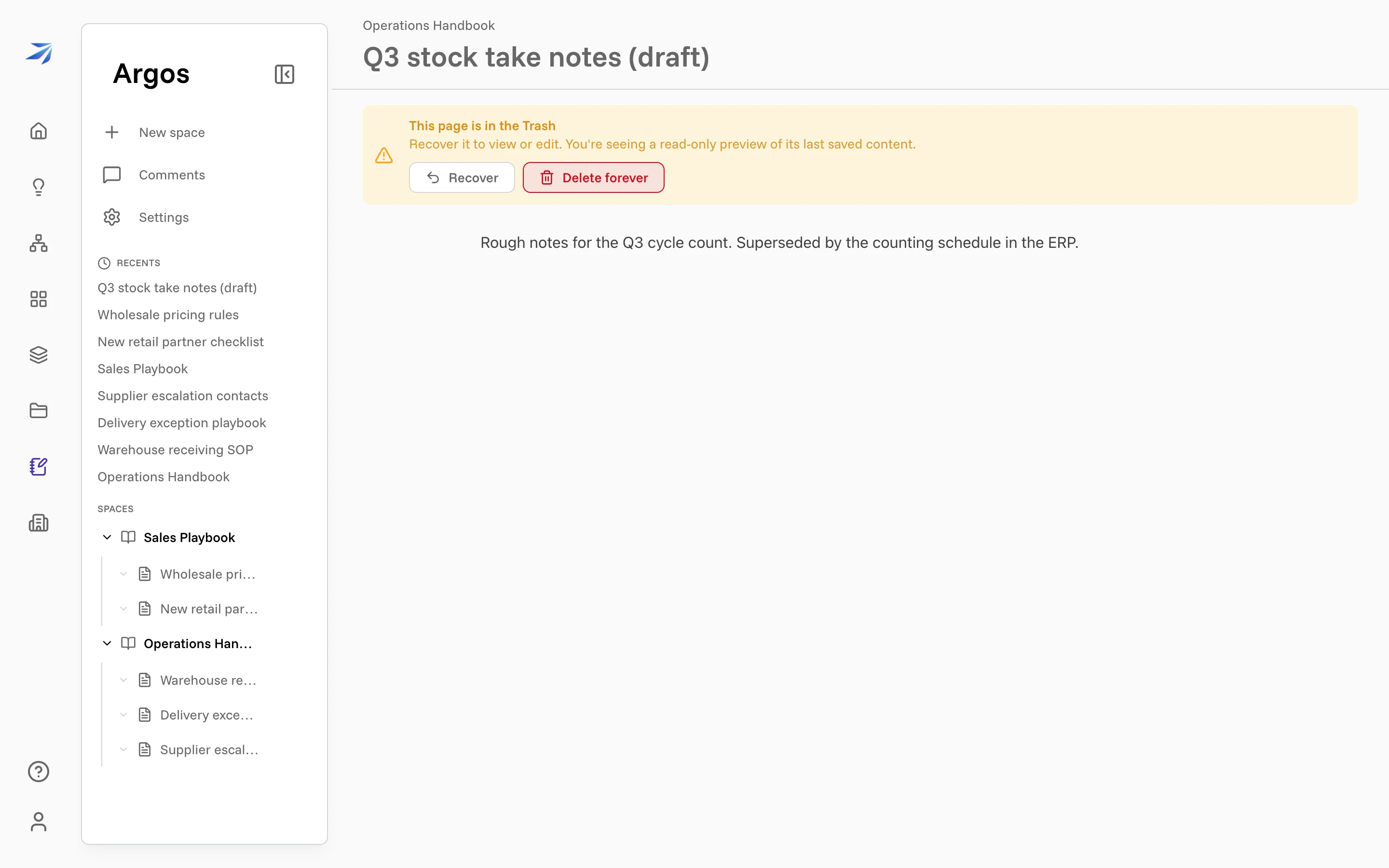
Deleting a page moves it to the trash rather than destroying it. A trashed page stays readable — you see its last saved content with a banner offering Recover and Delete forever.
Deleted spaces work the same way, from their own list: Settings → Trash shows every deleted space, with the same choice to restore it or remove it permanently.